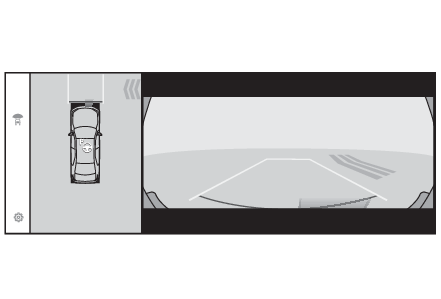
Toyota Teammate Advanced Park**If equippedFunction descriptionThe Advanced Park is a system which assists in a safe and smooth parking or exiting
from a parking space by displaying the blind spots around the vehicle and the target
parking spot through a bird’s eye view, delivering operation guidance through displays
and buzzer operation, and changing the shift position, operating the steering wheel,
accelerator pedal, and brake pedal.Additionally, the panoramic view monitor* can display the area in front, behind, and from above the vehicle, helping confirm
the condition of the area around the vehicle.The turn signal lights will blink automatically when the parking assistance starts
until the vehicle reaches the target parking spot, to notify people around the vehicle
that parking is being performed.Depending on the condition of the road surface or the vehicle, the distance between
the vehicle and a parking space, etc., it may not be possible to assist in parking
in the target space.*For details on the panoramic view monitor refer to “
MULTIMEDIA OWNER’S MANUAL”.FunctionsPerpendicular parking (forward/reverse) functionAssistance is provided from the position the vehicle is stopped near the target parking
space until the vehicle is in the parking space. (Perpendicular parking (forward/reverse) function)Perpendicular exiting (forward/reverse) functionAssistance is provided from the parked position until the vehicle is in a position
where you can easily exit from the parking space. (Advanced Park perpendicular exiting (forward/reverse) function)Parallel parking functionAssistance is provided from the position the vehicle is stopped near the target parking
space until the vehicle is in the parking space. (Advanced Park parallel parking function)Parallel exiting functionAssistance is provided from the parked position until the vehicle is in a position
where you can easily exit from the parking space. (Advanced Park parallel exiting function)Memory functionAssistance is provided until the vehicle is guided into a previously registered parking
space. (Advanced Park memory function)Warning:Cautions regarding the use of the systemThe recognition and control capabilities for this system are limited. The driver should
always drive safety by always being responsible without over relying on the system
and have a understanding of the surrounding situations.As with a normal vehicle, take care to observe your surroundings while the vehicle
is moving.Always pay attention to the vehicle’s surroundings while the system is operating and
depress the brake pedal as necessary to slow or stop the vehicle.When parking, make sure that the vehicle can be parked in the target parking space
before beginning operation.Depending on the condition of the road surface or the vehicle, the distance between
the vehicle and a parking space, etc., it may not be possible to detect a parking
space or the system may not be able to provide assistance to the point the vehicle
is fully parked.This system will guide the vehicle to appropriate positions for changing the direction
of travel, however, if you feel that the vehicle is approaching too close to an adjacent
parked vehicle at any time, depress the brake pedal and change the shift position.
However, if this is performed, the number of times the vehicle changes direction may
increase, and the vehicle may be parked at an angle.As following objects may not be detected, make sure to check the safety of the area
around your vehicle and depress the brake pedal to stop the vehicle if it may collide
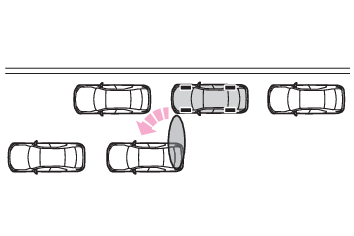
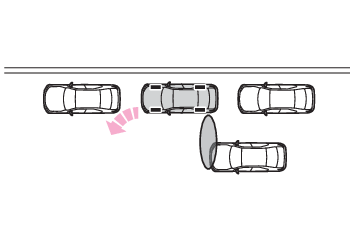
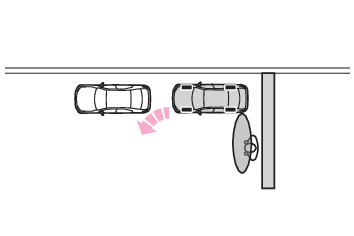
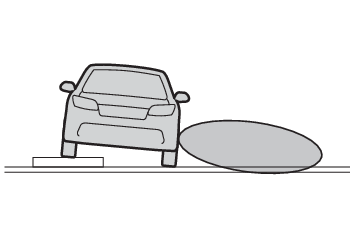
with an object.Wires, fences, ropes, etc.Cotton, snow and other materials that absorb sound wavesSharply-angled objectsLow objects (curb stones, parking blocks, etc.)Tall objects with upper sections projecting outwards in the direction of your vehicleEven if there is an object in the target parking space, it may not be detected and
assistance may be performed.While the system is operating, if it is likely that your vehicle will collide with
a nearby vehicle, parking block, object, or person, depress the brake pedal to stop
the vehicle and press the Advanced Park main switch to disable the system.Never use only the Multimedia Display to view the area behind the vehicle. The image
displayed may differ than the actual situation. Using only the screen when backing
up may lead to an accident, such as a collision with another vehicle. When backing
up, make sure to look directly or use the mirrors to check the safety of the area
around your vehicle, especially behind the vehicle.When the ambient temperature is extremely low, the screen may appear dark or the displayed
image may become unclear. Also, as moving objects may appear distorted or may not
be able to be seen on the screen, make sure to directly check the safety of the area
around your vehicle.In the following situations, while the vehicle is stopped and held by Advanced Park,
it may be canceled and the vehicle may start moving. Immediately depress the brake
pedal. Failure to do so may lead to an accident.When the driver’s door is openedWhen operations instructed by the system are not performed within a certain amount
of timeWhen the brake pedal is depressed and the vehicle is stopped for a certain amount
of timeWhen the system malfunctionsAs the steering wheel will turn while this system is operating, pay attention to the
following.Be careful so that a necktie, scarf, or arm does not get caught. Keep your upper body
away from the steering wheel. Also, keep children away from the steering wheel.Long fingernails may be caught and when the steering wheel is rotating, leading to
injury.In an emergency, depress the brake pedal to stop the vehicle, and then press the Advanced
Park main switch to disable the system.Do not allow anyone to put their hands outside of a window while this system is operating.To ensure correct operation of the Advanced ParkObserve the following precautions. Failing to do so may result in the vehicle being
unable to be driven safely and possibly cause an accident.Do not use this system in situations such as the following:When in areas other than common parking spacesWhen the surface of the parking space is sand or gravel and is not clearly defined
with parking space linesWhen the parking space is not level, such as when on a slope or has differences in
heightMechanical parking systemParking lot with a device which raises to contact the bottom of the vehicleWhen the road surface is frozen, slick, or covered with snowWhen it is extremely hot and the asphalt is meltingWhen there are objects around the vehicleWhen there is an object between your vehicle and the target parking spot or within
the target parking spot (within the displayed blue box)When there is a gutter between your vehicle and the target parking space or within
the target parking spot (within the displayed blue box)When there is a hole or gutter in the exit directionWhen in high pedestrian or vehicle traffic areasWhen the parking space is in a location that is difficult to park in (too narrow for
your vehicle, etc.)When images are unclear due to dirt or snow attached to the camera lens, light being
shined into the camera or shadowsWhen tire chains or a compact spare tire is installed to the vehicleWhen the doors or back door are not completely closedWhen an arm is held outside of a windowIn inclement weather such as heavy rain or snowMake sure to use only standard sized tires, such as those that were installed to the
vehicle when it was shipped from the factory. Otherwise, Advanced Park may not operate
properly. Also, when the tires have been replaced, the displayed position of the lines
or box displayed on the screen may become incorrect. When replacing the tires, contact
your Toyota dealer.In situations such as the following, it may not be possible for the system to provide
assistance to a registered parking spot:When the tires are extremely worn or the tire inflation pressure is lowWhen carrying a heavy loadWhen the vehicle is tilted due to the carried loadWhen a heater is installed in the surface of the parking space (road surface freeze
prevention heater)When the wheels are misaligned, such after a wheel has been subjected to a strong
impactWhen a pedestrian or passing vehicle is detected during assistanceWhen something is incorrectly detected as a parking line (light, reflections from
a building, difference in height on the parking surface, a gutter, painted road lines,
redrawn lines, etc.)If the vehicle deviates greatly from the set parking space in any situation other
than the above, have the vehicle inspected by your Toyota dealer.Notice:Precautions for use Advanced ParkIf the 12-volt battery was discharged or has been removed and installed, fold and
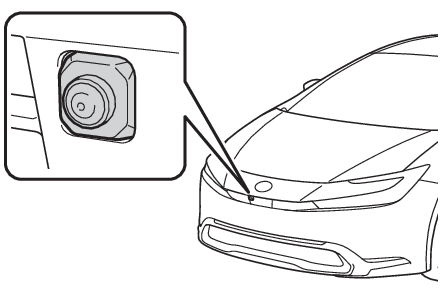
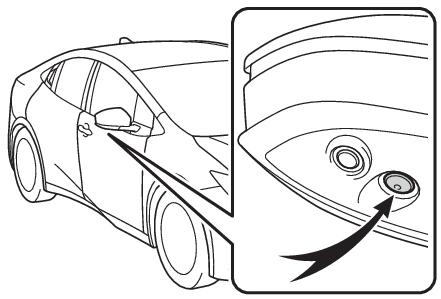
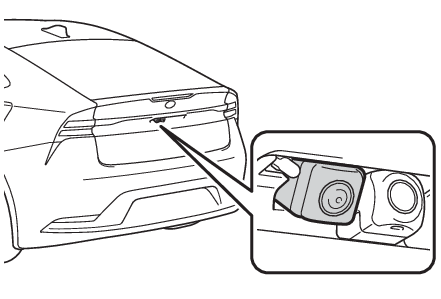
extend the outside rear view mirrors.Types of cameras and sensors used for the Advanced ParkCameras and sensors are used to detect parked vehicles, making it easier to identify
parking spaces.Front cameraSide camerasRear cameraDepending on the vehicle grade and equipped options, the actual rear camera may be
different from this illustration.SensorsTypes of sensorsNote:Camera imagesAs special cameras are used, the colors in displayed images may differ from the actual
color.Precautions for useFor details on the following, refer to “
Panoramic view monitor” of “
Parking assist system” in the “
MULTIMEDIA OWNER’S MANUAL”.Displayable range of the screensCamerasDifferences between displayed images and the actual roadDifferences between displayed images and the actual objectsDetection range of the cameras and sensorsIf a parked vehicle is behind the target parking space and the distance between it
and the vehicle becomes far, it may no longer be able to be detected. Depending on
shape or condition of a parked vehicle, the detection range may become short or the
vehicle may not be detected.Objects other than parked vehicles, such as columns, walls, etc., may not be detected.
Also, if they are detected, they may cause the target parking space to be misaligned.Situations in which parking space lines may not be recognized properlyIn situations such as the following, parking space lines on the road surface may not
be detected:When the parking space does not use lines (parking space boundaries are marked with
rope, blocks, etc.)When the parking space lines are faded or dirty, making them unclearWhen the road surface is bright, such as concrete, and the contrast between it and
the white parking space lines is smallWhen the parking space lines are any color other than yellow or whiteWhen the area surrounding the parking space is dark, such as at night, in an underground
parking lot, parking garage, etc.When it is raining or has rained and the road surface is wet and reflective or there
are puddlesWhen the sun is shining directly into a camera, such as in the early morning or eveningWhen the parking space is covered with snow or de-icing agentWhen there marks from repairs or other marks on the road surface, or there is a traffic
bollard, or other object on the road surfaceWhen the color or brightness of the road surface is unevenWhen a camera has been splashed by hot or cold water and the lens has fogged upWhen the appearance of the parking space is affected by the shadow of the vehicle
or treesWhen a camera lens is dirty or covered with water dropletsIn situations such as the following, the target parking space may not be recognized
correctly:When there marks from repairs or other marks on the road surface, or there is a parking
block, traffic bollard, or other object on the road surfaceWhen it is raining or has rained and the road surface is wet and reflective or there
are puddlesWhen the area around the vehicle is dark or backlitWhen the color or brightness of the road surface is unevenWhen the parking space is on a slopeWhen there are diagonal lines (access aisle) near the parking spaceWhen the appearance of the parking space is affected by the shadow of a parked vehicle
(such as shadows from the grille, side step, etc.)When accessories which obstruct the view of the camera are installedWhen the parking space lines are faded or dirty, making them unclearWhen the appearance of the parking space is affected by the shadow of the vehicle
or treesSensor detection informationSensor detection informationObjects which the sensor may not be properly detectedObjects which the system may not properly detectSituations in which the sensor may not operate properlySituations in which the system may not operate properlySituations in which parking assistance may not operate even if there is no possibility
of a collisionSituations in which the system may operate even if there is no possibility of a collisionWarning:Precautions for the cameras and sensorsDue to the characteristics of the camera lens, the position of and distance to people
and objects displayed on the screen may differ from the actual situation. For details,
refer to “
MULTIMEDIA OWNER’S MANUAL”.Make sure to observe the precautions for using the intuitive parking assist, otherwise
a sensor may not operate correctly, possibly leading to an accident. (Cautions regarding the use of the system)In situations such as the following, the sensors may not operate correctly, possibly
leading to an accident. Proceed carefully.When there is a parked vehicle next to the target parking space, if the displayed
target parking space is far from the actual target parking space, a sensor may be
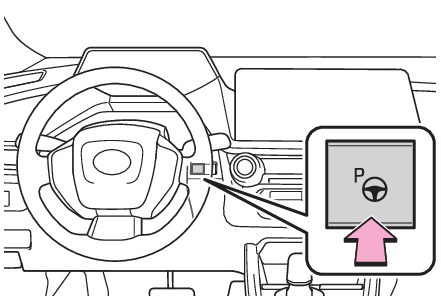
misaligned. Have the vehicle inspected by your Toyota dealer.Do not install any accessories near the detection area of the sensors.Turning the Advanced Park system on/offPress the Advanced Park main switch.If the switch is pressed while assistance is being performed, the assistance will
be canceled.Note:Operating conditions of the Advanced ParkAssistance will begin when all of the following conditions are met:The brake pedal is depressedThe vehicle is stoppedThe driver’s seat belt is fastenedThe steering wheel is not being operatedThe accelerator pedal is not depressedAll of the doors and the back door are closedThe outside rear view mirrors are not foldedThe parking brake is not engagedThe dynamic radar cruise control are not operatingABS, VSC, TRAC, PCS and PKSB are not operatingThe vehicle is not on a steep slopeThe VSC and TRAC are not turned offIf assistance cannot be started, check the message displayed on the Multimedia Display
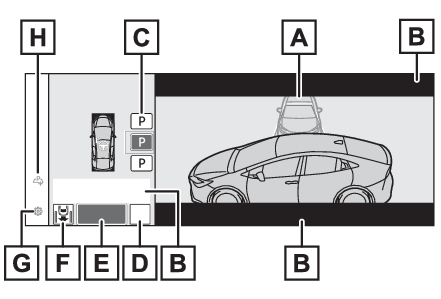
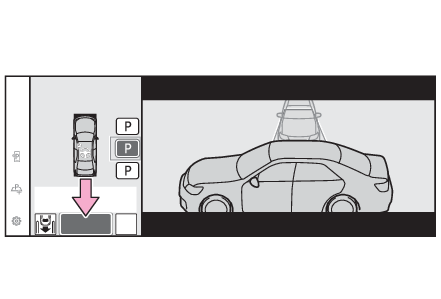
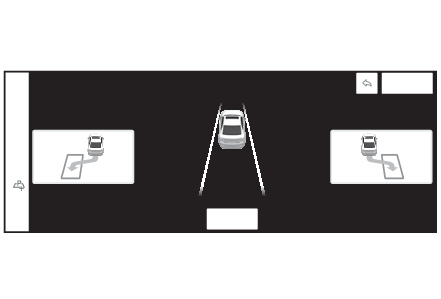
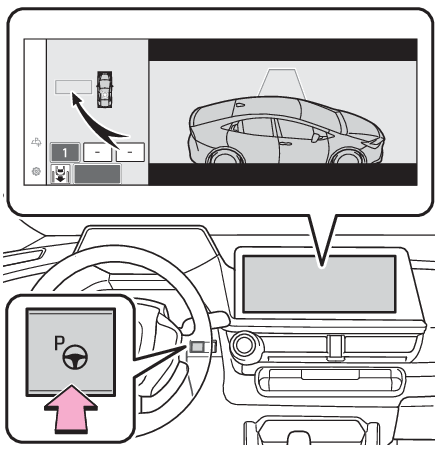
(Advanced Park displayed messages).Advanced Park guidance screensGuidance screens are displayed on the Multimedia Display.Guidance screen (When assistance starts)Target parking space box (blue)Advice displayParking type change buttonIf multiple buttons are displayed, depending on the condition of the button its function
differs as follows. or
: Change the target to another parking space. or
: Select the current target parking space.: Select to change to the parallel parking function: Change the perpendicular parking (forward/reverse) function“
MODE” buttonSelect to change between the memory function and the perpendicular parking (forward/reverse)
function and parallel parking function. (When parking in a parking space registered to the memory function)“
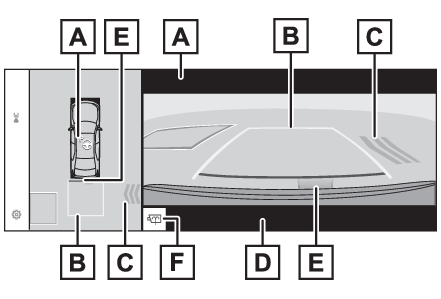
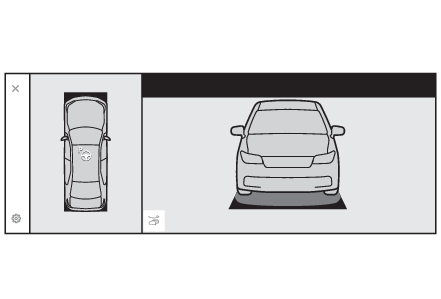
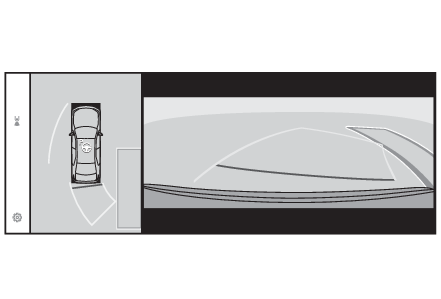
Start” buttonSelect to start parking assistance.Perpendicular parking direction change buttonSelect to change between the parking (forward) function and parking (reverse) function: Change the perpendicular parking (forward) function: Change the perpendicular parking (reverse) functionCustomize setting buttonSelect to display the Advanced Park setting screen. (Changing the Advanced Park settings)Registration buttonSelect to begin registering a parking space.Guidance screen (When reversing)Operation iconDisplayed when the Advanced Park is operating.Guide lines (yellow and red)Display points from the center of the edge of the front or rear bumper to the target
stopping position (yellow) *1 and approximately 1 ft. (0.3 m) (red) from the vehicle.Moving object warning iconEmergency support brake control operation display“
BRAKE!” is displayed.Intuitive parking assist displayDisplayRear camera washer switch*2 (if equipped)Press shortly:The rear camera washer operates for a certain period of time.Press and hold:The rear camera washer operates while the rear camera washer switch remains pressed.*1The yellow lateral line is not displayed when the target stopping position is approximately
8.2 ft. (2.5 m) or more away from the vehicle.*2Refer to “
Panoramic view monitor” of “
Parking assist system” in the “
MULTIMEDIA OWNER’S MANUAL”.Note:Intuitive parking assist pop-up displayRegardless of whether the intuitive parking assist is off or on (Turning the intuitive parking assist on/off), if an object is detected by the intuitive parking assist when the Advanced Park
is operating, the intuitive parking assist pop up display will automatically be displayed
over the guidance display.Brake control operation when Advanced Park is operatingWhile the Advanced Park is operating, if the system determines that the possibility
of collision with detected moving or stationary object is high, the hybrid system
output restriction control and brake control will operate.If brake control operates, Advanced Park operation will be suspended and a message
will be displayed on the multi-information display.BuzzerDepending on surrounding sounds or sounds from other systems, it may be difficult
to hear the buzzer of this system.If a black screen is displayed on the Multimedia Display when the Advanced Park is
operatingThe system is being affected by radio waves or may be malfunctioning. If a radio antenna
is installed near a camera, move it to a location as far from the cameras as possible.
If a radio antenna is not installed near a camera, and the screen does not return
to normal after turning the power switch off and then starting the hybrid system again,
have the vehicle inspected by your Toyota dealer.Perpendicular parking (forward/reverse) functionThe perpendicular parking (forward/reverse) function can be used if the target parking
space can be detected when the vehicle is stopped close and perpendicular to the center
of the parking space. Also, depending on the condition of the parking space, etc.,
if it is necessary to change the direction of travel of the vehicle, the shift position
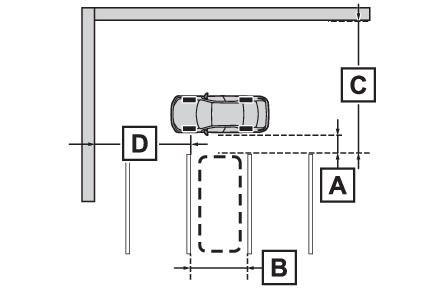
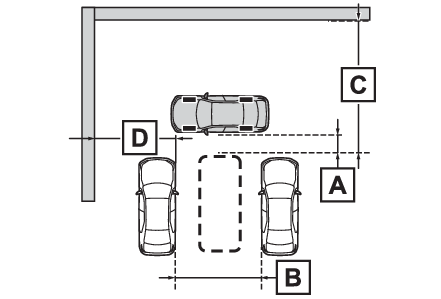
can be changed by assistance control.Parking using the perpendicular parking (forward/reverse) functionStop the vehicle at a position close and perpendicular to the center of the target
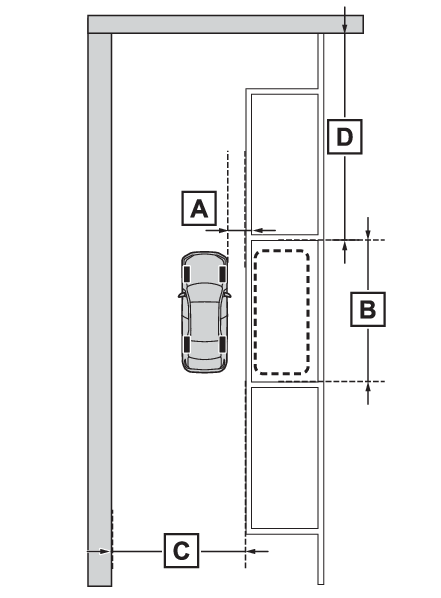
parking space.If there are parking space linesApproximately 3.3 ft. (1 m)*Approximately 8.2 ft. (2.5 m)*Approximately 19.7 ft. (6 m) or more*Approximately 18.0 ft. (5.5 m) or more*The system can operate even if there is a parking space line on only one side of the
target parking space.*This is a reference measurement for detection of a parking space. Depending on the
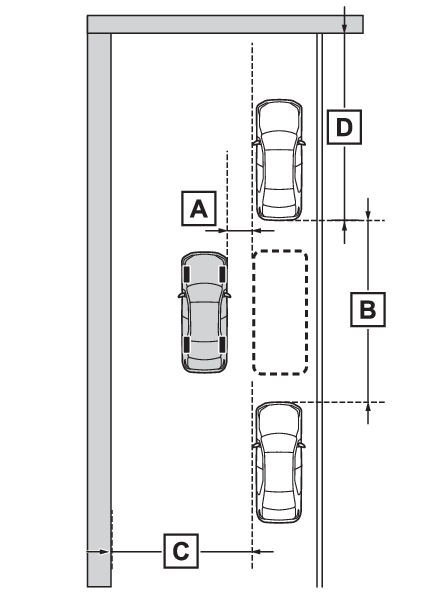
surrounding environment, detection may not be possible.If there is an adjacent parked vehicleApproximately 3.3 ft. (1 m)*Approximately 9.8 ft. (3 m) or more*Approximately 19.7 ft. (6 m) or more*Approximately 18.0 ft. (5.5 m) or more*The system can operate even if there is a vehicle on only one side of the target parking
space.*This is a reference measurement for detection of a parking space. Depending on the
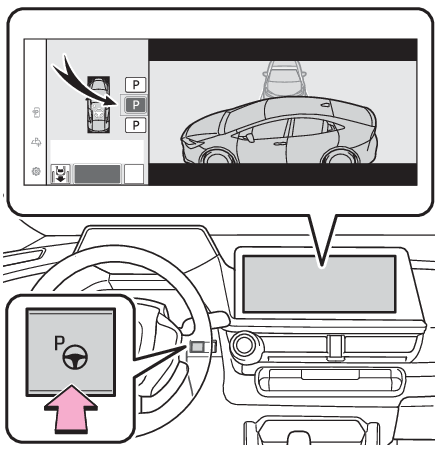
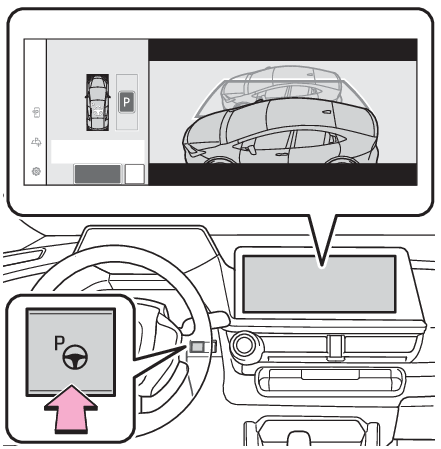
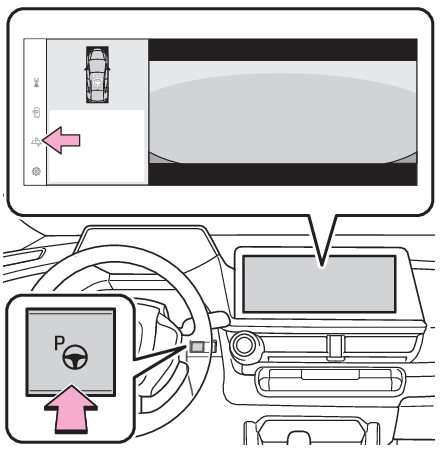
surrounding environment, detection may not be possible.Press the Advanced Park main switch and check that a possible parking space is displayed
on the Multimedia Display.If a space which your vehicle can be parked is detected, a target parking space box
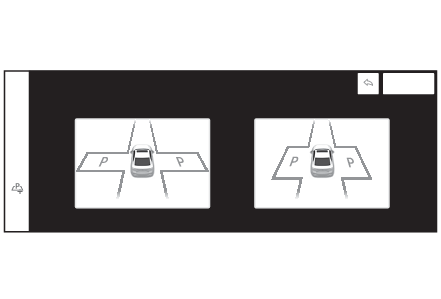
will be displayed.If it is possible to parallel park in the space, select the parking space, and then
select
to change to the parallel parking function.If it is possible to change the direction which a parking space is entered, select
the parking space, and then select
or
change the direction.Depending on the surrounding environment, it may not be possible to use this function.
According to the information displayed on the Multimedia Display, use the function
on another parking space.Select “
Start” button.A buzzer will sound, an operation message will be displayed on the multi-information
display, and assistance will begin operating.When the brake pedal is released, “
Moving Forward...”, “
Backing Up...” will be displayed and the vehicle will begin moving forward/reverse.To cancel assistance, press the Advanced Park main switch.If assistance is canceled, “
Advanced Park Canceled” will be displayed.If you feel that the vehicle is approaching close to a surrounding vehicle, object,
person, or gutter: If you feel that the vehicle is approaching close to a surrounding vehicle, object,
person, or gutterPerform operations as indicated by the advice displays until the vehicle stops in
the target parking space.When the vehicle stops, “
Advanced Park Finished” will be displayed and parking assistance will end.If you select
on the Multimedia Display, the vehicle displayed on the parking assist completion
screen will rotate.Note:If you feel that the vehicle is approaching close to a surrounding vehicle, object,
person, or gutterDepress the brake pedal to stop the vehicle and then change the shift position to
change the direction of travel of the vehicle. At this time, assist will be suspended.
However, if the “
Start” button is selected, assist will resume and the vehicle will move in the direction
corresponding to the selected shift position.When the brakes have been operatedWhen the brakes have been operated, brake operation sound may be heard. This does
not indicate a malfunction.Notice:When using the perpendicular parking (forward/reverse) functionMake sure that there are no obstructions within the yellow guide lines and between
the vehicle and target parking spot. If there are any obstructions between the vehicle
and the target parking space, or between the yellow guide lines, cancel the function.As the target parking space will not be able to be set correctly if the surface of
the parking space is on a slope or has differences in height, the vehicle may stray
from the target parking space or be slanted. Therefore, do not use the function for
this kind of parking spot.When parking in a narrow parking space, the vehicle may closely approach an adjacent
parked vehicle. If a collision seems likely, depress the brake pedal to stop the vehicle.If a detected parked vehicle is narrow or parked extremely close to the curb, the
position at which assistance will park the vehicle will also be close to the curb.
If it seems likely the vehicle will collide with something or drive off of the road,
depress the brake pedal to stop the vehicle, and then press the Advance Park main
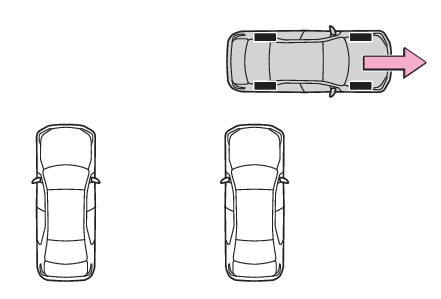
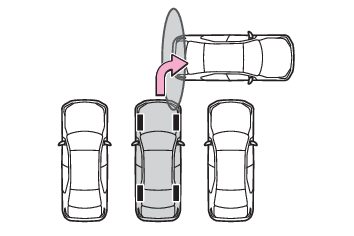
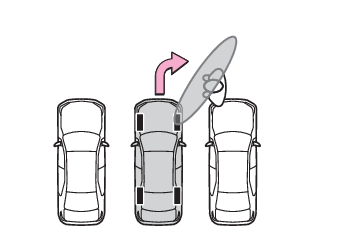
switch to disable the system.Advanced Park perpendicular exiting (forward/reverse) functionWhen exiting from a perpendicular parking space, if the system determines that exit
is possible the perpendicular exiting (forward/reverse) function can be used. Also,
depending on the surrounding environment, if it is necessary to change the direction
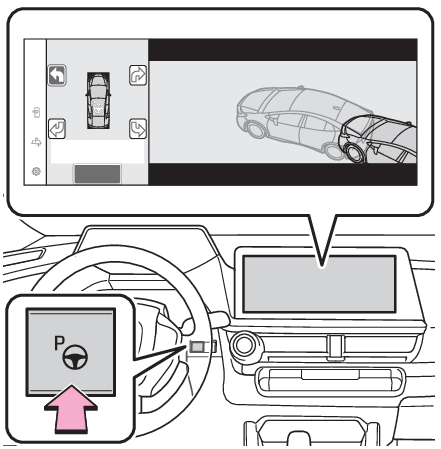
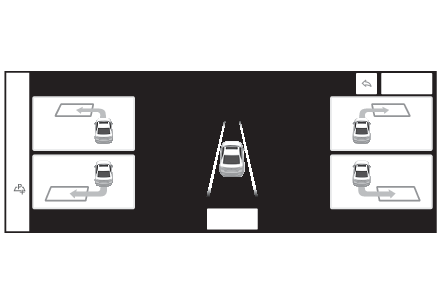
of travel of the vehicle, the shift position can be changed by assistance control.Leaving a parking space using the perpendicular exiting (forward/reverse) functionWith the brake pedal depressed and P shift position selected, press the Advanced Park
main switch and check that the exit direction selection screen is displayed on the
Multimedia Display.Select an arrow on the Multimedia Display to select the direction you wish to exit.If the turn signal lever is operated, only exit to the left or right can be selected.Depress the brake pedal and select “
Start” button.A buzzer will sound, an operation message will be displayed on the multi-information
display, and assistance will begin operating.To cancel assistance, press the Advanced Park main switch.If assistance is canceled, “
Advanced Park Canceled” will be displayed.If you feel that the vehicle is approaching close to a surrounding vehicle, object,
person, or gutter: If you feel that the vehicle is approaching close to a surrounding vehicle, object,
person, or gutterPerform operations as indicated by the advice displays until the vehicle is in a position
where exit is possible.When the vehicle reaches a position where exit is possible, “
You can exit by moving the steering wheel” will be displayed. If the steering wheel is operated, “
Advanced Park Finished” will be displayed and assistance will end.As assistance will end while the vehicle is moving, grip the steering wheel and drive
forward.If the steering wheel is not operated, the vehicle will stop at the exit position.
Assistance can be ended by depressing the accelerator pedal or brake pedal.Note:If you feel that the vehicle is approaching close to a surrounding vehicle, object,
person, or gutterIf you feel that the vehicle is approaching close to a surrounding vehicle, object,
person, or gutterPerpendicular exiting (forward/reverse) functionDo not use exiting (forward/reverse) function in any situation other than when exiting
a parallel parking spot. If assistance is started unintentionally, depress the brake
pedal and stop the vehicle, then press the Advanced Park main switch to cancel assistance.Situations in which the perpendicular exiting (forward/reverse) function will not
operateIn situations such as the following, the perpendicular exiting (forward/reverse) function
will not operate:When a vehicle which is waiting to park is in the exit directionWhen a wall, column, or person is detected as near a front or rear center or corner
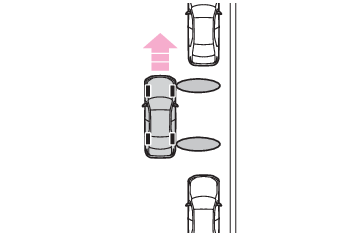
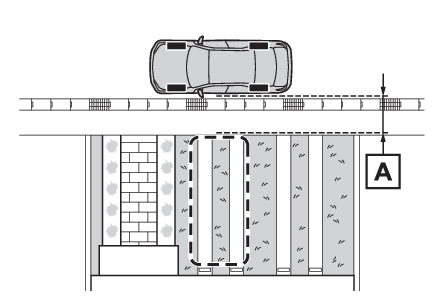
sensorWhen the brakes have been operatedWhen the brakes have been operatedAdvanced Park parallel parking functionThe parallel parking function can be used if the target parking space can be detected
when the vehicle is stopped close and aligned with the center of the parking space.
Also, depending on the condition of the parking space, etc., if it is necessary to
change the direction of travel of the vehicle, the shift position can be changed by
assistance control.Parking using the parallel parking functionStop the vehicle with it aligned near the center of the target parking space.If there are parking space linesApproximately 3.3 ft. (1 m) *Approximately 19.7 ft. (6 m)*Approximately 14.8 ft. (4.5 m) or more*Approximately 26.2 ft. (8 m) or more**This is a reference measurement for detection of a parking space. Depending on the
surrounding environment, detection may not be possible.If there is an adjacent parked vehicleApproximately 3.3 ft. (1 m)*Approximately 23.0 ft. (7 m) or more*Approximately 14.8 ft. (4.5 m) or more*Approximately 26.2 ft. (8 m) or more**This is a reference measurement for detection of a parking space. Depending on the
surrounding environment, detection may not be possible.Press the Advanced Park main switch and check that a possible parking space is displayed
on the Multimedia Display.If a space which your vehicle can be parked is detected, a target parking space box
will be displayed.If it is possible to perpendicular parking (forward/reverse) in the space, select
the parking space, and then select
to change to the perpendicular parking (forward/reverse) function.Depending on the surrounding environment, it may not be possible to use this function.
According to the information displayed on the Multimedia Display, use the function
on another parking space.Select “
Start” button.A buzzer will sound, an operation message will be displayed on the multi-information
display, and assistance will begin operating.When the brake pedal is released, “
Moving Forward...” will be displayed and the vehicle will begin moving forward.To cancel assistance, press the Advanced Park main switch.If assistance is canceled, “
Advanced Park Canceled” will be displayed.If you feel that the vehicle is approaching close to a surrounding vehicle, object,
person, or gutter: If you feel that the vehicle is approaching close to a surrounding vehicle, object,
person, or gutterPerform operations as indicated by the advice displays until the vehicle stops in
the target parking space.When the vehicle stops, “
Advanced Park Finished” will be displayed and parking assistance will end.If you select
on the Multimedia Display, the vehicle displayed on the parking assist completion
screen will rotate.Note:If you feel that the vehicle is approaching close to a surrounding vehicle, object,
person, or gutterIf you feel that the vehicle is approaching close to a surrounding vehicle, object,
person, or gutter“
No available parking space” is displayedEven if the vehicle is stopped parallel to a parking space, an adjacent parked vehicle
may not be detected. In this case, if the vehicle is moved to a position that a parked
vehicle can be detected, assistance can be started.When the brakes have been operatedWhen the brakes have been operatedNotice:When using the parallel parking functionMake sure that there are no obstructions within the yellow guide lines and between
the vehicle and target parking spot. If any obstructions are detected within the yellow
guide lines or between the vehicle and the target parking space, the parallel parking
function will be cancelled or suspended.As the target parking space will not be able to be set correctly if the surface of
the parking space is on a slope or has differences in height, the vehicle may stray
from the target parking space or be slanted. Therefore, do not use the parallel parking
function for this kind of parking spot.If an adjacent parked vehicle is narrow or parked extremely close to the curb, the
position at which assistance will park the vehicle will also be close to the curb.
If it seems likely the vehicle will collide with the curb or drive off of the road,
depress the brake pedal to stop the vehicle, and then press the Advanced Park main
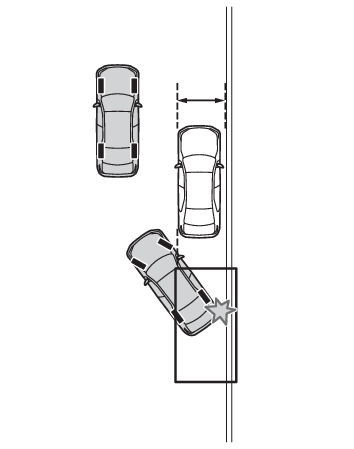
switch to disable the system.If there is a wall or other barrier on the inner side of the parking space, the vehicle
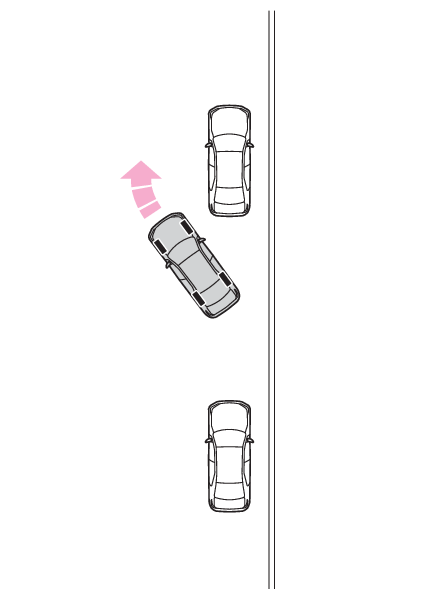
may stop at a position slightly outside of the set target parking space.Advanced Park parallel exiting functionWhen exiting from a parallel parking space, if the system determines that exit is
possible the parallel exiting function can be used. Also, depending on the surrounding
environment, if it is necessary to change the direction of travel of the vehicle,
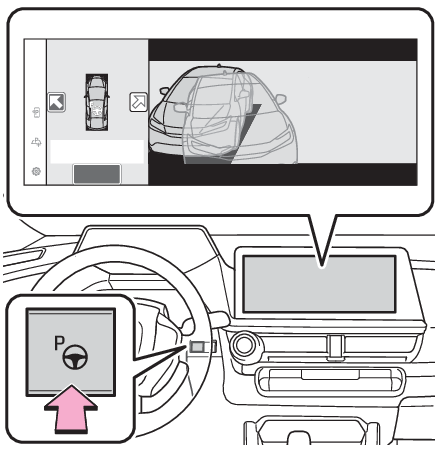
the shift position can be changed by assistance control.Leaving a parking space using the parallel exiting functionWith the brake pedal depressed and P shift position selected, press the Advanced Park
main switch and check that the exit direction selection screen is displayed on the
Multimedia Display.Select an arrow on the Multimedia Display to select the direction you wish to exit.If the turn signal lever is operated, only exit to the left or right can be selected.Depress the brake pedal and select “
Start” button.A buzzer will sound, an operation message will be displayed on the multi-information
display, and assistance will begin operating.To cancel assistance, press the Advanced Park main switch.If assistance is canceled, “
Advanced Park Canceled” will be displayed.If you feel that the vehicle is approaching close to a surrounding vehicle, object,
person, or gutter: If you feel that the vehicle is approaching close to a surrounding vehicle, object,
person, or gutterPerform operations as indicated by the advice displays until the vehicle is in a position
where exit is possible.When the vehicle reaches a position where exit is possible, “
You can exit by moving the steering wheel” will be displayed. If the steering wheel is operated, “
Advanced Park Finished” will be displayed and assistance will end.As assistance will end while the vehicle is moving, grip the steering wheel and drive
forward.If the steering wheel is not operated, the vehicle will stop at the exit position.
Assistance can be ended by depressing the accelerator pedal or brake pedal.Note:If you feel that the vehicle is approaching close to a surrounding vehicle, object,
person, or gutterIf you feel that the vehicle is approaching close to a surrounding vehicle, object,
person, or gutterParallel exiting functionDo not use parallel exiting function in any situation other than when exiting a parallel
parking spot. If assistance is started unintentionally, depress the brake pedal and
stop the vehicle, then press the Advanced Park main switch to cancel assistance.Situations in which the parallel exiting function will not operateIn situations such as the following, the parallel exiting function will not operate:When vehicles waiting at a traffic signal in the exit directionWhen a vehicle is stopped in the area behind where the vehicle will exitWhen a wall, column, or person is detected as near a front or rear side sensorWhen the vehicle has been parked on a curb and a side sensor detects the road surfaceWhen a vehicle is not parked in front of the vehicleWhen there is excessive space between the front of the vehicle and a parked vehicleWhen the brakes have been operatedWhen the brakes have been operatedAdvanced Park memory functionThe memory function can be used to park in a previously registered parking space,
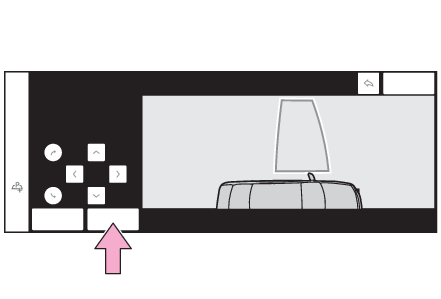
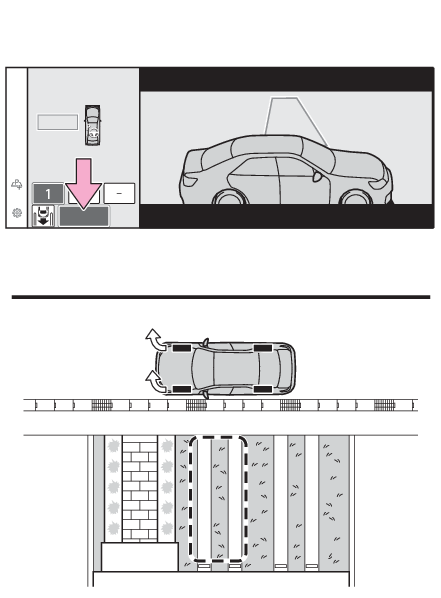
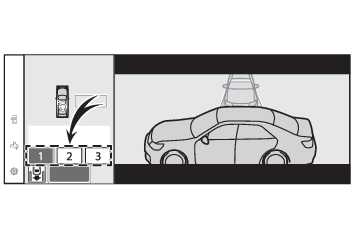
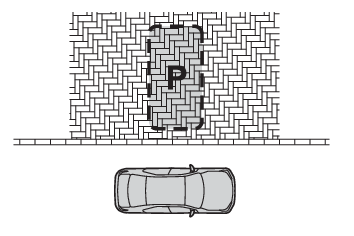
even if there are no parking space lines or adjacent parked vehicles.Up to 3 parking spaces can be registered.Registering a parking spaceStop the vehicle with it aligned near the center of the target parking space.Approximately 3.3 ft. (1 m)Press the main switch and then select
.If the Advanced Park main switch is pressed at a parking space without parking lines
or any adjacent parked vehicles, “
No available parking space” may be displayed. Continuously select and hold
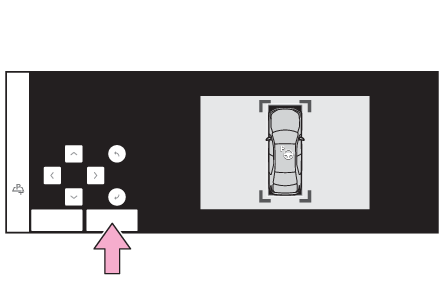
.Select perpendicular parking (forward/reverse) function or parallel parking function.Only parking spaces for which assist can be performed are displayed.Select the parking direction.When perpendicular parking (forward/reverse) was selected in step 3:When parallel parking was selected in step 3:Using the arrow buttons, adjust the position of the parking space to be registered,
and then select “
OK” button.Select “
Start” button.A buzzer will sound, an operation message will be displayed on the multi-information
display, and assistance will begin operating. When the brake pedal is released, “
Moving Forward...” will be displayed and the vehicle will begin moving forward.If you feel that the vehicle is approaching close to a surrounding vehicle, object,
person, or gutter: If you feel that the vehicle is approaching close to a surrounding vehicle, object,
person, or gutterPerform operations as indicated by the advice displays until the vehicle stops in
the target parking space.Check the position that the vehicle has stopped. If necessary, adjust the position
of the parking spot to be registered using the arrow buttons, and then select “
Reg.” button.“
Registration Completed” will be displayed on the Multimedia Display.Register the parking space only if there are no obstructions within the area shown
by the thick lines.The amount that the position of the parking spot to be registered can be adjusted
is limited.When parking in a parking space registered to the memory functionStop the vehicle with it aligned near the center of the target parking space.Approximately 3.3 ft. (1 m)Press the Advanced Park main switch and check that a possible parking space is displayed
on the Multimedia Display.If the “
MODE” button is displayed, the button can be touched to change between the memory function,
perpendicular parking (forward/reverse) function and parallel parking function.Select the desired parking space, and then select “
Start” button.Perform the procedure for the perpendicular parking (forward/reverse) function from
step 3. (Parking using the perpendicular parking (forward/reverse) function)Note:If you feel that the vehicle is approaching close to a surrounding vehicle, object,
person, or gutterIf you feel that the vehicle is approaching close to a surrounding vehicle, object,
person, or gutterWhen overwriting a registered parking spaceIf the maximum number of parking spaces have been registered and
is selected, a registered parking space can be selected and then overwritten with
a new parking space.When multiple parking spaces are registeredSelect the desired parking space, and then select “
Start” button.When the brakes have been operatedWhen the brakes have been operatedNotice:When using the memory function (When using the perpendicular parking (forward/reverse) function, When using the parallel parking function)The memory function is a function which provides assistance in parking in a previously
registered parking space. If the condition of the road surface, vehicle, or surrounding
area differs from when registration was performed, the parking space may not be able
to be detected correctly or assistance may not be provided to the point that the vehicle
is fully parked.Do not register a parking space in situations such as the following, as the set parking
space may not be able to be registered or assistance may not be possible later.When a camera lens is dirty or covered with water dropletsWhen it is raining or snowingWhen the surrounding area is dark (at night, etc.)In situations such as the following, it may not be possible to register a parking
space.When there is insufficient space between the road and parking spaceWhen the road surface around the parking space does not have any differences the system
can recognizeIf a parking space has been registered in situations such as the following, assistance
may not be able to be started later or assistance to the registered position may not
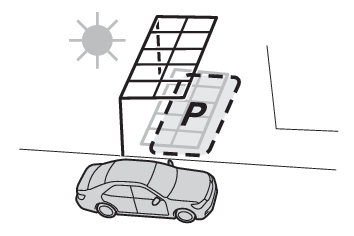
be possible.When shadows are cast on the parking space (there is a carport over the parking space,
etc.)When there are leaves, garbage, or other objects which will likely move, in the parking
spaceWhen the road surface around the parking space has the same repeating pattern (brick,
etc.)In situations such as the following, it may not be possible for the system to provide
assistance to a registered parking spot:When the appearance of the parking space is affected by the shadow of the vehicle
or treesWhen an object is detected in the registered parking spaceWhen a pedestrian or passing vehicle is detected during assistanceWhen the position the vehicle is stopped when assistance is started differs from the
position when registration was performedWhen the registered parking space cannot be reached due to the existence of parking
blocks, etc.When the road surface around the parking space has changed (road surface has degraded
or been resurfaced)When the sunlight conditions differ from when registration was performed (due to weather
or time of day)When the sun is shining directly into a camera, such as in the early morning or eveningWhen the color or brightness of the road surface is unevenWhen a light is temporarily shined on the parking space (lights of another vehicle,
security light, etc.)When the road surface around the parking space has the same repeating patternWhen there is a low protrusion on the road surface near the parking spaceWhen the parking space is on a slopeWhen a camera has been splashed by hot or cold water and the lens has fogged upWhen a camera lens is dirty or covered with water dropletsWhen accessories which obstruct the view of the camera are installed If assistance
is ended during registration, perform registration again.When registering a parking space to the memory function, if the road surface cannot
be detected “
No available parking space to register” will be displayed.When using the memory function, make sure to stop immediately in front of the stop
position. Otherwise the parking space may not be able to be detected correctly or
assistance may not be provided to the point that the vehicle is fully parked.Do not use the memory function if a camera has been subjected to a strong impact or
images of the panoramic view monitor are misaligned.If a camera has been replaced, as the installation angle of the camera will have changed,
it will be necessary to reregister parking spaces of the memory function.Advanced Park cancelation/suspensionAssistance will be canceled whenIn situations such as the following, Advanced Park operation will be canceled. Firmly
hold the steering wheel and depress the brake pedal to stop the vehicle.As system operation has been canceled, begin the operation again or continue parking
manually, using the steering wheel.The Advanced Park main switch is pushedThe shift position has been changed to PThe parking brake is engagedA door or the back door is openedThe driver’s seat belt is unfastenedThe outside rear view mirrors are foldedThe TRAC or VSC is turned offThe TRAC, VSC or ABS operatesThe power switch is pressedThe system determines assistance cannot be continued in the current parking environmentThe system malfunctionsWhile the vehicle was stopped, “
Cancel” was selected on the Multimedia DisplayAssistance will be suspended whenIn situations such as the following, Advanced Park operation will be suspended.Assistance can be started again by following the directions displayed on the Multimedia
Display.Also, when assistance is suspended, if the shift position is changed twice with the
brake pedal depressed, assistance will be canceled in that shift position. However,
if assistance is suspended by changing the shift position, assistance will be canceled
if the shift position is changed once.The steering wheel is operatedThe accelerator pedal is depressedThe shift position has been changedA moving object or stationary object that may collide with your vehicle has been detected,
resulting in the operation of the hybrid system output control/braking control.Camera switch is pressedChanging the Advanced Park settingsSelect
on the Multimedia Display, and then select “
Advanced Park”.“
Speed Profile”The vehicle speed for when assistance is performed can be set.This setting cannot be changed when registering a parking space to the memory function.“
Obstacle detection range”The distance from which obstacles will be avoided while assistance is being performed
can be set.“
Preferred parking method”The preferred parking direction displayed when at a parking space which perpendicular
(forward/reverse) or parallel parking is possible can be set.“
Preferred parking direction”The preferred parking direction displayed when it is possible to pull perpendicular
forward or reverse into a parking space can be selected.“
Preferred exit direction (perpendicular)”The preferred exit direction displayed when it is possible to pull forward or reverse
to the left or right out of a parking space can be selected.“
Preferred exit direction (parallel)”The preferred exit direction displayed when it is possible to exit to the left or
right from a parallel parking space can be selected.“
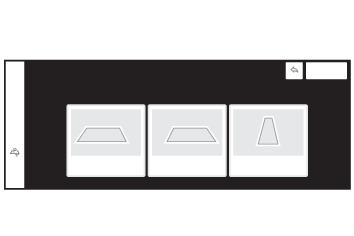
Camera view when parking”The display angle of the camera image when using the perpendicular parking (forward/reverse)
function or parallel parking function can be set.“
Camera view when exiting”The display angle of the camera image when using the perpendicular exiting (forward/reverse)
function or parallel parking exit function can be set.“
Parking path adjustment”The course for when parking assistance is operating can be adjusted inward or outward.If the tires are worn, the path of vehicle may be offset from the center of the parking
space. In this case, use this setting to adjust the parking course.“
Road width adjustment”When parking assistance is started, the amount of lateral movement while the vehicle
is moving forward can be adjusted.“
Park position adjustment (forward)”The position at which perpendicular parking (forward) is completed can be adjusted.
(Except when using the memory function.)“
Park position adjustment (reverse)”The position at which perpendicular parking (reverse) is completed can be adjusted.
(Except when using the memory function.)“
Rear accessory setting”If an accessory, such as a trailer hitch, has been installed to the rear of the vehicle,
the length of the rear of the vehicle can be adjusted to help avoid colliding with
objects to the rear of the vehicle.“
Clear registered parking space”The parking spaces registered to the memory function can be deleted. Parking space
information cannot be deleted when assistance is being performed or when registering
parking space information to the memory function.Notice:Take care when using the park position adjustment (forward) or park position adjustment
(reverse) for adjusting because the vehicle may collide with parking blocks, curb
stones, or other low objects.If it is likely that your vehicle will collide with a nearby vehicle/object, parking
block, curb stone, etc., depress the brake pedal to stop the vehicle and press the
Advanced Park main switch to disable the system.Advanced Park displayed messagesThe operating state, assistance operation, etc. of the Advanced Park is displayed
on the Multimedia Display. If a message is displayed, respond according to the content
displayed.Note:If “
No available parking space” is displayedMove the vehicle to a location where a parking space or parking lines can be detected.If “
Unavailable in current condition” is displayedMove the vehicle to another location and use the system.If “
Not enough space to exit” is displayedThe parallel parking exit function cannot be used due to a situation such as the distance
between your vehicle and vehicles parked in front of and behind your vehicle being
short, the existence of an object in the exit direction, etc.Check the conditions of the area around your vehicle and exit from the parking space
manually.If “
Cannot control speed” is displayedThe system judged that it cannot adjust the speed of the vehicle when using the system
in an area with a slope or step and assistance was canceled.Use the system in a level location.If “
Obstacle detected” is displayedAs a moving object or stationary object that may collide with your vehicle has been
detected, the hybrid system output control/braking control operates to suspend Advanced
Park assistance.Check the condition of the surrounding area. To resume assistance, select the “
Start” button on the Multimedia Display.If “
No available parking space to register” is displayedThis message is displayed when
is selected at a parking space that cannot be detected.Operate the system at a parking space where differences in the road surface can be
recognized. (Advanced Park memory function)