Charging
Charging schedule functionUsing the charging schedule functionAC charging can be carried out at the desired time by registering the charging schedule.Note:Calendar settingsCharging schedule is performed according to the date and time shown on the multi-information
display.If the calendar settings check screen is displayed when an attempt was made to register
a charge schedule, check that the correct date is set. If it is incorrect, be sure
to correct it.If the calendar information is wrong, the charging schedule function will not operate
normally.The current date and time is automatically set using GPS. However, if the automatic
setting of the clock is turned off on the Multimedia Display, it is necessary to set
the date and time. For details regarding the setting of date, refer to Settings display, and regarding setting of the time, refer to “
MULTIMEDIA OWNER’S MANUAL”.Settings of the charging schedule functionWhen registering the charging schedule, the following settings can be changed.Select the charging modeOne of the two following charging modes can be selected.“
Start” or “
Start at set time”Starts charging at the set time* and finishes charging when fully charged.“
Start-Stop” or “
Start and stop at set times”AC charging is performed according to the set start time and stop time.**There might be a slight error in the timing when charging starts due to the state
of the hybrid battery (traction battery).Repeated settingThe periodic charging schedule can be set by selecting your desired day of the week.
Select one or more day of the week to do the charging schedule.Turning “
Charge Now” on and offTo start charging without changing the charging schedule setting, turn “
Charge Now” on to temporarily cancel the charging schedule and enable charging after connecting
the AC charging connector.**If the charging connector is removed while the charging schedule is registered and
“
Charge Now” is on, “
Charge Now” turns off.“
Next Event”Of the registered charging schedules, the closest charging schedule after the current
time is called the “
Next Event”.For charging schedule, AC charging will be performed according to the “
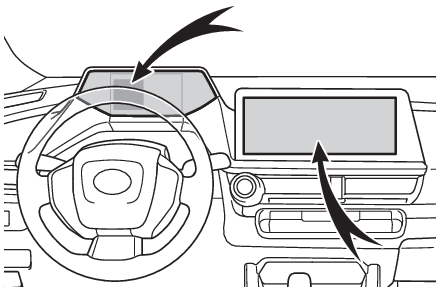
Next Event”.Registering the charging scheduleThe charging schedule can be registered on the multi-information display or Multimedia
Display.Multi-information display operation: Setting operations on multi-information displayMultimedia Display operation: Setting operations on the Multimedia DisplayNote:Charging schedule functionThe charging schedule cannot be set while driving.A maximum of 15 charging schedules can be registered.If the charging mode is set to “
Start-Stop” or “
Start and stop at set times” and the start time and end time are set to the same time, charging will be performed
for 24 hours from the start time.To make sure that the charging schedule function operates correctlyCheck the following items.The clock is adjusted to the proper time**For details regarding setting clock, refer to “
MULTIMEDIA OWNER’S MANUAL”.The calendar is set to the correct date (Settings display)Check that the power switch is turned offAfter registering the charging schedule, connect the AC charging connectorThe charging start time is determined based on the charging schedule at the time that
the AC charging connector was connected.Connect the AC charging connector before the start timeWhen the charging mode is set to “
Start” or “
Start at set time”, if you connect the AC charging connector after the set start time, the next charging
schedule will be referenced.When the charging mode is set to “
Start-Stop” or “
Start and stop at set times”, if you connect the AC charging connector after the start time, charging will start
immediately and charging will be performed until the stop time.After connecting the AC charging connector, check that the charging indicator of the
charging port flashes (Charging indicator)Do not use an outlet that has a power cut off function (including a charging schedule
function)Use an outlet that constantly supplies electricity. For outlets where the power is
cut off due to a charging schedule function, etc., charging may not be carried out
according to plan if the power is cut off during the set time.When the AC charging connector remains connected to the vehicleWhen the charging mode is set to “
Start” or “
Start at set time”, even if multiple consecutive charging schedules are registered, the next charge
will not be carried out according to the charging schedule until the AC charging connector
is removed and reconnected after charging completes. Also, when the hybrid battery
(traction battery) is fully charged, charging according to the charging schedule will
not be carried out.If the charging stop time is reached before the hybrid battery (traction battery)
is fully charged and the charging mode is set to “
Start-Stop” or “
Start and stop at set times”, the nearest charging schedule after the stop time is updated as the next charging
schedule, and charging is repeated until the battery is fully charged.Smartphone-linked operation (if equipped)After applying to Toyota Apps, it is possible to use the smartphone application to
change charging schedule settings.For details about Toyota Apps, refer to http://www.toyota.com/connectedservices in the United States and http://www.toyota.ca/connected in Canada.When charging schedules are ignoredWhen the following operations are performed while the charging schedule is on standby,
charging schedule is temporarily canceled and charging is started.When turning “
My Room Mode” on (Using the “My Room Mode”)When turning “
Charge Now” on (Setting “Charge Now” to onOperation on “Charging Schedule” screenOperation on “Trip
Summary” screen, Turning “Charge now” on)When an operation that temporarily cancel charging using the charging schedule (If the charging indicator of the charging port flashes after connecting the AC charging
cable)“
Battery Heater” (“Battery Heater”) / “
Battery Cooler” (“Battery Cooler”)Depending on the temperature of the hybrid battery (traction battery), “
Battery Heater” or “
Battery Cooler” may be activated and the charging indicator may light up while the charging schedule
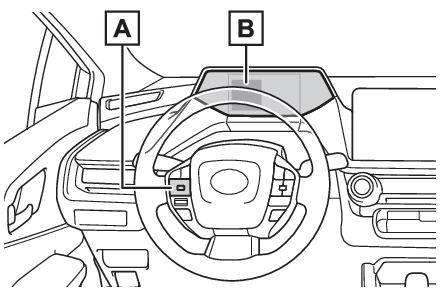
is waiting for charging.Setting operations on multi-information displayWhen operating charging schedule, use the meter control switches.Meter control switches (Changing the display)Multi-information displayDisplay the “
Charging Schedule” screenPress
or
of the meter control switches to select
.Press
or
of the meter control switches and select “
Vehicle Settings”, and then press and hold
.Press
or
of the meter control switches to select “
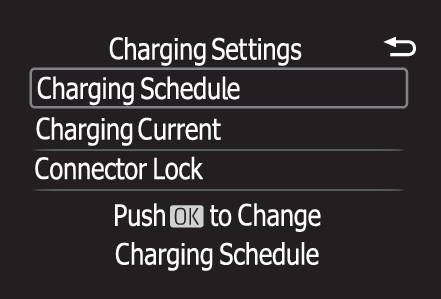
Charging Settings”, and then press
.The “
Charging Settings” screen will be displayed.Press
or
of the meter control switches to select “
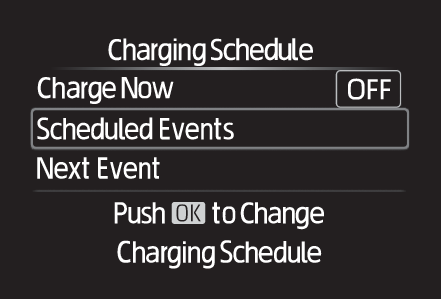
Charging Schedule”, and then press
.The “
Charging Schedule” screen will be displayed.Registering the charging scheduleDisplay the “
Charging Schedule” screen. (Display the “Charging Schedule” screen)Press
or
of the meter control switches to select “
Scheduled Events”, and then press
.The “
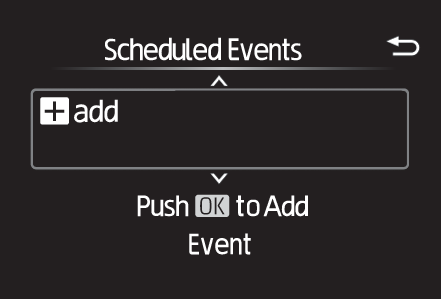
Scheduled Events” screen will be displayed.Press
or
of the meter control switches to select “
add”, and then press
.The “
Charging Mode” screen will be displayed.Press
or
of the meter control switches to select the charging mode, and then press
.Set the time that is desired to start the charging when charging mode is “
Start”.Set the time that is desired to start and completion time when charging mode is “
Start-Stop”.Setting desired charging time, and press
.If you selected the charging mode “
Start-Stop” in step 4, continue to set the stop time.Select the day desired to activate the repeated setting, and then press
.Each time
is pressed, the repeated setting switches between on and off.When set to on, the charging schedule is repeated on that day. It is possible to set
more than one day to on.When settings are complete, select “
Done” and then press
.A screen where the settings can be saved will be displayed.Select “
Save” and press
.The settings will be saved.After setting operations are complete, when the AC charging connector is connected
to the vehicle, charging will be carried out according to the charging schedule settings.Switching charging schedules between on and offThe registered charging schedules can be turned on and off.Display the “
Charging Schedule” screen. (Display the “Charging Schedule” screen)Press
or
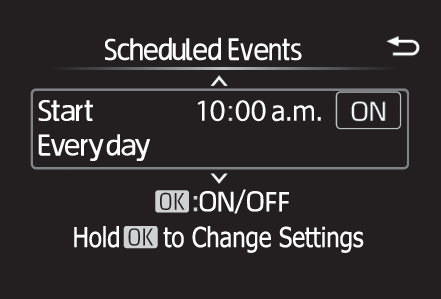
of the meter control switches to select “
Scheduled Events”, and then press
.A list of the registered charging schedule will be displayed.Press
or
of the meter control switches to select the item to turn on/off, and then press
.Each time
is pressed, the selected charging schedule switches between on and off.When set to off, a charging schedule is ignored and charging according to the charging
schedule is not carried out.Changing the registered charging schedulesThe registered charging schedules can be modified or deleted.Display the “
Charging Schedule” screen. (Display the “Charging Schedule” screen)Press
or
of the meter control switches to select “
Scheduled Events”, and then press
.A list of the registered charging schedule will be displayed.Press
or
of the meter control switches to select the item to operate, and perform the necessary
operation.“
Edit”Select the contents are desired to be changed, press and hold
and then select “
Edit”.Change the desired settings as described starting from step 4 of the “Registering the charging schedule” procedure. (Registering the charging schedule)Select “
Save” and press
to save the settings.“
Delete”Select the contents are desired to be changed, press and hold
and then select “
Delete”.A deletion confirmation screen will be displayed.Press
or
of the meter control switches to select “
Yes”, and then press
to delete the selected charging schedule.To cancel deletion of the registered contents, select “
No” and then press
.Setting “
Charge Now” to onThe “
Charge Now” setting can be changed by performing one of the two following procedures.Operation on “
Charging Schedule” screenDisplay the “
Charging Schedule” screen. (Display the “Charging Schedule” screen)Press
or
of the meter control switches to select “
Charge Now”, and then press
.Each time
is pressed, “
Charge Now” switches between on and off.Operation on “
Trip Summary” screenTurn the power switch off.The “
Trip Summary” screen* is displayed on the multi-information display.(If the door is opened while waiting
for charging schedule, the same screen will be displayed.)*If “
Trip Summary” is not set to “
Charging Schedule” on the
screen of the multi-information display, the “
Trip Summary” is not displayed. In this case, check the settings on the multi-information display.Press
to set “
Charge Now” to on.Each time
is pressed, “
Charge Now” switches between on and off.After setting operations are complete, charging starts when the AC charging connector
is connected. (How to charge)Displaying “
Next Event”Display the “
Charging Schedule” screen. (Display the “Charging Schedule” screen)Press
or
of the meter control switches to select “
Next Event”, and then press
.The “
Next Event” screen will be displayed.Note:When charging schedule setting operations are canceledWhen the vehicle is in the following conditions, charging schedule setting operations
are canceled.The power switch is operated before the settings are confirmedThe vehicle starts offA display with a higher priority than that of the charging schedule setting is shownWhen charging schedule are changed while chargingIf the charging schedule is changed, the next event will be updated and charging may
stop. After changing the charging schedule, check the next event.If you want to continue
charging, turn on “
Charge Now”.Warning:Cautions while performing the setting operationWhen performing the setting operation while the hybrid system is operated, ensure
that the vehicle is parked in a place with adequate ventilation. In a closed area
such as a garage, exhaust gases including harmful carbon monoxide (CO) may collect
and enter the vehicle. This may lead to death or a serious health hazard.Notice:While performing the setting operationWhen performing the setting operation while the hybrid system is stopped, be careful
that the 12-volt battery will not be discharged.Setting operations on the Multimedia DisplayFor details on how to operate the Multimedia Display, refer to “
MULTIMEDIA OWNER’S MANUAL”.Setting operations related to the charging schedule are performed on the “
Charging schedule” screen.The illustrations used in the text may differ from the images that are actually displayed
on the Multimedia Display.Displaying the “
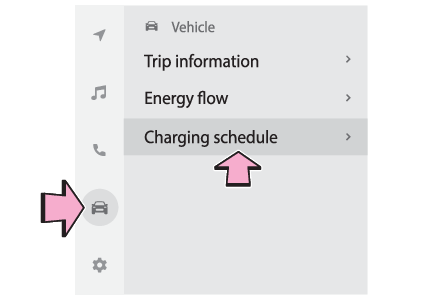
Charging schedule” screenTurn the power switch to ON.The charging schedule settings cannot be controlled if the power switch is in ACC.Touch
on the main menu, then touch “
Charging schedule” on the sub menu.The “
Charging schedule” screen will be displayed.How to read the “
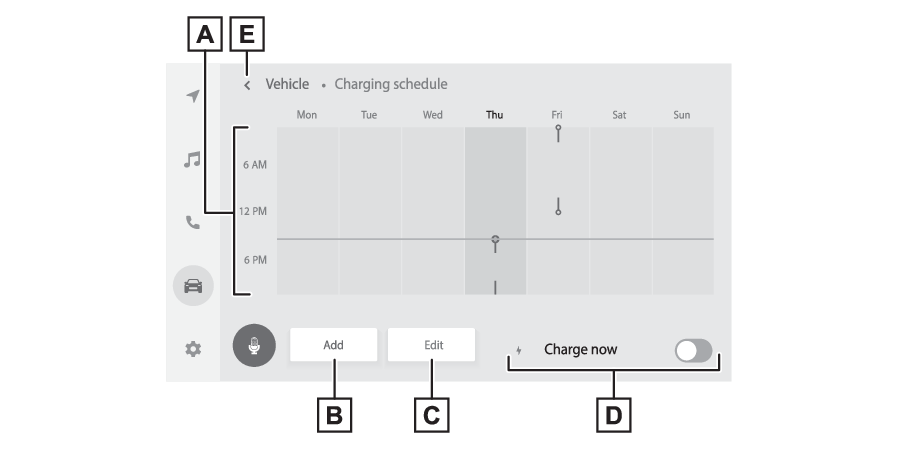
Charging schedule” screenThe image is an example only, and may vary slightly from actual conditions.Charging schedulesDisplays the week-long registered charging schedule in a list using icons.“
Add” buttonTouch to add a new item to the charging schedule. (Registering the charging schedule)“
Edit” buttonTouch to change or delete registered items on the charging schedule. (Switching charging schedules between on and off)“
Charge now” buttonEach time the button is touched, “
Charge now” switches between on and off. (Turning “Charge now” on)Return buttonTouch to close the “
Charging schedule” screen.Registering the charging scheduleDisplay the “
Charging schedule” screen. (Displaying the “Charging schedule” screen)Touch “
Add”.The “
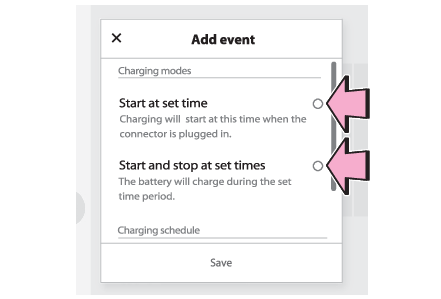
Add event” screen will be displayed on the screen.Select charging mode.Touch the button in the row of the “
Start at set time” or “
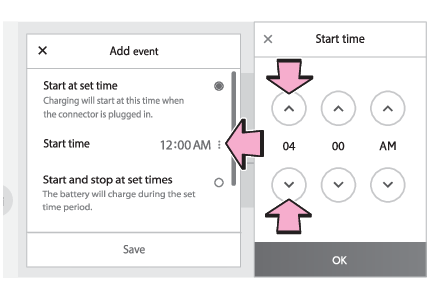
Start and stop at set times”.Touch buttons on the screen, operate the screen and select desired time, and then
touch “
OK”.When the charging mode is “
Start at set time”, set the charging start time.When the charging mode is “
Start and stop at set times”, also set the charging stop time.Touch “
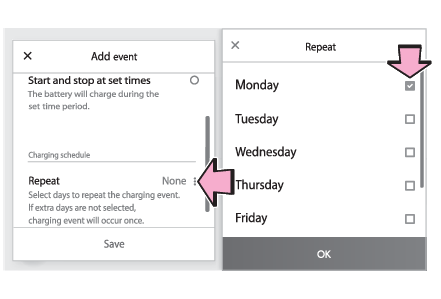
Repeat”, and touch the desired day to activate the repeated setting, and then touch “
OK”.Each time the day is touched, the repeated setting for the selected day switches between
on and off.When turned on, the check box is highlighted and the charging schedule is repeated
on that day. It is possible to turn more than one day on.After setting operations are complete, touch “
Save”.The charging schedule is added to the list and an icon is added to the “
Charging schedule” screen.Switching charging schedules between on and offDisplay the “
Charging schedule” screen. (Displaying the “Charging schedule” screen)Touch “
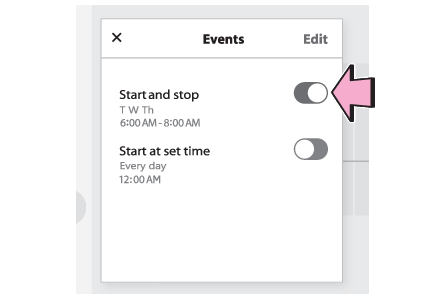
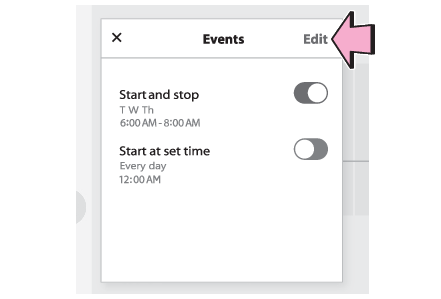
Edit”.The “
Events” screen will be displayed on the screen.From the items displayed on the screen, touch
or
in the row of the charging schedule you wish to change.If the charging schedule you wish to change is not displayed on the screen, scroll
the list up and down to display it.Each time the button is touched, the charging schedule switches between
(on) and
(off).Changing the registered charging schedulesDisplay the “
Charging schedule” screen. (Displaying the “Charging schedule” screen)Touch “
Edit”.The “
Events” screen will be displayed on the screen.Touch “
Edit” on the “
Events” screen.From the items displayed on the screen, touch the charging schedule you wish to change.Changing registered items:Change the desired settings as described starting from step 3 of the “Registering the charging schedule” procedure. (Registering the charging schedule)When a setting is changed, its icon on the calendar also changes.Deleting registered items:Touch “
Delete”.A deletion confirmation message will be displayed.Touch “
Delete” to delete the selected charging schedule.When a charging schedule is deleted, its icon is also deleted from the “
Charging schedule” screen.Turning “
Charge now” onDisplay the “
Charging schedule” screen. (Displaying the “Charging schedule” screen)Touch
of “
Charge now”.Each time the button is touched, “
Charge now” switches between
(on) and
(off).After setting operations are complete, charging starts when the AC charging connector
is connected. (How to charge)Displaying “
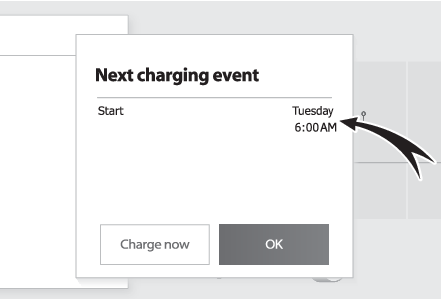
Next charging event”Turn the power switch off.Next event will be displayed according to the charging schedule settings.*When “
OK” is touched, “
Next charging event” screen will be closed.When “
Charge now” is touched, charge now is turned on.*If “
ACC customize” is not set to off on the “
Vehicle customize” of the Multimedia Display, the “
Next charging event” screen is not displayed. In this case, check the settings of the Multimedia Display.Note:When all charging schedules are turned offThe icon is not displayed on the “
Charging schedule” screen.The icon will be displayed by turning it ON on the “
Events” screen.When charging schedule setting operations are canceledWhen the vehicle is in the following conditions, charging schedule setting operations
are canceled.The power switch is turned off before the settings are confirmedThe vehicle starts offA display with a higher priority than that of the charging schedule setting is shownWhen charging schedule are changed while chargingIf the charging schedule is changed, the next event will be updated and charging may
stop. After changing the charging schedule, check the next event.If you want to continue
charging, turn on “
Charge now”.Warning:Cautions performing the setting operationAs the hybrid system needs to be operating during setting up the display, ensure that
the vehicle is parked in a place with adequate ventilation. In a closed area such
as a garage, exhaust gases including harmful carbon monoxide (CO) may collect and
enter the vehicle. This may lead to death or a serious health hazard.Notice:While performing the setting operationWhen performing the setting operation while the hybrid system is stopped, be careful
that the 12-volt battery will not be discharged.