Multi-information displayDisplay
Multi-information displayMeter
Multi-information displayMulti-information display (with 12.3-inch display)The multi-information display is used to display fuel efficiency related information
and various types of driving-related information. The multi-information display can
also be used to change the display settings and other settings.Multi-information display
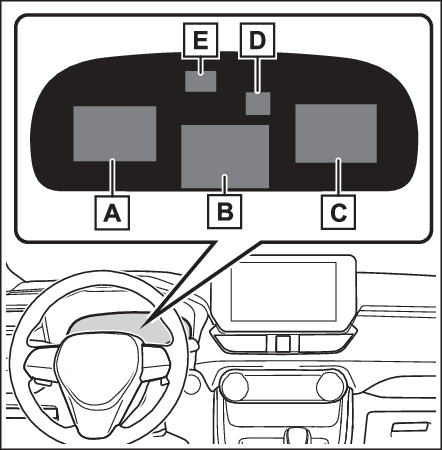
Display contentsDisplay contentsFollowing information is displayed in each area on the multi-information display.Content display area (left)Content display area (center)Content display area (right)Driving support system information display areaWhen driving support system information is displayed on the content display area,
the system operating state will not be displayed in this area.RSA (Road Sign Assist) display area (if equipped) (RSA (Road Sign Assist)*)Content display area (center)Driving support system information display (Driving support system information display)Settings display (Settings display)Warning message displayContent display area (left/right)Power Consumption/Fuel Economy (Power Consumption/Fuel Economy)ECO Accelerator Guidance/“
Eco Score” (ECO Accelerator Guidance/“Eco Score”)EV Ratio/EV Driving Ratio (EV Ratio/EV Driving Ratio)Driving support system information display (Driving support system information display)Audio system-linked display (Audio system-linked display)Drive information (Driving information display)Energy monitor (Energy monitor/consumption screen)AWD system display (AWD system display)Note:The multi-information display is displayed whenThe power switch is in ON.Liquid crystal displaySmall spots or light spots may appear on the display. This phenomenon is characteristic
of liquid crystal displays, and there is no problem continuing to use the display.When changing driving modeBackground color of the multi-information display is changed following the selected
driving mode. (Driving mode select switch)Warning:Caution for use while drivingWhen operating the multi-information display while driving, pay extra attention to
the safety of the area around the vehicle.Do not look continuously at the multi-information display while driving as you may
fail to see pedestrians, objects on the road, etc. ahead of the vehicle.The information display at low temperaturesOutside temperature displayMeter
Meter control switchesMeter control switchesMulti-information display
Meter control switchesSteering wheel
Meter control switchesSwitches
Meter control switchesMeter control switches/
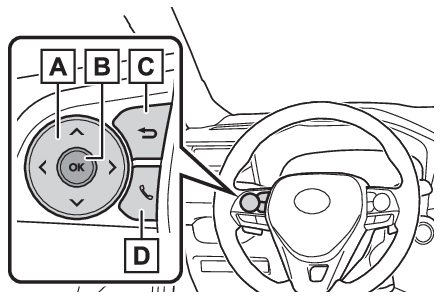
: Change the screen and move the cursor
/
: Change displayed content and scroll up/down the screenPress: Enter/SetPress and hold: Reset/Display customizable items/Display the cursorMove the main meter and return to the previous screenCall sending/receiving and history displayLinked with the hands-free system, sending or receiving call is displayed. For details
regarding the hands-free system, refer to the “
MULTIMEDIA OWNER’S MANUAL”.Display
Driving informationDriving information displayMulti-information display
Driving information displayMulti-information display
Changing the displayChanging the displayThe multi-information display is operated using the meter control switches.Changing the meter display type settingThe meter display type setting can be changed on
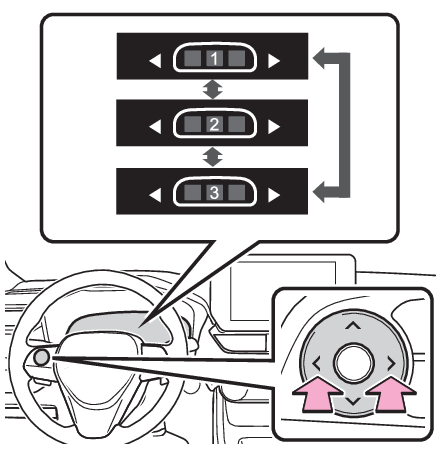
. (Settings display)Changing the screenSelect items from the combination of 3 screens to display on each 3 content display
areas.Press
or
of the meter control switches to scroll the screen.Changing the display contentsSwitches items displayed on each contents display area (left/center/right).Press and hold
to display the cursor on the content display area (center).Press
or
to move the cursor and select the content display area.Press
or
to select the items.Items displayed in the content display areaSelect to enable/disable items on the content display area (left/right).Press and hold
to display the cursor on the content display area (center).Press
or
to move the cursor and select the content display area.Contents display area (left): Press
to display contents list.Contents display area (right): Press
to display contents list.Press
or
to select the items.Press
to select/deselect items.Warning:Caution for use while drivingFor safety, avoid operating the meter control switches while driving as much as possible,
and do not look continuously at the multi-information display while driving. Stop
the vehicle and operate the meter control switches. Failure to do so may cause a steering
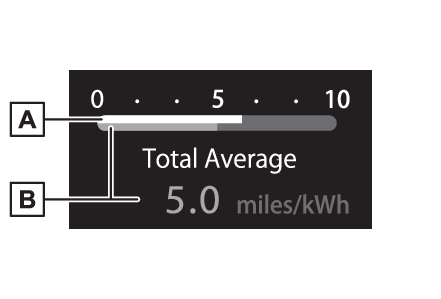
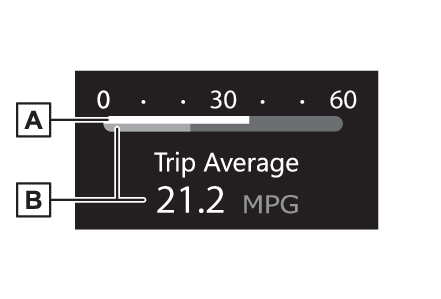
wheel operation error, resulting in an unexpected accident.Average fuel economyCurrent fuel economyPower Consumption/Fuel EconomyThe display contents are different in EV mode or AUTO EV/HV mode, and HV mode.EV mode or AUTO EV/HV modeCurrent power consumptionDisplays the instantaneous current power consumption.Average power consumptionDisplays the average power consumption since the function was reset or the average
power consumption after starting.*1, 2, 3The average power consumption selected by “
Power Consumption” on the
screen is displayed. (Settings display)*1Use the displayed power consumption as a reference only.*2Average power consumption since the function was reset can be reset by pressing and
holding
.*3Average power consumption after starting is reset each time the hybrid system stops.HV modeCurrent fuel economyDisplays the instantaneous current fuel economy.Average fuel economyDisplays the average fuel economy since the function was reset or the average fuel
economy after starting or refueling.*1, 2, 3The average fuel economy selected by “
Fuel Economy” on the
screen is displayed. (Settings display)*1Use the displayed fuel consumption as a reference only.*2Average fuel economy since the function was reset can be reset by pressing and holding
.*3Average fuel economy after starting is reset each time the hybrid system stops.Note:Electricity consumptionWhen the unit is set to “
MPH”:Electricity consumption is the consumption rate of the electricity when EV driving
is performed and equivalent to the fuel consumption for the gasoline vehicles. For
this vehicle, driven distance per kWh of electricity consumed (“
miles/kWh”) is displayed as electricity consumption on each screen.When the unit is set to “
km/h”:Electricity consumption is the consumption rate of the electricity when EV driving
is performed and equivalent to the fuel consumption for the gasoline vehicles. For
this vehicle, electricity consumed per 100 km (“
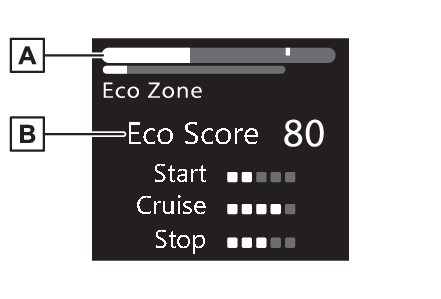
kWh/100 km”) is displayed as electricity consumption on each screen.ECO Accelerator Guidance/“
Eco Score”Displays a reference operation range for using the accelerator pedal according to
driving conditions, and a score result that evaluates the current driving status.ECO Accelerator Guidance“
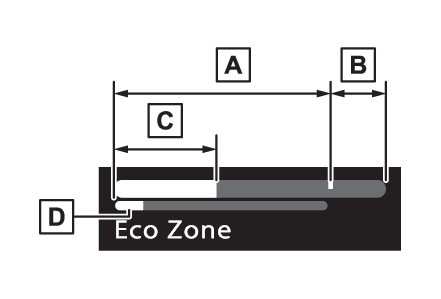
Eco Score”ECO Accelerator GuidanceECO areaShows that the vehicle is being driven in an Eco-friendly manner.Power areaShows that an Eco-friendly driving range is being exceeded (during full power driving
etc.).Current accelerationReference operation rangeA zone is displayed in blue under the Eco area which can be used as a reference operation
range for using the accelerator pedal according to driving conditions such as starting
off and cruising.The ECO Accelerator Guidance display changes according to the driving status, such
as when starting off or cruising.It is easier to drive in an Eco-friendly manner by driving according to the display
showing the accelerator pedal operations and staying within the reference operation
range.“
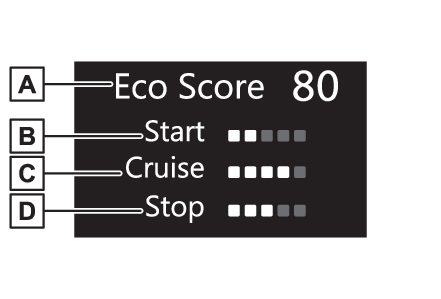
Eco Score”The driving status for the following 3 situations are evaluated in 5 levels: Smooth
start-off acceleration (“
Start”), driving without sudden acceleration (“
Cruise”) and smooth stopping (“
Stop”). Each time the vehicle is stopped, a score result is displayed out of a perfect
score of 100 points.Score result“
Start”“
Cruise”“
Stop”3 situations are displayed with each icon while driving.How to read the bar display:
Score
Bar display
Unrated
Low
High
After starting off, “
Eco Score” display does not start until the vehicle speed exceeds approximately 19mph (30km/h).The “
Eco Score” is reset each time the vehicle starts off to start a new evaluation.Note:ECO Accelerator Guidance/“
Eco Score” will not operate whenThe ECO Accelerator Guidance/“
Eco Score” will not operate in the following situations:The Hybrid System Indicator is not operating.The vehicle is being driven using the dynamic radar cruise control with full-speed
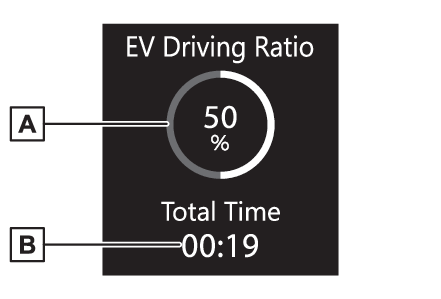
range.EV Ratio/EV Driving RatioEV driving ratio after startingDisplays the percentage of EV driving since the hybrid system was started.*Elapsed time after startingDisplays the elapsed time since hybrid system was started.**It is reset each time the hybrid system stops.Driving support system information displaySelect to display the operational status of the following systems:Dynamic radar cruise control with full-speed range* (Dynamic radar cruise control with full-speed range)LTA (Lane Tracing Assist) (LTA (Lane Tracing Assist))Navigation system-linked display (if equipped)Select to display the following navigation system-linked information.Route guidance to destinationStreet nameCompassAudio system-linked displayMulti-information display
Audio system-linked displayAudio system-linked displaySelect to enable selection of an audio source or track on the meter using the meter
control switches.Average vehicle speedDisplay
Drive informationDrive informationElapsed timeMulti-information display
Vehicle information displayDriving support system information displayMulti-information display
Driving support system information displayDriving information displayDrive information2 items that are selected using the “
Drive Info Items” setting (average speed and distance) can be displayed vertically.Use the displayed information as a reference only.“
Average Speed”: Displays the average vehicle speed since hybrid system start*“
Distance”: Displays the distance driven since hybrid system start*“
Total Time”: Displays elapsed time since hybrid system start**These items are reset each time the hybrid system stops.Trip information2 items that are selected using the “
TRIP A Items” or “
TRIP B Items” setting (average speed and distance) can be displayed vertically.Use the displayed information as a reference only.“
Average Speed”: Displays the average vehicle speed since the display was reset*“
Distance”: Displays the distance driven since the display was reset*“
Total Time”: Displays elapsed time since the display was reset**To reset, display the desired item and press and hold
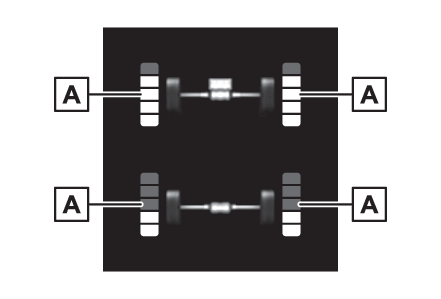
.Energy monitorEnergy monitor/consumption screenAWD system displayTorque distribution displayDisplays the drive status of each wheel in 6 steps from 0 to 5.The illustration used is intended as an example, and may differ from the image that
is actually displayed on the multi-information display.Language (multi-information display)Meter
SettingsMulti-information display
SettingsSettings displayVehicle settings and the content displayed on the screen can be changed by using the
meter control switches.Setting procedurePress and hold
to display the cursor on the content display area (center).Press
or
with the cursor on the content display area (center) to select
and then press
.Press
or
of the meter control switches and move the cursor to select the item for changing
settings.If the function is turned on and off or the volume, etc. is changed on the setting
screen, the setting is changed each time
is pressed.For functions that allow operation contents, display contents, etc., to
be selected, the setting screen is displayed by pressing and holding
. When the setting screen is displayed, select the setting or desired value (time,
etc.) with
.After changing the settings, press
of the meter control switches.Head-up display (if equipped) (Head-up display*)Select to change the head-up display setting. LTA (Lane Tracing Assist) (LTA (Lane Tracing Assist))Select to set up the following items.“
Lane Center”Select to enable/disable the lane centering function.“
Alert Options”Select to change each notification method of the lane departure alert.“
Sensitivity”Select to set the lane departure alert sensitivity.“
Sway Warning”Select to enable/disable the vehicle sway warning.“
Sway Sensitivity”Select to set the vehicle sway warning sensitivity. BSM (Blind Spot Monitor) (BSM (Blind Spot Monitor))Select to set up the following items.BSM (Blind Spot Monitor) on/offSelect to enable/disable the BSM system.“
Sensitivity”Select to change the alert timing for an approaching vehicle.“
Brightness”Select to switch the brightness of the outside rear view mirror indicators. (System components) PCS (Pre-Collision System)Select to set up the following items.PCS on/offSelect to enable/disable the pre-collision system.“
Sensitivity”Select to change the pre-collision warning timing. Intuitive parking assist (Intuitive parking assist*)Select to set up the following items.Intuitive parking assist on/offSelect to enable/disable the intuitive parking assist.“
Volume”Select to set the volume of the buzzer which sounds when the intuitive parking assist
is operated. RCTA (Rear Cross Traffic Alert) (The Rear Cross Traffic Alert function)Select to set up the following items.RCTA (Rear Cross Traffic Alert) on/offSelect to enable/disable the RCTA system.“
Volume”Select to set the volume of the buzzer which sounds when the RCTA is operated. PKSB (Parking Support Brake System) (PKSB (Parking Support Brake)*)Select to enable/disable the Parking Support Brake function. RSA (Road Sign Assist) (if equipped) (RSA (Road Sign Assist)*)Select to set up the following items.Road Sign Assist on/offSelect to enable/disable the RSA system.“
Notification Method”Select to change each notification method used to notify the driver when the system
recognizes excess speed and Do Not Enter sign.“
Notification Level”Select to change each notification level used to notify the driver when the system
recognizes a speed limit sign. Vehicle Settings“
Charging Settings”Select to set up the following items.“
Charging Schedule”Select to register or change the charging schedule. (Using the charging schedule function)“
Charging Current”Select to change the charging current. (When your circuit breaker trips during charging (vehicles with 7-inch multi-information
display))“
Battery Cooler”Select to enable/disable the battery cooler. (“Battery Cooler”)“
Battery Heater”Select to enable/disable the battery heater. (“Battery Heater”) DRCCSelect to change the curve speed reduction function setting. PBD (Power Back Door) (Opening/closing the back door (vehicles without power back door))Select to set up the following items.System settingsSelect to enable/disable the power back door system.“
Hands Free”Select to enable/disable the Hands Free Power Back Door.“
Opening Adjustment”Select the open position when power back door is fully open.“
Volume”Select to set the volume of the buzzer which sounds when the power back door system
operates.“
TPWS” (Tire Pressure Warning System) (if equipped) (Tire pressure warning system (if equipped))“
Setting Pressure”Select to initialize the tire pressure warning system.“
Identifying Each Wheel & Position”Select to change the tire pressure warning system sensor ID code set. To enable this
function, a second set of tire pressure warning system sensor ID codes must be registered
by a Toyota dealer. For information regarding changing the registered ID code set,
contact your Toyota dealer.“
Pressure unit setting”Select to change the units of measure displayed.Rear Seat Reminder (Rear seat reminder function)Select to enable/disable the rear seat reminder function. Settings“
Language”Select to change the language on the multi-information display.“
Units”Select to change the unit of measure for fuel consumption.Meter TypeSelect to change the meter type setting.Meter StyleSelect to change the meter style.Dial TypeSelect to change dial type. (Meter display)Depending on the selected dial type, this item will not be displayed. EV indicatorSelect to enable/disable the EV indicator.Fuel EconomySelect to change the display on Fuel Economy. (Power Consumption/Fuel Economy)“
Hybrid System”Select to enable/disable reference operation range.“
Power Consumption”Select to change the display on Power Consumption. (Power Consumption/Fuel Economy)Drive InfoSelect to change displayed items on drive information display. (Driving information display)“
Calendar”Select to set up the calender. This can only be set if GPS calibration of clock is
turned off in the multimedia system settings.Pop-Up DisplaySelect to enable/disable the pop-up displays, which may appear in some
situations.Default SettingsSelect to reset the meter display settings.Note:Suspension of the settings displayIn the following situations, operation of the settings display will be temporarily
suspended.When a warning message appears on the multi-information displayWhen the vehicle begins to moveSettings for functions not equipped to the vehicle are not displayed.When a function is turned off, the related settings for that function are not selectable.Warning:Cautions during setting up the displayAs the hybrid system needs to be operating during setting up the display, ensure that
the vehicle is parked in a place with adequate ventilation. In a closed area such
as a garage, exhaust gases including harmful carbon monoxide (CO) may collect and
enter the vehicle. This may lead to death or a serious health hazard.Notice:During setting up the displayTo prevent 12-volt battery discharge, ensure that the hybrid system is operating while
setting up the display features.Meter
Warning messagesMulti-information display
Warning message displayWarning message displaySelect to display warning messages and measures to be taken if a malfunction is detected.
(If a warning message is displayed)Multi-information displayMulti-information display
Convenience Services (Suggestion function)Convenience Services (Suggestion function)Convenience Services (Suggestion function)Displays suggestions to the driver in the following situations. To select a response
to a displayed suggestion, use the meter control switches.Suggestion to enable the power back door (if equipped)If the power back door system is disabled on the
screen and the power back door switch on the instrument panel is operated, a suggestion
message will be displayed asking if you wish to enable the power back door system.
To enable the power back door system, select “
Yes”. After enabling the power back door system, press the power back door switch again
to open or close the power back door.Suggestion to turn on the headlightsIf the headlights turn off, and the vehicle speed is 5 km/h (3 mph) or higher for
a certain amount of time when the surroundings are dark, a suggestion message will
be displayed.Suggestion to turn off the headlightsIf the headlights are left on for a certain amount of time with the headlight switch
in
after the power switch has been turned off, a suggestion message will be displayed
asking if you wish to turn the headlights off.To turn the headlights off, select “
Yes”.If a front door is opened after the power switch is turned off, this suggestion message
will not be displayed.To close all of the power windows, select “
Yes”.Note:CustomizationSome functions can be customized. (Customizable features: Customizing vehicle features)