Multi-terrain MonitorMulti-terrain Monitor**If equippedThe Multi-terrain Monitor helps the driver to check the vehicle surroundings. It assists
in determining the conditions around the driver in a variety of situations, such as
when judging conditions during off-road driving or checking for obstacles when parking.Warning:Observe the following precautions to avoid an accident that could result in death
or serious injuries.When using the Multi-terrain Monitor systemNever rely solely on the Multi-terrain Monitor. As with unequipped vehicles, drive
carefully while directly confirming the safety of your surroundings and the area to
the rear of the vehicle. Take particular care to avoid parked cars and other obstacles.Due to the characteristics of the camera lens, the actual position and distance of
people and other obstacles will differ from those shown on the Multi-terrain Monitor
screen. Directly confirm the safety of your surroundings before driving.When the outer
mirrors are not positioned in normal position, images will not be displayed properly
on the panoramic view monitor.Do not drive while only looking at the screen. When driving, make sure to directly
confirm the safety of your surroundings, such as by visually checking the area and
using the vehicle’s mirrors.In low temperatures, the screen may darken or the images may become faint. Images
of moving objects in particular may distort or disappear from the screen. Therefore,
make sure to drive carefully while directly visually confirming the safety of your
surroundings.Multi-terrain Monitor
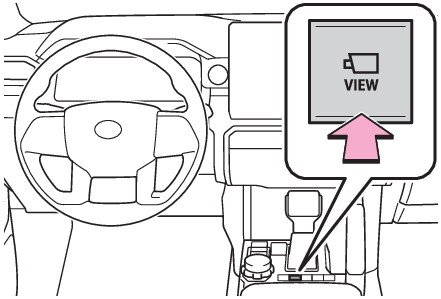
Camera switchCamera switchThe camera switch is located as shown in the illustration.Note:The Multi-terrain Monitor is displayed by operating
when vehicle speed is approximately 10 mph (16 km/h) or less. If the vehicle speed
exceeds approximately 10 mph (16 km/h), the Multi-terrain Monitor display is canceled.Multi-terrain Monitor
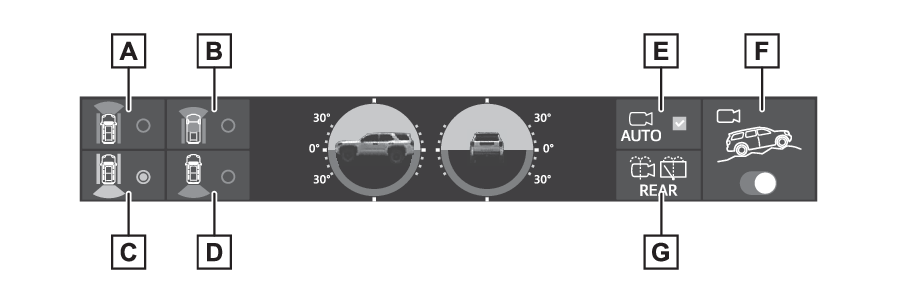
Menu buttonMenu buttonThe screens that are displayed can be selected by the following buttons.Front view & dual side viewUnder vehicle terrain view & dual side viewRear view & dual side viewWide rear viewAuto mode on/off button (Automatic display mode)Multi-terrain Monitor on/off buttonPanoramic View Monitor is displayed when the Multi-terrain Monitor is turned OFF.
(Panoramic view monitor*)Rear camera washer switchPress shortly: The rear camera washer operates for a certain period of time.Press and hold: The rear camera washer operates while the rear camera washer switch
remains pressed.Multi-terrain Monitor
FunctionWhen the front-wheel drive control switch is in “
4L” or “
4H” (part-time 4WD), “
L4L” or “
H4L” (full-time 4WD) and Multi-terrain select is ONThe Multi-terrain Monitor is display a screen suitable for off-road.The driver can drive while confirming the following guidelines with a front viewDistance with the obstacle in the frontEstimated course lineThe driver can drive while confirming the obstacle in the flank of tire neighborhood
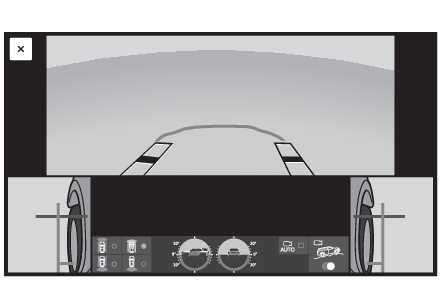
and the vehicle with a side screenChecking the area to the front and sides of the vehicleFront view & dual side viewSelect the front view & dual side view button.When the front view and side view screens are touched, each of the display sizes can
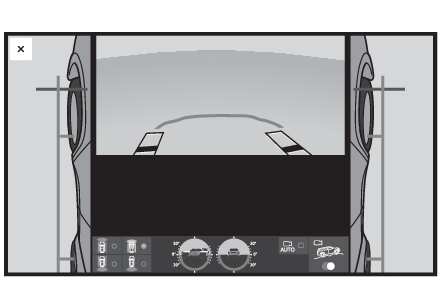
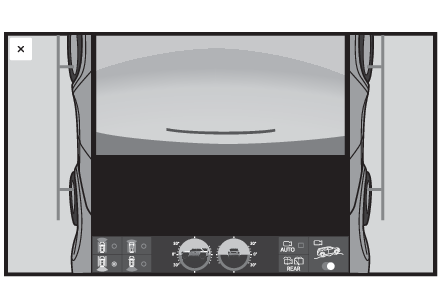
be changed.Checking the condition of the road surface under the vehicleUnder vehicle terrain view & dual side viewSelect the under vehicle terrain view & dual side view button.Under vehicle terrain view & dual side view (front magnified)When the under vehicle terrain view and side view screens are touched, each of the
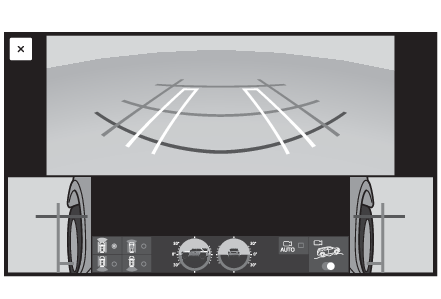
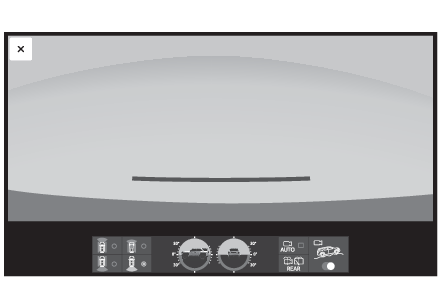
display sizes can be changed.Checking the area to the rear of the vehicleRear view & dual side viewSelect the rear view & dual side view button.Wide rear viewSelect the wide rear view button.The rear view & dual side view and the wide rear displays can be switched by touching
the screen.When the front-wheel drive control switch is in “
2H” or “
4H” (part-time 4WD), “
H4F” or “
H4L” (full-time 4WD) and Multi-terrain select is OFFThe panoramic view monitor is displayed. (Panoramic view monitor*)Multi-terrain Monitor
Automatic display modeAutomatic display modeWhen automatic display mode is turned on, the Multi-terrain Monitor screen is displayed
in the following conditions, even if
has not been operated.When the shift lever is shifted to D or N.When vehicle speed is reduced to approximately 10 mph (16 km/h) or less.Note:The automatic display mode switches between on and off each time
is selected. When automatic display mode is on, an indicator illuminates on the icon.Even when automatic display mode is on, the display can still be switched by pressing
.Multi-terrain Monitor
Screen display and functionsScreen display and functionsThe front-wheel drive control switch in the case of “
4L” or “
4H” (part-time 4WD), “
L4L” or “
H4L” (full-time 4WD) and Multi-terrain select is ON, the Multi-terrain Monitor can display
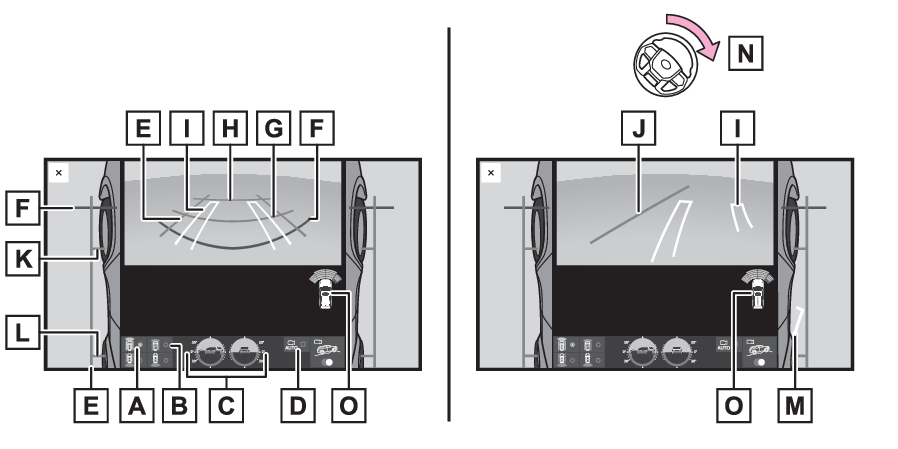
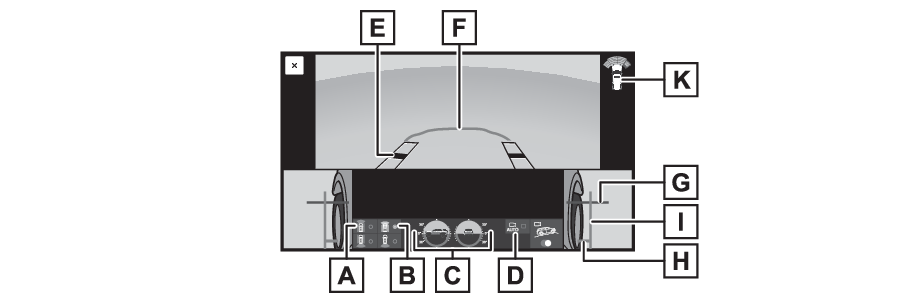
a screen suitable for off-road.Front view & dual side viewFront view & dual side view can be used to check the area around the front of the
vehicle.In addition to an image of the front of the vehicle, guide lines are displayed in
a composite view to provide reference for when deciding a direction to move forward
in.If the steering wheel is turned 270° or more, guide lines and other features to support
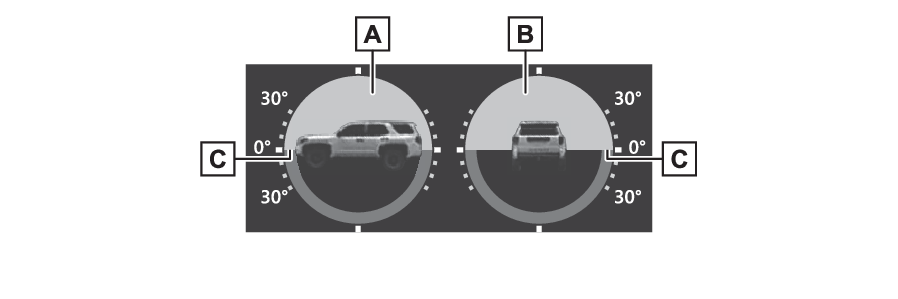
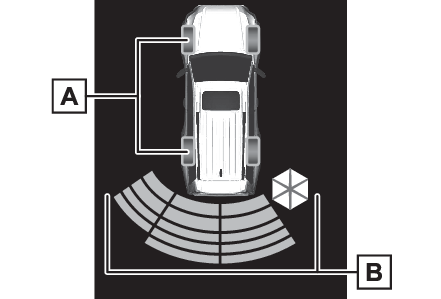
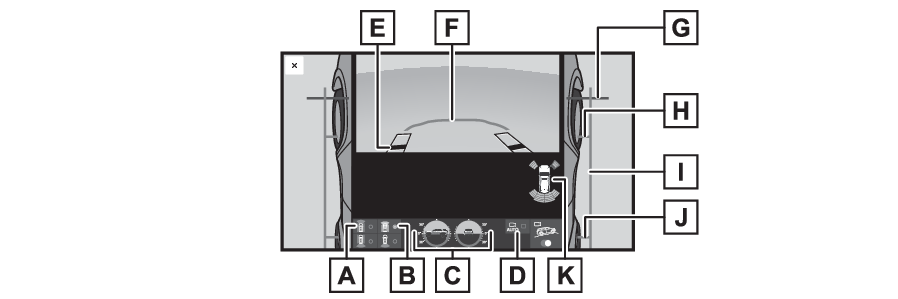
turning are automatically displayed.Front view & dual side view buttonUnder vehicle terrain view & dual side view button (Under vehicle terrain view & dual side view)ClinometerDisplays the vehicle’s estimated degree of incline. (Clinometer)Automatic display buttonSelect to turn automatic display mode on/off. (Automatic display mode)Vehicle width lines (blue)Shows guide lines of the vehicle’s width including the outside rear view mirrors.1.5 ft. (0.5 m) distance guide line (red)Show distance in front of the vehicle.Display points approximately 1.5 ft. (0.5 m) from the edge of the bumper.3 ft. (1 m) distance guide line (blue)6 ft. (2 m) distance guide line (blue)Front tire course line (yellow)Shows the estimated course of the front tires according to steering wheel position.Forward movement guide line (blue)Shows the estimated tire course of the tightest possible turn.Front tire contact line (blue)Shows guide lines of where the front tire touches the ground.Rear tire contact line (blue)Shows guide lines of where the rear tire touches the ground.Rear tire course line (yellow)Shows the estimated course of the rear tires.When the steering wheel is turned by 270° or moreIntuitive parking assist/slip displayWhen a sensor detects an obstacle, the direction of and the approximate distance to
the obstacle are displayed and the buzzer sounds or indicates a tire slippage. (Slip display)Note:The screen can be displayed when the shift lever is in a position other than P.When the intuitive parking assist detects an obstacle or another vehicle, a warning
message pops up in the clinometer/slip display area.ClinometerClinometer displays the vehicle inclination to the front, rear, left and right within
a range of 0° to approximately 30°.Degree markers of incline to the front and rearIndicates the vehicle inclination in degrees in the front and rear directions.Degree markers of incline to the left and rightIndicates the vehicle inclination in degrees in the left and right directions.PointerIndicates the degree of the vehicle inclination in comparison to a parallel line.Note:The display indicates the incline of the vehicle in degrees shown by the movement
of the pointer and the rotation of the vehicle image.The color of the degree markers of incline to the front, rear, left and right changes
according to the current incline of the vehicle.After the power switch is in ON, the degree of incline is not displayed until such
information is determined.The degree of incline showed on the clinometer is only an approximate indication,
and may differ from the degree of incline measured using other equipment.Slip displayWhen tire slippage is detected, the clinometer display area is automatically switched
to the slip display.Tire displayIndicates the position of freely spinning tires in yellow if the tire spins. (During
Crawl Control is operating, all of the tires are indicated in yellow.)Pop-up display of the intuitive parking assistDisplayed if an obstacle is detected while the intuitive parking assist is turned
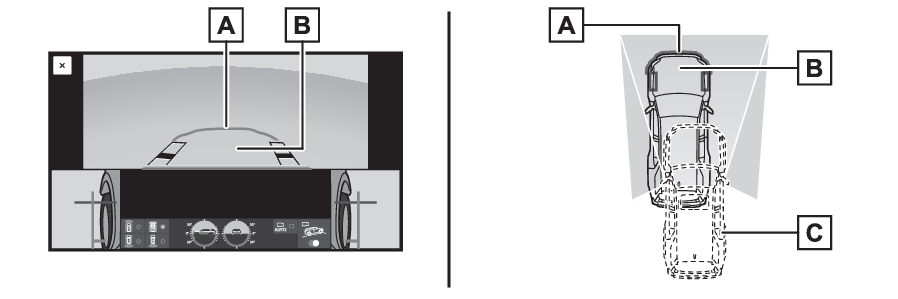
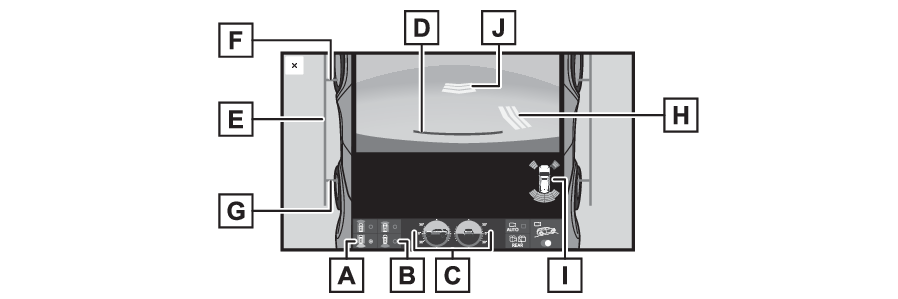
on.Under vehicle terrain view & dual side viewLines indicating current vehicle and tire position are displayed in a composite view
on an image taken approximately 32 ft. (10 m) behind the current vehicle position
and assists the driver to check conditions underneath the vehicle or determine the
position of the front tires.Current vehicle positionImage displayed in the under vehicle terrain view (image taken approximately 32 ft.
(10 m) behind the current vehicle position)Vehicle position at the time the image was taken (approximately 32 ft. (10 m) behind
the current vehicle position)Displaying the under vehicle terrain viewUnder vehicle terrain view & dual side viewUnder vehicle terrain view & dual side view (front magnified)Front view & dual side view button (Front view & dual side view)Under vehicle terrain view & dual side view buttonClinometerDisplays the vehicle’s estimated degree of incline. (Clinometer)Automatic display buttonSelect to turn automatic display mode on/off. (Automatic display mode)Tire position indicator lines (black or white)Indicates the estimated position of the front tires.Vehicle position indicator lines (blue)Indicates the estimated position of the vehicle.1.5 ft. (0.5 m) distance guide line (red or black)Show distance in front of the vehicle.Display points approximately 1.5 ft. (0.5 m) from the edge of the bumper.Front tire contact line (blue)Shows guide lines of where the front tire touches the ground.Vehicle width lines (blue)Shows guide lines of the vehicle’s width including the outside rear view mirrors.Rear tire contact line (blue)Shows guide lines of where the rear tire touches the ground.Intuitive parking assist/slip iconWhen a sensor detects an obstacle, the direction of and the approximate distance to
the obstacle are displayed and the buzzer sounds or indicates a tire slippage. (Slip display)Note:The screen can be displayed when the shift lever is in a position other than P.In the following situations, the system may not operate normally, or it may not be
possible to switch to the under vehicle terrain view.The road is covered with snowIt is nighttime and the road has no illuminationDirt or foreign matter is adhering to the camera lensThere is water in front of the vehicle (a river, puddle, sea water, etc.)Warning:The tire position indicator lines and vehicle position indicator lines may differ
from actual vehicle positions depending on the number of passengers, cargo weight,
road grade, road surface conditions, brightness of the surrounding environment, etc.
Always drive the vehicle while confirming the safety of your surroundings.The image displayed is one that was previously taken at a point approximately 32 ft.
(10 m) behind the current vehicle position. In cases such as when objects move after
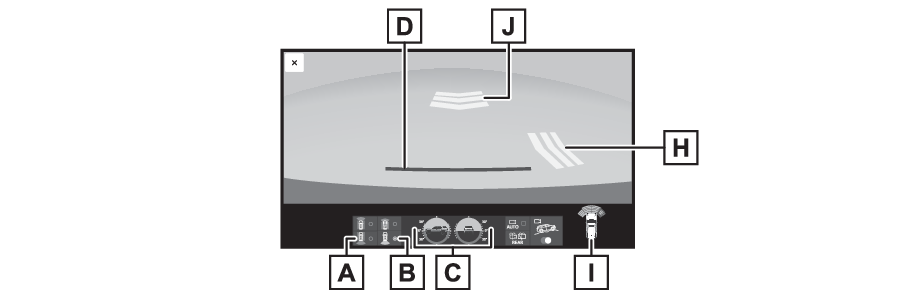
the image is taken, the image displayed on the screen may differ from the actual state.Rear view & dual side view/wide rear viewThe rear view & dual side view/wide rear view screen provide support when checking
the areas of behind the vehicle and around the vehicle while backing up, for example
while parking.The screens will be displayed when the shift lever is in R.Rear view & dual side viewWide rear viewRear view & dual side viewWide rear view buttonClinometer/slip displayDisplays the vehicle’s estimated degree of incline or indicates a tire slippage. (Clinometer, Slip display)1.5 ft. (0.5 m) distance guide line (red)Show distance in rear of the vehicle.Display points approximately 1.5 ft. (0.5 m) from the edge of the bumper.Vehicle width guide lines (blue)Displays a guide path when the vehicle is being backed straight up.Front tire contact line (blue)Shows guide lines of where the front tire touches the ground.Rear tire contact line (blue)Shows guide lines of where the rear tire touches the ground.Rear Cross Traffic Alert/Rear Camera DetectionWhen a sensor detects a vehicle or pedestrian approaching from the rear, the direction
of the vehicle or pedestrian approaching from the rear is displayed and the buzzer
sounds.Intuitive parking assistWhen a sensor detects an obstacle, the direction of and the approximate distance to
the obstacle are displayed and the buzzer sounds.Rear Camera DetectionWhen the rear camera detects a pedestrian approaching from the rear, the direction
of the vehicle approaching from the rear is displayed and the buzzer sounds.Note:The screen can be displayed when the shift lever is in P.For details about the Rear Cross Traffic Alert function. (RCTA (Rear Cross Traffic Alert) function)If the back door is not closed, guide lines will not be displayed. If the guide lines
do not display even when the back door is closed, have the vehicle inspected at your
Toyota dealer.Warning:The tire position indicator lines and vehicle position indicator lines may differ
from actual vehicle positions depending on the number of passengers, cargo weight,
road grade, road surface conditions, brightness of the surrounding environment, etc.
Always drive the vehicle while confirming the safety of your surroundings.Cleaning the cameraIf dirt or foreign matter, such as water droplets, snow, or mud, has stuck to the
camera, you will not be able to see the image clearly. If that happens, splash the
camera with a large amount of water and then wipe the camera lens clean with a soft,
damp cloth.Rear camera: Dirt on the camera lens can be cleaned by operating the dedicated camera
cleaning washer. (Rear window wiper and washer)Notice:How to use the camerasThe Multi-terrain Monitor may stop functioning correctly. Take note of the following
items:Do not hit or apply a forceful impact on the camera. Doing so may change the position
and mounting angle of the camera.The camera is designed to be waterproof. Do not detach, disassemble, or modify it.When washing the camera lens, splash the camera with a large amount of water and then
wipe the camera lens clean with a soft, damp cloth. Rubbing the camera lens forcibly
may scratch the camera lens and you may no longer be able to see images clearly.The camera cover is made of resin. Do not allow an organic solvent, car wax, window
cleaner, or glass coating to adhere to the camera. If this happens, wipe it off immediately.Do not pour hot water on the vehicle in cold weather or apply other rapid changes
of temperature.If you wash the vehicle with a high pressure car washer, do not point the hose directly
at the camera or camera area. Applying strong water pressure may result in the camera
malfunctioning.If the camera is hit, it may cause a camera malfunction. If this happens, have the
vehicle inspected by your Toyota dealer as soon as possible.Cleaning the rear camera with washer fluidDirt on the rear camera lens can be cleaned by operating the dedicated camera cleaning
washer.When cleaning the camera, it may be difficult to see the image due to the washer fluid.
When backing up, be sure to visually check all around the vehicle both directly and
using the mirrors before proceeding.If washer fluid remains on the camera lens surface after cleaning, the image may be
difficult to see at night due to the height or inclination of the headlights of the
vehicle behind.Some dirts may not be removed completely after cleaning. In this case, rinse the camera
lens with a large quantity of water and then wipe it clean with a soft cloth dampened
with water.Washer fluid is sprayed onto the camera lens surface. Therefore, the ice, snow, etc.
adhering around the camera cannot be removed.Notice:If there is a sufficient amount of washer fluid but it does not spray out, check that
the washer nozzle is not blocked.When the washer fluid reservoir is empty, do not operate the switch continually as
the washer fluid pump may overheat.When a nozzle becomes blocked, contact your Toyota dealer. Do not try to clear it
with a pin or other object. The nozzle would be damaged.Some foreign matters may not be removed completely after cleaning. In this case, rinse
the rear camera lens with a large quantity of water and then wipe it clean with a
soft cloth dampened with water. Do not strongly rub the rear camera lens, as it may
be scratched and will not be able to transmit a clear image.Washer fluid is sprayed onto the rear camera lens surface. Therefore, the ice, snow,
etc. adhering around the rear camera such as the garnish cannot be removed.Use fluids that are appropriate to the outside temperatures, in order to prevent the
washer fluid from freezing.When washing the vehicle, do not let water from the high-pressure washer directly
hit the nozzle. Due to the shock from the high pressure water, it is possible that
the device may not operate normally. Also, the water may enter the nozzle injection
opening and freeze. It causes the washer fluid not to spray properly.Do not subject the nozzle to sudden change of temperature such as by pouring hot water
into the nozzle under the cold weather.The washer fluid will need to be replaced more often when the rear camera cleaner
system is frequently used. Because the washer reservoir is shared with the windshield
washer.Do not strike or hit the nozzle or subject it to a strong impact, as the nozzle installation
position and angle may be changed.When the vehicle got strong vibration, it may be difficult to see the image due to
the washer fluid drop from the nozzle.The display screen and placement position of the washer switch may differ depending
on the type of screen and system.When the washer switch is pressed and held, washer fluid is sprayed while the switch
is pressed.When activate rear camera washer, it also activate rear windows shield washer simultaneously.When cleaning the rear camera, it may be difficult to see the image due to the washer
fluid. In this case, directly check the surroundings of the vehicle.If washer fluid remains on the rear camera lens surface after cleaning. Then the image
may be difficult to see at night due to the height or inclination of the headlights
of the vehicle behind.Multi-terrain Monitor
Multi-terrain Monitor precautionsMulti-terrain Monitor precautionsPanoramic view monitor precautionsMulti-terrain Monitor
Things you should knowThings you should knowThings you should know