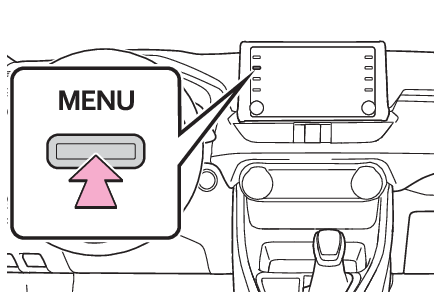
Toyota Entune App Suite Connect settingsToyota Entune App Suite Connect settingsThe settings of Toyota Entune App Suite Connect can be changed.Displaying the Toyota Entune App Suite Connect settings screenPress the “
MENU” button.Select “
Setup”.Select “
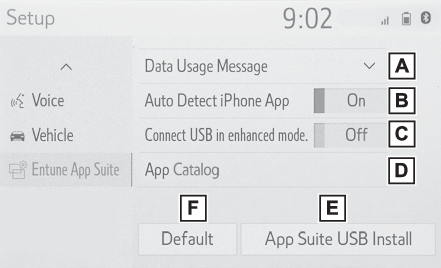
Entune App Suite”.Select the desired items to be set.Toyota Entune App Suite Connect settings screenSelect to set the pop up reminder for smartphone data usage. (Data usage notification pop-up settings)Select to detect iPhone app automatically on/off.Select to turn on/off the enhanced USB connection mode. When an iPhone is connected while this setting is “
On”, communication with any devices connected to the other USB port is not possible.
Also, depending on the device, charging may not be possible.Select to configure the Apps menu layout (e.g. app order, which applications are activated,
etc.). This updates a setting file stored on the Toyota Entune center, this settings
file can also be updated from the navigation system, smartphone app and by web portal.Select to install the Apps via a USB memory device. For details, contact your Toyota
dealer.Select to reset all setup items to default settingData usage notification pop-up settingsThe data usage notification pop-up, which indicates that the system will use an internet
connection, can be enabled/disabled.Display the Toyota Entune App Suite Connect settings screen. (Displaying the Toyota Entune App Suite Connect settings screen)Select “
Data Usage Message”.Change the setting as desired.