Toyota Entune App Suite ConnectToyota Entune App Suite ConnectApp Suite is a function that enables certain apps installed on a smartphone or the
system to be displayed on and operated from the system screen. Before the Toyota Entune
App Suite Connect can be used, some setup needs to be performed. (Preparation before using Toyota Entune App Suite Connect)For details about the functions and services provided by each application, refer tohttp://www.toyota.com/Entune/in the United States,http://www.toyota.ca/entunein Canada, andhttp://www.toyotapr.com/entunein Puerto Rico.Using Toyota Entune App Suite ConnectFrom the
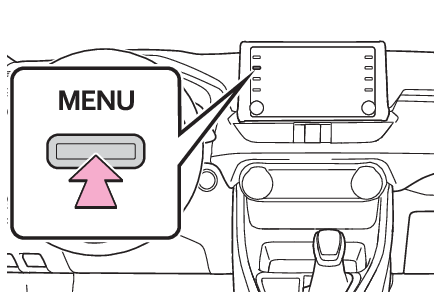
“MENU” buttonPress the “
MENU” button.Select “
Apps”.Follow the steps in “From the “
APPS” button” from step 3. (Using Toyota Entune App Suite Connect)From the “
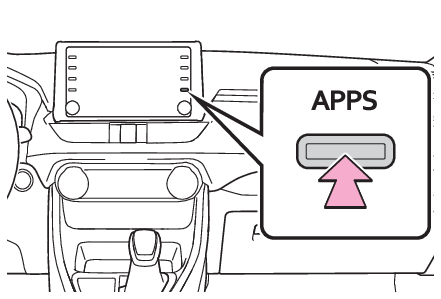
APPS” buttonPress the “
APPS” button.Select “
Apps”.If a specific application screen is displayed, select “
Apps” again.Select the desired application screen button.: Select to activate an application.“
Update”: Select to update the applications. (Updating an application)“
App Catalog”: Select to change the order of the applications. (Reordering the applications): Displays the number of new notifications for the applicationUpdating an applicationWhen the App Suite is activated, an application may need to be updated. To update
an application, it is necessary to download update data and install it.Downloading updateIf an update is available, “
Update” can be selected.Select “
Update” on the application screen. (Using Toyota Entune App Suite Connect)Check that downloading starts.“
Download in Background”: Select to operate other functions while downloading.“
Cancel”: Select to cancel updating.Check that downloading is complete.“
Later”: Select to install later. When this screen button is selected, the screen will return
to the last displayed screen. To install the update data: (Installing the update data)“
See Detail”: Select to display detailed information on the update data.“
Install”: Select to install the update data. Follow the steps “Installing the update data”
from step 2. (Installing the update data)Installing the update dataAfter the downloading is complete, “
Update” will be changed to “
Install”.Select “
Install” on the application screen. (Using Toyota Entune App Suite Connect)Select “
Continue”.“
Later”: Select to postpone the installation of the update data and go back to the previous
screen.Check that installing is started.“
Install in Background”: Select to operate other functions while installing.Select “
OK” after the installing is complete.Note:The Toyota Entune App Suite Connect function cannot be operated while installing.Reordering the applicationsOrder of the applications can be changed.Display the application screen. (Using Toyota Entune App Suite Connect)Select “
App Catalog”.Select the desired application to be moved.Select “
<<” or “
>>” to move the application, and then select the done button.If a message appears on the screenWhen problems occur with starting the application player, a message will appear on
the screen. Referring to the table below, identify the problem and take the suggested
corrective action.“
When it is safe and legal to do so, please ensure your Entune App Suite application
is running and logged in on your phone.”The Toyota Entune App Suite Connect application cannot be connected to Bluetooth® SPP.Refer tohttp://www.toyota.com/Entune/in the United States,http://www.toyota.ca/entunein Canada, andhttp://www.toyotapr.com/entunein Puerto Rico, to confirm if the phone is Bluetooth® SPP compatible or not, and then activate the Toyota Entune App Suite Connect application.“
Installation failed, please try again”Installation can be attempted again by changing to the application screen and pressing
the “
Install” switch.“
Application download error. Please try again later.”Downloading can be attempted again by checking the communication status, changing
to the application screen and pressing the “
Download” switch again.“
Download error, some Entune App Suite functions may not work as expected. Please reinitiate
the download process.”The Toyota Entune App Suite Connect application cannot be connected to Bluetooth® SPP.Refer tohttp://www.toyota.com/Entune/in the United States,http://www.toyota.ca/entunein Canada, andhttp://www.toyotapr.com/entunein Puerto Rico, to confirm if the phone is Bluetooth® SPP compatible or not, and then activate the Toyota Entune App Suite Connect application.Please ensure your Toyota Entune App Suite Connect application is running and logged
in on your phone while vehicle is not moving.“
To use the services, Entune APP Suite Connect application needs to be running on your
phone. For more information, please visit toyota.com or call 1-800-331-4331 in the
United States, 1-888-869-6828 in Canada, and 1-877-855-8377 in Puerto Rico.”The Toyota Entune App Suite Connect application cannot be connected to Bluetooth® SPP.Refer tohttp://www.toyota.com/Entune/in the United States,http://www.toyota.ca/entunein Canada, andhttp://www.toyotapr.com/entunein Puerto Rico, to confirm if the phone is Bluetooth® SPP compatible or not, and then activate the Toyota Entune App Suite Connect application.“
Communication unsuccessful. Please try again.”Communication was disconnected.After a few moments, retry the operation.Toyota Entune App Suite
Entering keywordEntering keyword operationA keyword can be entered to an application by the software keyboard or voice recognition
function. For details about the functions and services provided by each application,
refer tohttp://www.toyota.com/Entune/in the United States,http://www.toyota.ca/entunein Canada, andhttp://www.toyotapr.com/entunein Puerto Rico.The keyboard layout can be changed. (General settings screen)Entering a keyword using the software keyboardDisplay the application screen. (Using Toyota Entune App Suite Connect)Select the desired application screen button.Select the character entering space.Enter a search term, and then select “
OK”.Entering characters will be reflected on the character entering space.For details on operating the keyboard: Entering letters and numbers/list screen operationEntering a keyword using the voice recognition functionDisplay the application screen. (Using Toyota Entune App Suite Connect)Select the desired application screen button.Press the talk switch. (Steering switchVoice command systemWhen an Apple CarPlay connection is established)Say the desired keyword.Completion of the keyword will be detected automatically.Search results will be displayed on the screen.