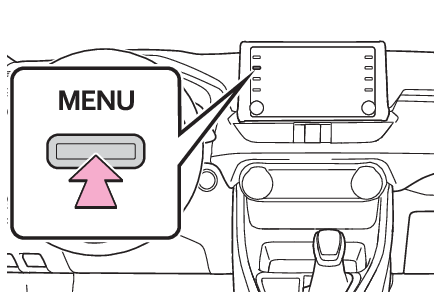
Phone settingsSetupDisplaying the phone settings screenPress the “
MENU” button.Select “
Setup”.Select “
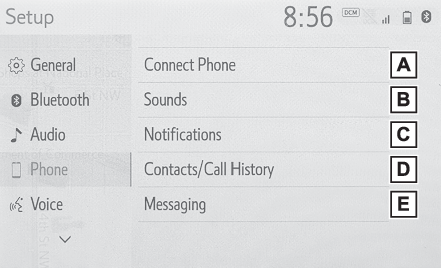
Phone”.Select the desired item to be set.Phone settings screenConnecting a Bluetooth® device and editing the Bluetooth® device information (Connecting a Bluetooth® device, Editing the Bluetooth® device information)Sound settings* (Sounds settings screen)Notification settings* (Notifications settings screen)Contact/call history settings* (Contacts/Call history settings screen)Message settings* (Message settings screen)*This operation cannot be performed while driving.Phone settings
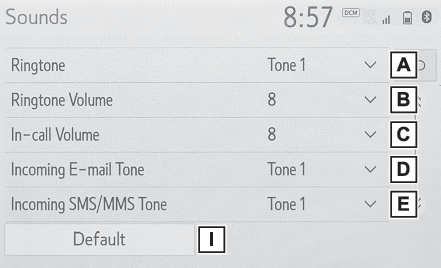
Sounds settingsSounds settings screenThe call and ringtone volume can be adjusted. A ringtone can be selected.Display the phone settings screen. (Displaying the phone settings screen)Select “
Sounds”.Select the desired item to be set.Select to set the desired ringtone.Select “
-” or “
+” to adjust the ringtone volume.Select “
-” or “
+” to adjust the default volume of the other party’s voice.Select to set the desired incoming e-mail tone.Select to set the desired incoming SMS/MMS tone.Select “
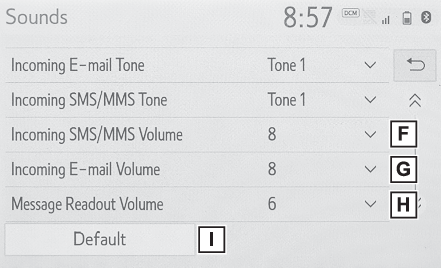
-” or “
+” to adjust the incoming SMS/MMS tone volume.Select “
-” or “
+” to adjust the incoming e-mail tone volume.Select “
-” or “
+” to adjust the message readout volume.Select to reset all setup items.Note:Depending on the type of Bluetooth® phone, certain functions may not be available.Phone settings
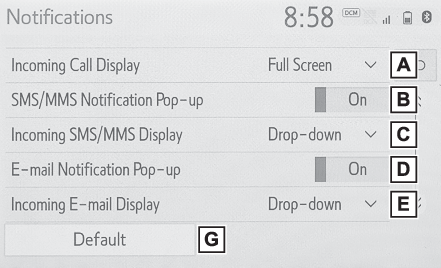
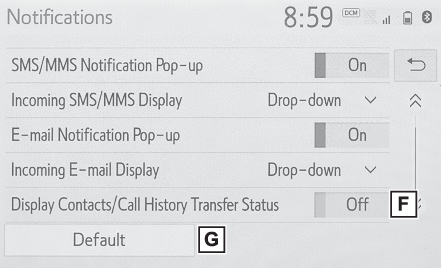
Notifications settingsNotifications settings screenDisplay the phone settings screen. (Displaying the phone settings screen)Select “
Notifications”.Select the desired item to be set.Select to change the incoming call display.“
Full Screen”: When a call is received, the incoming call screen is displayed and can be operated
on the screen.“
Drop-down”: A message is displayed at the top of the screen.Select to set the SMS/MMS notification pop-up on/off.Select to change the incoming SMS/MMS display.“
Full Screen”: When an SMS/MMS message is received, the incoming SMS/MMS display screen is displayed
and can be operated on the screen.“
Drop-down”: When an SMS/MMS message is received, a message is displayed at the top of the screen.Select to set the e-mail notification pop-up on/off.Select to change the incoming e-mail display.“
Full Screen”: When an e-mail is received, the incoming e-mail display screen is displayed and
can be operated on the screen.“
Drop-down”: When an e-mail is received, a message is displayed at the top of the screen.Select to set display of the contact/history transfer completion message on/off.Select to reset all setup items.Note:Depending on the type of Bluetooth® phone, these functions may not be available.Phone settings
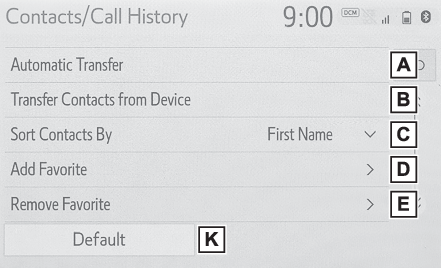
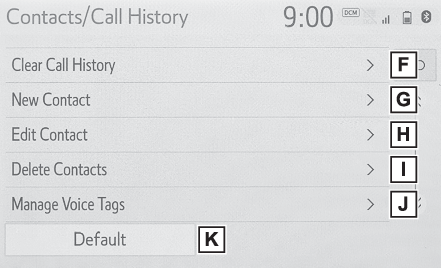
Contacts/Call history settingsContacts/Call history settings screenContacts can be transferred from a Bluetooth® phone to this system. Contacts and favorites can be added, edited and deleted. Also,
the call history can be deleted.Display the phone settings screen. (Displaying the phone settings screen)Select “
Contacts/Call History”.Select the desired item to be set.For PBAP compatible Bluetooth® phones: Select to change the contact/history transfer settings. (Setting automatic contact/history transfer)Select to update contacts from the connected device. (Transfer contacts from device)Select to sort contacts by the first name or last name field.Select to add contacts to the favorites list. (Registering the contacts in the favorites listWhen 15 contacts have already been registered
to the favorites list)Select to delete contacts from the favorites list. (Deleting the contacts in the favorites list)Select to clear the call history.*Select to add new contacts to the contact list.* (Registering a new contact to the contacts list)Select to edit contacts in the contact list.* (Editing the contact data)Select to delete contacts from the contact list.* (Deleting the contact data)Select to set the voice tags. (Setting voice tags)Select to reset all setup items.*For PBAP compatible Bluetooth® phones, this function is available when “
Automatic Transfer” is set to off. (Setting automatic contact/history transfer)Note:Depending on the type of Bluetooth® phone, certain functions may not be available.Contact data is managed independently for every registered phone. When one phone is
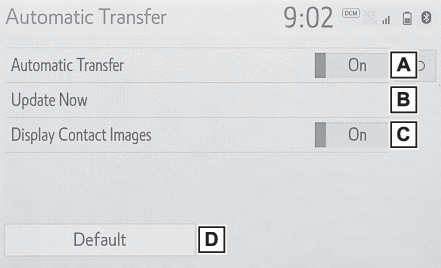
connected, another phone’s registered data cannot be read.Setting automatic contact/history transferThe automatic contact/history function is available for PBAP compatible Bluetooth® phones only.Select “
Automatic Transfer”.Select the desired item to be set.Select to set automatic contact/history transfer on/off. When set to on, the phone’s
contact data and history are automatically transferred.Select to update contacts from the connected phone. (Updating contacts from phone)Select to set the transferred contact image display on/off.Only when the vehicle is
not moving, the contact image can be displayed.Select to reset all setup items.Updating contacts from phoneSelect “
Update Now”.Contacts are transferred automatically.Check that a confirmation screen is displayed when the operation is complete.This operation may be unnecessary depending on the type of Bluetooth® phone.If another Bluetooth® device is connected when transferring contact data, depending on the phone, the connected
Bluetooth® device may need to be disconnected.Depending on the type of Bluetooth® phone being connected, it may be necessary to perform additional steps on the phone.Updating the contacts in a different way (from the call history screen)*Display the phone top screen. (Phone screen operation)Select “
History” and select a contact not yet registered in the contact list.Select “
Update Contact”.Select the desired contact.Select a phone type for the phone number.*0For PBAP compatible Bluetooth® phones, this function is available when “
Automatic Transfer” is set to off. (Setting automatic contact/history transfer)Transfer contacts from deviceFrom phone (OPP compatible Bluetooth® phones only)When the contact is not registeredSelect “
Transfer Contacts from Device”.Select “
From Phone (Bluetooth)”.Transfer the contact data to the system using a Bluetooth® phone.This operation may be unnecessary depending on the type of Bluetooth® phone.To cancel this function, select “
Cancel”.Check that a confirmation screen is displayed when the operation is complete.When the contact is registeredSelect “
Transfer Contacts from Device”.Select “
From Phone (Bluetooth)”.Select “
Replace Contacts” or “
Add Contact”.“
Replace Contacts”: Select to transfer the contact from the connected cellular phone and replace the
current one.“
Add Contact”: Select to transfer the desired contact data from the connected cellular phone to
add to the current one.Transfer the contact data to the system using a Bluetooth® phone.This operation may be unnecessary depending on the type of Bluetooth® phone.To cancel this function, select “
Cancel”.Check that a confirmation screen is displayed when the operation is complete.From USB deviceBacked-up contact data (“
vCard” formatted) can be transferred from USB device or Bluetooth® phone to this system.Connect a USB device. (USB/AUX port)Select “
Transfer Contacts from Device”.Select “
From USB”.Select “
USB 1” or “
USB 2” when the multiple USB devices are connected. If a USB device is connected, skip
this procedure.Select “
Replace Contacts” or “
Add Contact”. If the contact is already registered, skip this procedure.“
Replace Contacts”: Select to transfer the contact from the connected USB device or Bluetooth® phone and replace the current one.“
Add Contact”: Select to transfer the desired contact data from the connected USB device or Bluetooth® phone to add to the current one.Select a desired file from vCard file list.Check that a confirmation screen is displayed when the operation is complete.Note:Depending on the type of Bluetooth® phone used and number of files, it may take time to display vCard file lists and
download contacts.Downloading may not complete correctly in the following cases:If the engine switch is turned off during downloading.If the USB device or Bluetooth® phone is removed before downloading is complete.Registering a new contact to the contacts listNew contact data can be registered.Up to 4 numbers per person can be registered. For PBAP compatible Bluetooth® phones, this function is available when “
Automatic Transfer” is set to off. (Contacts/Call history settings screen)Select “
New Contact”.Enter the name and select “
OK”.Enter the phone number and select “
OK”.Select the phone type for the phone number.To add another number to this contact, select “
Yes”.Registering a new contact in a different way (from the call history screen)Display the phone top screen. (Phone screen operation)Select “
History” and select a contact not yet registered in the contact list.Select “
Add to Contacts”.Follow the steps in “Registering a new contact to the contacts list” from step 2. (Registering a new contact to the contacts list)Editing the contact dataFor PBAP compatible Bluetooth® phones, this function is available when “
Automatic Transfer” is set to off. (Contacts/Call history settings screen)Select “
Edit Contact”.Select the desired contact.Select
next to the name or desired number.Enter the name or the phone number and select “
OK”.Deleting the contact dataFor PBAP compatible Bluetooth® phones, this function is available when “
Automatic Transfer” is set to off. (Contacts/Call history settings screen)Select “
Delete Contacts”.Select the desired contact and select “
Delete”.Select “
Yes” when the confirmation screen appears.Note:Multiple data can be selected and deleted at the same time.When a Bluetooth® phone is deleted, the contact data will be deleted at the same time.Favorites list settingUp to 15 contacts (maximum of 4 numbers per contact) can be registered in the favorites
list.Registering the contacts in the favorites listSelect “
Add Favorite”.Select the desired contact to add to the favorites list.Dimmed contacts are already stored as a favorite.Check that a confirmation screen is displayed when the operation is complete.When 15 contacts have already been registered to the favorites listWhen 15 contacts have already been registered to the favorites list, a registered
contact needs to be replaced.Select “
Yes” when the confirmation screen appears to replace a contact.Select the contact to be replaced.Check that a confirmation screen is displayed when the operation is complete.Registering contacts in the favorites list in a different way (from the contact details
screen)Display the phone top screen. (Phone screen operation)Select “
Contacts” and select the desired contact.Select “
Add Favorite”.Check that a confirmation screen is displayed when the operation is complete.Deleting the contacts in the favorites listSelect “
Remove Favorite”.Select the desired contacts and select “
Remove”.Select “
Yes” when the confirmation screen appears.Check that a confirmation screen is displayed when the operation is complete.Deleting contacts in the favorites list in a different way (from the contact details
screen)Display the phone top screen. (Phone screen operation)Select “
Favorites” or “
Contacts” and select the desired contact to delete.Select “
Remove Favorite”.Select “
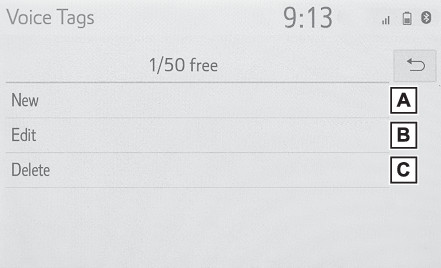
Yes” when the confirmation screen appears.Check that a confirmation screen is displayed when the operation is complete.Setting voice tagsCalls can be made by saying the voice tag of a registered contact in the contact list.
(Voice command system)Select “
Manage Voice Tags”.Select the desired item to be set.Select to register a new voice tag. (Registering a voice tag)Select to edit a voice tag. (Editing a voice tag)Select to delete a voice tag. (Deleting the voice tag)Registering a voice tagUp to 50 voice tags can be registered.Select “
New”.Select the desired contact to register a voice tag for.Select “
REC” and record a voice tag.When recording a voice tag, do so in a quiet area.“
Play”: Select to play the voice tag.Select “
OK” when voice tag registration is complete.Editing a voice tagSelect “
Edit”.Select the desired contact to edit.Follow the steps in “Registering a voice tag” from step 3. (Registering a voice tag)Deleting the voice tagSelect “
Delete”.Select the desired contact and select “
Delete”.Select “
Yes” when the confirmation screen appears.Note:Multiple data can be selected and deleted at the same time.Voice tags are deleted when the set language of the system is changed. (General settings)Phone settings
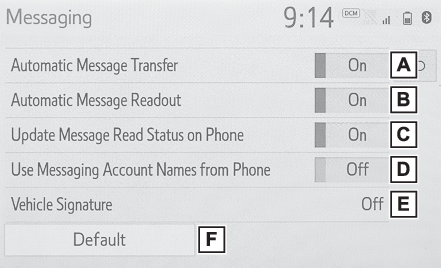
Message settingsMessage settings screenDisplay the phone settings screen. (Displaying the phone settings screen)Select “
Messaging”.Select the desired item to be set.Select to set automatic message transfer on/off.Select to set automatic message readout on/off.Select to set updating message read status on phone on/off.Select to set display of messaging account names on the message screen on/off.When
set to on, messaging account names used on the cellular phone will be displayed.Select to set adding the vehicle signature to outgoing messages on/off.The vehicle
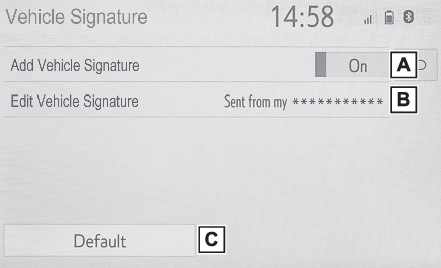
signature can be edited. (Vehicle signature settings)Select to reset all setup items.Note:Depending on the phone, these functions may not be available.Vehicle signature settingsSelect “
Vehicle Signature”.Select the desired item to be set.Select to set adding the vehicle signature to outgoing messages on/off.Select to edit the vehicle signature. (Editing vehicle signature)Select to reset all setup items.Editing vehicle signatureSelect “
Edit Vehicle Signature”.Enter desired signature with using keyboard.Select “
OK”.Select “
OK” on the confirmation screen, or select “
Edit Again” when it needs to amend.