Bluetooth® phone message functionBluetooth® phone message functionReceived messages can be forwarded from the connected Bluetooth® phone, enabling checking and replying using the system.Depending on the type of Bluetooth® phone connected, received messages may not be transferred to the system.If the phone does not support the message function, this function cannot be used.
Even when the supported phone is used, reply function may not be used.Bluetooth® phone message function
Displaying the message screenDisplaying the message screenDisplay the phone top screen. (Phone screen operation)Select “
Message”.A confirmation message appears when the “
Automatic Message Transfer” function is set to off (Message settings screen), select “
Yes”.Check that the message screen is displayed.“
Phone”: Select to change to phone mode.The account name is displayed on the left side of screen.Account names are the names of the accounts that exist on the currently connected
phone.The following functions can be used on message function:Receiving a message (Receiving a message)Checking messages (Checking received messages)Replying to a message (dictation reply) (Replying to a message (dictation reply)*)Replying to a message (quick reply) (Replying to a message (quick reply))Calling the message sender (Calling the message sender)Message settings (Message settings screen)Bluetooth® phone message function
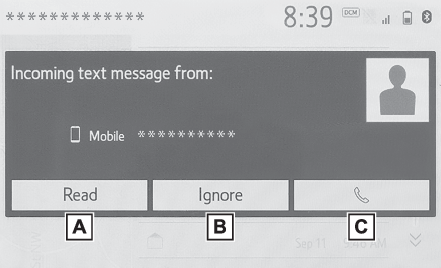
Receiving a messageReceiving a messageWhen an e-mail/SMS/MMS is received, the incoming message screen pops up with sound
and is ready to be operated on the screen.Select to check the message.Select to not open the message.Select to call the message sender.Note:Depending on the type of Bluetooth® phone used for receiving messages, or its registration status with the system, some
information may not be displayed.The pop-up screen is separately available for incoming e-mail and SMS/MMS messages
under the following conditions:E-mail:“
Incoming E-mail Display” is set to “
Full Screen”. (Notifications settings screen)“
E-mail Notification Pop-up” is set to on. (Notifications settings screen)SMS/MMS:“
Incoming SMS/MMS Display” is set to “
Full Screen”. (Notifications settings screen)“
SMS/MMS Notification Pop-up” is set to on. (Notifications settings screen)Depending on the type of Bluetooth® phone being connected, E-Mail function cannot be used via Bluetooth®.Bluetooth® phone message function
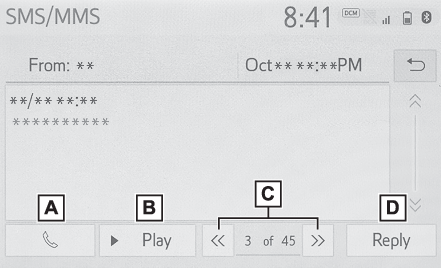
Checking received messagesChecking received messagesDisplay the message screen. (Displaying the message screen)Select a desired account name.Select the desired message from the list.Check that the message is displayed.Select to call the message sender.Select to have messages read out.To cancel this function, select “
Stop”.When “
Automatic Message Readout” is set to on, messages will be automatically read out. (Message settings screen)Select to display the previous or next message.This function can be chosen the method to reply message with “
Dictation” or “
Quick Message”.Note:Reading a text message is not available while driving.Depending on the type of Bluetooth® phone being connected, this function cannot be used.Depending on the type of Bluetooth® phone being connected, it may be necessary to perform additional steps on the phone.Messages are displayed in the appropriate connected Bluetooth® phone’s registered mail address folder. Select the desired folder to be displayed.Only received messages on the connected Bluetooth® phone can be displayed.The text of the message is not displayed while driving.Turn the “
POWER VOLUME” knob, or use the volume control switch on the steering wheel to adjust the message
read out volume.“
Subject:” field is not shown on SMS case.E-mail only: Select “
Mark Unread” or “
Mark Read” to mark mail unread or read on the message screen.This function is available when
“
Update Message Read Status on Phone” is set to on. (Message settings screen)Bluetooth® phone message function
Replying to a message (dictation reply)Replying to a message (dictation reply)**0If equippedDisplay the message screen. (Displaying the message screen)Select the desired message from the list.Select “
Reply”.Select “
Dictation”.When the “
Say Your Message” screen is displayed, speak message that you want to send.Select “
Send” to send message.“
Cancel”: Select to cancel sending the message.“
Retry”: Select to retry speaking message that you want to send.While the message is being sent, a sending message screen is displayed.Check that a confirmation screen is displayed when the operation is complete.If an error message is displayed, follow the guidance on the screen to try again.Bluetooth® phone message function
Replying to a message (quick reply)Replying to a message (quick reply)15 messages have already been stored.Display the message screen. (Displaying the message screen)Select the desired message from the list.Select “
Reply”.Select “
Quick Message”.Select the desired message.: Select to edit the message. (Editing quick reply messages)Select “
Send”.“
Cancel”: Select to cancel sending the message.While the message is being sent, a sending message screen is displayed.Check that a confirmation screen is displayed when the operation is complete.If an error message is displayed, follow the guidance on the screen to try again.Note:Depending on the type of Bluetooth® phone, reply function is not available.Editing quick reply messagesThis operation cannot be performed while driving.Select
corresponding to the desired message to edit.Select “
OK” when editing is completed.Note:To reset the edited quick reply messages, select “
Default”.Bluetooth® phone message function
Calling the message senderCalling the message senderCalls can be made to an e-mail/SMS/MMS message sender’s phone number.This operation can be performed while driving.Calling from e-mail/SMS/MMS message displayDisplay the message screen. (Displaying the message screen)Select the desired message.Select
, or press the
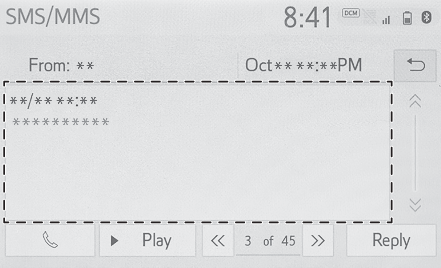
switch on the steering wheel.If there are 2 or more phone numbers, select the desired number.Check that the dialing screen is displayed.Calling from a number within a messageCalls can be made to a number identified in a message’s text area.This operation cannot be performed while driving.Display the message screen. (Displaying the message screen)Select the desired message.Select the text area.Identified phone numbers contained in the message are displayed in blue text.Select the desired number.Check that the dialing screen is displayed.Note:A series of numbers may be recognized as a phone number. Additionally, some phone
numbers may not be recognized, such as those for other countries.Calling from the incoming message screenFor detail, refer to “Receiving a message”. (Receiving a message)