Phone
Some basicsSome basicsThe hands-free system enables calls to be made and received without having to take
your hands off the steering wheel.This system supports Bluetooth®. Bluetooth® is a wireless data system that enables cellular phones to be used without being connected
by a cable or placed in a cradle.The operating procedure of the phone is explained here.When an Apple CarPlay connection is established, phone functions will be performed
by Apple CarPlay instead of the hands-free system.Note:This system is not guaranteed to operate with all Bluetooth® devices.If your cellular phone does not support Bluetooth®, this system cannot function.In the following conditions, the system may not function:The cellular phone is turned off.The current position is outside the communication area.The cellular phone is not connected.The cellular phone has a low battery.Depending on the type of Bluetooth® phone, some function is not available.When using the hands-free system or Bluetooth® audio and Wi-Fi® Hotspot functions at the same time, the following problems may occur:The Bluetooth® connection may be cut.Noise may be heard on the Bluetooth® audio playback.A noise may be heard during phone calls.Bluetooth® uses the 2.4 GHz frequency band. If both a Wi-Fi® connection and Bluetooth® connection are being used simultaneously, each connection may be affected.If a Bluetooth® device is attempting to connect to the vehicle while another device is connected
as a Bluetooth® audio device or connected using the hands-free system or Wi-Fi® Hotspot function, the communication speed may decrease or malfunctions may occur,
such as image distortion or audio skipping. If a Bluetooth® device is connected to the system, the interference it may cause will be reduced.
When carrying a device with its Bluetooth® connection enabled, make sure to register it to the system and connect it or disable
its Bluetooth® function.When a device is connected via Bluetooth®, the Bluetooth® icon on the status bar will be displayed in blue. (Status icon explanation)Warning:While driving, do not operate a cellular phone.Your audio unit is fitted with Bluetooth® antennas. People with implantable cardiac pacemakers, cardiac resynchronization therapy-pacemakers
or implantable cardioverter defibrillators should maintain a reasonable distance between
themselves and the Bluetooth® antennas. The radio waves may affect the operation of such devices.Before using Bluetooth® devices, users of any electrical medical device other than implantable cardiac pacemakers,
cardiac resynchronization therapy-pacemakers or implantable cardioverter defibrillators
should consult the manufacturer of the device for information about its operation
under the influence of radio waves. Radio waves could have unexpected effects on the
operation of such medical devices.Notice:Do not leave your cellular phone in the vehicle. The temperature inside may rise to
a level that could damage the phone.Phone
Registering/Connecting a Bluetooth® phoneRegistering/Connecting a Bluetooth® phoneTo use the hands-free system for cellular phones, it is necessary to register a cellular
phone with the system. (Registering/Connecting a Bluetooth® device)Connecting a Bluetooth® deviceRegistering an additional deviceDisplay the phone top screen. (Phone screen operation)Select “
Select Device”.Select “
Add Device”.When another Bluetooth® device is connected, a confirmation screen will be displayed. To disconnect the Bluetooth® device, select “
Yes”.Follow the steps in “Registering a Bluetooth® phone for the first time” from step 5. (Registering a Bluetooth® phone for the first time)Selecting a registered deviceDisplay the phone top screen. (Phone screen operation)Select “
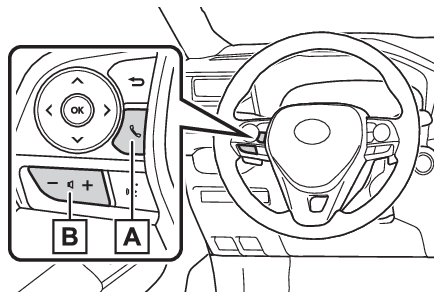
Select Device”.Select the desired device to be connected.Check that a confirmation screen is displayed when the connection is complete.If an error message is displayed, follow the guidance on the screen to try again.Bluetooth® phone condition displayThe condition of the Bluetooth® phone appears on the upper right side of the screen. (Status icon)MicrophoneUsing the phone switch/microphoneSteering switchBy pressing the phone switch, a call can be received or ended without taking your
hands off the steering wheel.Phone switchIf the switch is pressed during a call, the call will end.If the switch is pressed when an incoming call is received, the call will be answered.If the switch is pressed during a call when a separate incoming call is waiting, the
waiting call will be answered.If the switch is pressed when an Apple CarPlay connection is established, the Apple
CarPlay phone application will be displayed on the system screen.Volume control switchPress the “
+” side to increase the volume.Press the “
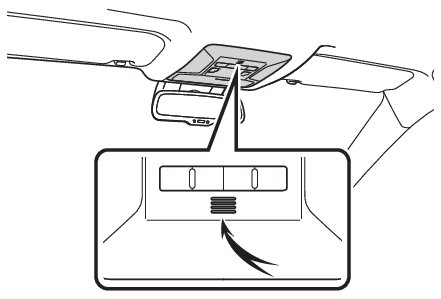
-” side to decrease the volume.MicrophoneThe microphone is used when talking on the phone.Note:The other party’s voice will be heard from the front speakers. The audio/visual system
will be muted during phone calls or when hands-free voice commands are used.Talk alternately with the other party on the phone. If both parties speak at the same
time, the other party may not hear what has been said. (This is not a malfunction.)Keep call volume down. Otherwise, the other party’s voice may be audible outside the
vehicle and voice echo may increase. When talking on the phone, speak clearly towards
the microphone.The other party may not hear you clearly when:Driving on an unpaved road. (Making excessive traffic noise.)Driving at high speeds.The roof or windows are open.The air conditioning vents are pointed towards the microphone.The sound of the air conditioning fan is loud.There is a negative effect on sound quality due to the phone and/or network being
used.Notice:Do not touch and put a sharp object to the microphone. It may cause failure.Phone
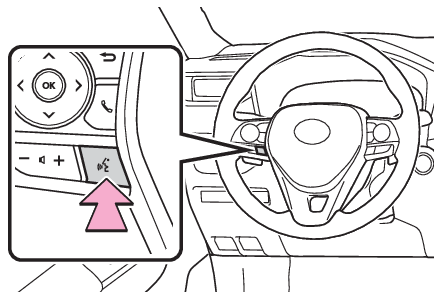
Voice command systemVoice command systemPress this switch to operate the voice command system.The voice command system and its list of commands can be operated. (Voice command system)Phone
About the contacts in the contact listAbout the contacts in the contact listThe following data is stored for every registered phone. When another phone is connected,
the following registered data cannot be read:Contact dataCall history dataFavorites dataImage dataAll phone settingsMessage settingsNote:When a phone’s registration is deleted, the above-mentioned data is also deleted.Phone
When selling or disposing of the vehicleWhen selling or disposing of the vehicleA lot of personal data is registered when the hands-free system is used. When selling
or disposing of the vehicle, initialize the data. (Deleting personal data)The following data in the system can be initialized:Contact dataCall history dataFavorites dataImage dataAll phone settingsMessage settingsNote:Once initialized, the data and settings will be erased. Pay additional attention when
initializing the data.