Audio
Some basicsSome basicsThis section describes some of the basic features of the audio/visual system. Some
information may not pertain to your system.Your audio/visual system works when the engine switch is in ACC or ON.Notice:To prevent the battery from being discharged, do not leave the audio/visual system
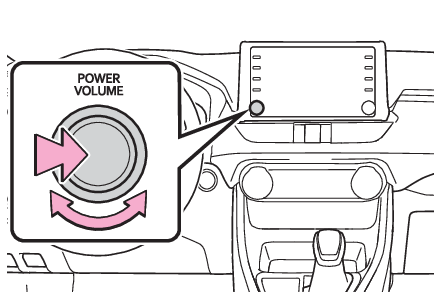
on longer than necessary when the engine is not running.POWER VOLUME knobAudio
Turning the system on and offTurning the system on and off“
POWER VOLUME” knob: Press to turn the audio/visual system on and off. The system turns on in the
last mode used. Turn this knob to adjust the volume.Audio sourceAudio
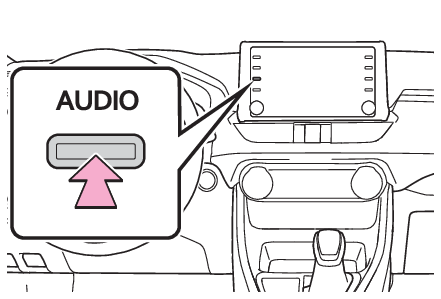
Audio sourceSelecting an audio sourcePress the “
AUDIO” button.Select “
Source” or press “
AUDIO” button again.Select the desired source.Note:Dimmed screen buttons cannot be operated.When there are two pages, select
or
to change the page.When an Apple Carplay connection is established, some system functions, such as the
following, will be replaced by similar Apple CarPlay function or will become unavailable*:iPod (Audio Playback)USB audio/USB videoBluetooth® audioToyota Entune App Suite Connect*This function is not made available in some countries or areas.Audio
Reordering the audio sourceReordering the audio sourceDisplay the audio source selection screen. (Selecting an audio source)Select “
Reorder”.Select the desired audio source then
or
to reorder.Select “
OK”.USB/AUX portAudio
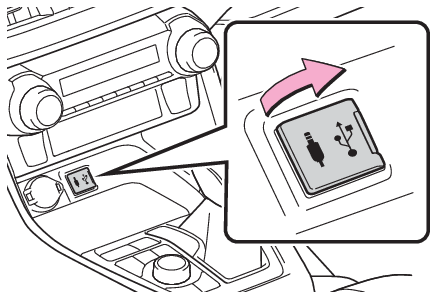
USB/AUX portUSB/AUX portConnect a device.Turn on the power of the device if it is not turned on.Note:The AUX port only supports audio input.If a USB hub is plugged-in, two devices can be connected at a time.Even if a USB hub is used to connect more than two USB devices, only the first two
connected devices will be recognized.If a USB hub that has more than two ports is connected to the USB port, devices connected
to the USB hub may not charge or be inoperable, as the supply of current may be insufficient.Audio
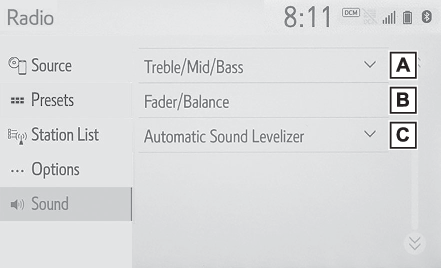
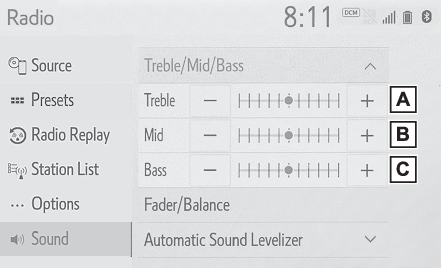
Sound settingsSound settingsDisplay the audio control screen. (Selecting an audio source)Select “
Sound”.Select the desired item to be set.Select to set the treble/mid/bass. (Treble/Mid/Bass)Select to set the fader/balance. (Fader/Balance)Select to set the automatic sound leveliser. (Automatic sound levelizer (ASL))Treble/Mid/BassHow good an audio program sounds is largely determined by the mix of the treble, mid
and bass levels. In fact, different kinds of music and vocal programs usually sound
better with different mixes of treble, mid and bass.Select “
Treble/Mid/Bass”.Select the desired screen button.Select “
+” or “
-” to adjust high-pitched tones.Select “
+” or “
-” to adjust mid-pitched tones.Select “
+” or “
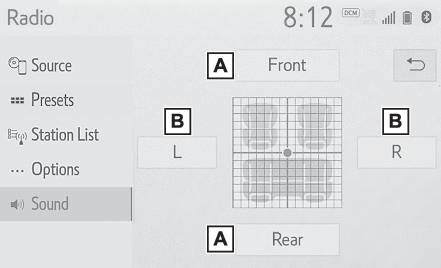
-” to adjust low-pitched tones.Fader/BalanceA good balance of the left and right stereo channels and of the front and rear sound
levels is also important.Keep in mind that when listening to a stereo recording or broadcast, changing the
right/left balance will increase the volume of 1 group of sounds while decreasing
the volume of another.Select “
Fader/Balance”.Select the desired screen button.Select to adjust the sound balance between the front and rear speakers.Select to adjust the sound balance between the left and right speakers.Automatic sound levelizer (ASL)The system adjusts to the optimum volume and tone quality according to vehicle speed
to compensate for increased road noise, wind noise, or other noises while driving.Select “
Automatic Sound Levelizer”.Select “
High”, “
Mid”, “
Low” or “
Off”.Audio
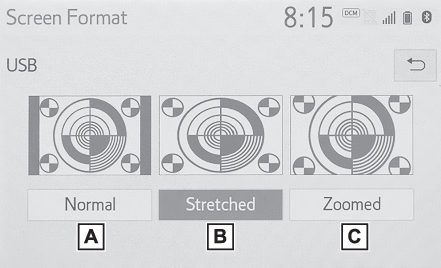
Screen adjustmentAudio screen adjustmentScreen format settingsThe screen format can be selected for USB video.Press the “
MENU” button.Select “
Setup”.Select “
Audio”.Select “
Common”.Select “
Screen Format”.Select the desired item to be adjusted.Select to display a 4 : 3 screen, with either side in black.Select to enlarge the image horizontally and vertically to full screen.Select to enlarge the image by the same ratio horizontally and vertically.Contrast and brightness adjustmentThe contrast and brightness of the screen can be adjusted.Press the “
MENU” button.Select “
Setup”.Select “
Audio”.Select “
Common”.Select “
Display”.Select the desired item to be adjusted.“
Contrast”“
+”: Select to strengthen the contrast of the screen.“
-”: Select to weaken the contrast of the screen.“
Brightness”“
+”: Select to brighten the screen.“
-”: Select to darken the screen.Note:Depending on the audio source, some functions may not be available.Audio
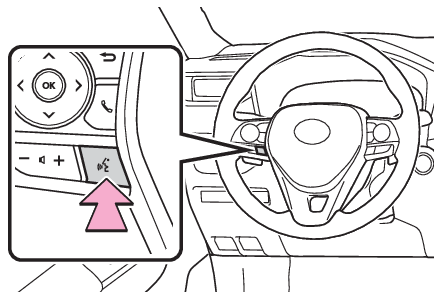
Voice command systemVoice command systemPress this switch to operate the voice command system.The voice command system and its list of commands can be operated. (Voice command system)