General settingsGeneral button (Setup screen)General settingsSettings are available for clock, operation sounds, etc.General settings
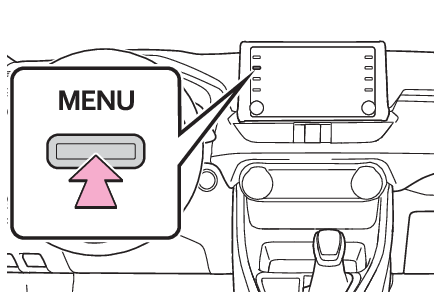
Displaying the general settings screenDisplaying the general settings screenPress the “
MENU” button.Select “
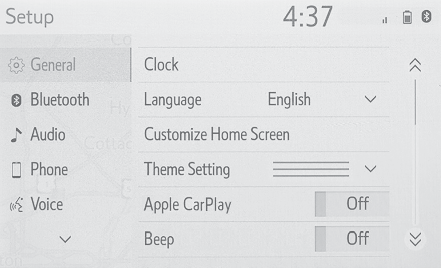
Setup”.If the general settings screen is not displayed, select “
General”.Select the desired items to be set.General settings
General settings screenGeneral settings screen“
Clock”Select to change the time zone and select “
On” or “
Off” for daylight saving time, automatic adjustment of the clock, etc. (Clock settings)“
Language”Select to change the language. The language setting of Apple CarPlay can only be changed
on the connected iPhone.“
Customize Home Screen”Select to change the display information/area on the home screen and the home screen
layout. (Home screen)“
Theme Setting”Select to change the screen theme setting.“
Apple CarPlay”*1Select to turn automatic Apple CarPlay connection establishment on/off when a compatible
iPhone is connected to the system via USB.“
Beep”Select to turn the beep sound on/off.“
Units of Measurement”Select to change the unit of measure for distance/fuel consumption.“
Keyboard Layout”Select to change the keyboard layout.“
Delete Keyboard History”Select to delete the keyboard history.“
Memorize Keyboard History”Select to set the memorize keyboard history on/off.“
Animation”Select to turn the animations on/off.“
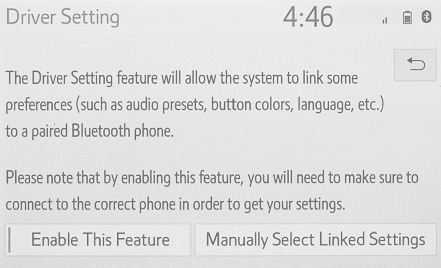
Driver Setting”Select to change the driver settings. (Driver settings)“
Delete Personal Data”Select to delete personal data. (Deleting personal data)“
Software Update”Select to update software versions. For details, contact your Toyota dealer.“
Software Update Setting”*2Select to set software update setting. (Software update settings*)“
Gracenote Database Update”Select to update Gracenote® database versions. For details, contact your Toyota dealer.“
Software Information”Select to display the software information. Notices related to third party software
used in this product are enlisted. (This includes instructions for obtaining such
software, where applicable.)“
SW Sensitivity Level”Select to change the capacitive touch screen button sensitivity to 1 (low), 2 (medium),
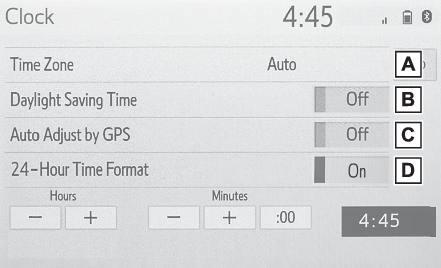
or 3 (high).*1This function is not made available in some countries or areas.*2Vehicles equipped with DCMClock settingsDisplay the general settings screen. (Displaying the general settings screen)Select “
Clock”.Select the desired items to be set.Select to change the time zone. (Setting the time zone)Select to set daylight saving time on/off.Select to set automatic adjustment of the clock by GPS on/off.When set to off, the
clock can be manually adjusted. (Manual clock setting)Select to set the 24 hour time format on/off.When set to off, the clock is displayed
in 12 hour time format.Setting the time zoneSelect “
Time Zone”.Select the desired time zone.Manual clock settingWhen “
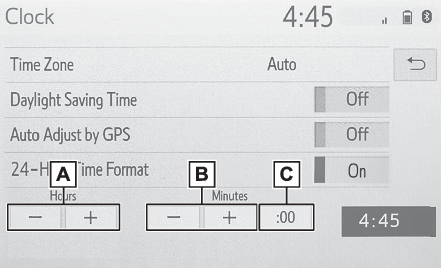
Auto Adjust by GPS” is turned off, the clock can be manually adjusted.Select “
Auto Adjust by GPS” to set to off.Adjust the clock manually.Select “
+” to set the time forward one hour and “
-” to set the time back one hour.Select “
+” to set the time forward one minute and “
-” to set the time back one minute.Select to round to the nearest hour.e.g.1:00 to 1:29 1:001:30 to 1:59 2:00Driver settingsThe driver settings feature will allow the system to link some preferences (such as
audio presets, screen theme, language, etc.) to a paired Bluetooth® phone.Display the general settings screen. (Displaying the general settings screen)Select “
Driver Setting”.Select “
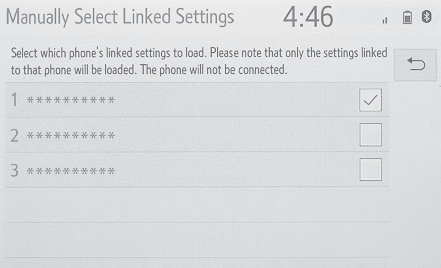
Enable This Feature”.Manually select linked settingsSelect “
Manually Select Linked Settings”.Select the desired phone.After a few seconds, loaded screen automatically switches to the home screen.Deleting personal dataRegistered or changed personal settings will be deleted or returned to their default
conditions.Display the general settings screen. (Displaying the general settings screen)Select “
Delete Personal Data”.Select “
Delete”.Select “
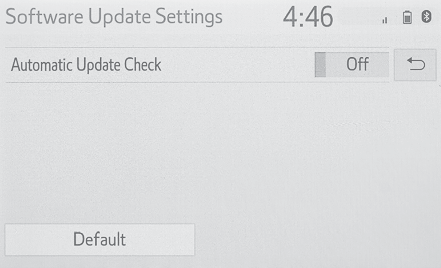
Yes” when the confirmation screen appears.Examples of settings that can be returned to their default conditions:Audio settingsPhone settingsetc.Software update settings**This function is not made available in some countries or areas.When the automatic update check function is enabled, if a software update is available
from the Toyota Entune center, a message will be displayed.Display the general settings screen. (Displaying the general settings screen)Select “
Software Update Setting”.Select “
Automatic Update Check” to enable/disable the automatic update check function.Note:When software update information is displayed, contact your Toyota dealer.