Wi-Fi® HotspotWi-Fi®Wi-Fi® Hotspot**Vehicles equipped with DCMBy connecting a device to the vehicle via Wi-Fi®, it can access the internet through the DCM.To use this function, a Wi-Fi® Hotspot service subscription from Verizon Wireless is required. Contact your Toyota
dealer for details.This function is not made available in some countries or areas.Wi-Fi®
Connecting a device to the in-vehicle access pointConnecting a device to the in-vehicle access pointSearching for and connecting a device to the vehicle access pointEnable the Wi-Fi® Hotspot function. (Changing the Wi-Fi® settings)Disable the “
Hide Access Point” function. (Changing the Wi-Fi® settings)Search for the vehicle access point using the device you wish to connect.For details about operating the device, refer to the documentation which came with
it.Operate the device to connect it to the vehicle access point.To check the vehicle access point password, check “
Password”. (Changing the Wi-Fi® settings)Note:Hints for connecting to the vehicle via Wi-Fi® can be displayed. (Changing the Wi-Fi® settings)Connecting a device to the in-vehicle access point using the access point name (SSID)Enable the Wi-Fi® Hotspot function. (Changing the Wi-Fi® settings)Enable the “
Hide Access Point” function. (Changing the Wi-Fi® settings)Enter the access point name (SSID) into the device you wish to connect and connect
it.To check the vehicle access point password, check “
Password”. (Changing the Wi-Fi® settings)The security settings on the device must be the same as that displayed for “
Security”. (Changing the Wi-Fi® settings)For details about operating the device, refer to the documentation which came with
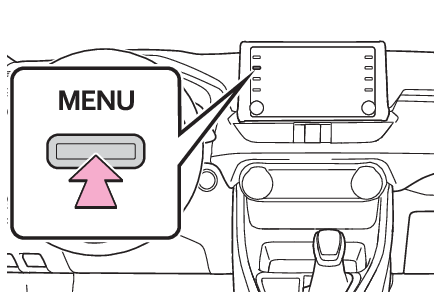
it.Changing the Wi-Fi® settingsPress the “
MENU” button.Select “
Setup”.Select “
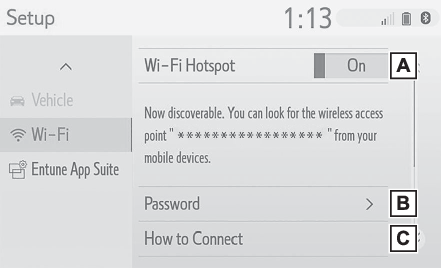
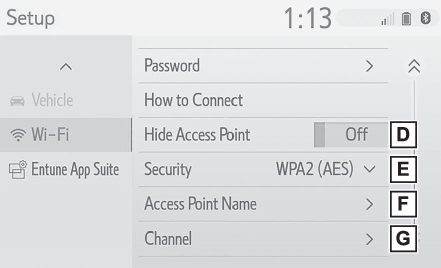
Wi-Fi*”.*0Wi-Fi® is a registered trademark of Wi-Fi Alliance®.Select the desired item to be set.Select to enable/disable the Wi-Fi® Hotspot function. (Enabling/disabling the Wi-Fi® Hotspot function)Select to check/change the access point password. (Checking/changing the password)Select to display hints for connecting to the vehicle via Wi-Fi®.Select to make the access point searchable/unsearchable.Select to check/change the security protocol of the access point (for authentication
and encryption). (Changing the security protocol)Select to change the access point name (SSID). (Changing the access point name (SSID))Select to change the Wi-Fi® connection channel (within the 2.4GHz frequency band). (Selecting a Wi-Fi® connection channel)Note:If any settings have been changed, it will be necessary to reset the Wi-Fi® system to complete the changes. To reset the Wi-Fi® system, select “
Yes” on the pop-up displayed after changing the settings.Enabling/disabling the Wi-Fi® Hotspot functionWhen the Wi-Fi® Hotspot function is enabled, the system checks for a valid Hotspot service subscription.If a Hotspot service subscription has not been started, start the Toyota Entune App
Suite Connect application to activate the service subscription. (If the Toyota Entune
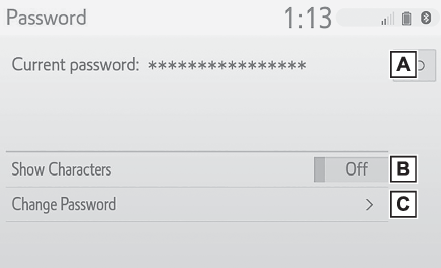
App Suite Connect application has not been installed, install the application.)Contact your Toyota dealer for details about the Toyota Entune App Suite Connect application.Checking/changing the passwordSelect “
Password”.Check that the following screen is displayed.Displays the passwordSelect to display/hide the entered password.Select to change the password.Changing the passwordSelect “
Change Password”.Enter the desired password and select “
OK”.When setting/changing a password, observe the following guidelines to help prevent
the password from being cracked by a third party:Use an 8-character or longer password consisting of letters and numbers. (Non-ASCII
characters will not be recognized by the system.)Change the password regularly.If you write the password down, do not leave it somewhere where it would be visible.Do not use the same password for vehicle Wi-Fi® Hotspot as other accounts already protected by a password.Avoid using easy to identify words, such as your vehicle’s model name or license plate
number, simple dictionary words, or words with simple obfuscation, such as c@t (for
cat), as your password.Changing the security protocolSelect “
Security”.Select the desired security protocol.Changing the access point name (SSID)Select “
Access Point Name”.Enter the desired access point name (SSID) and select “
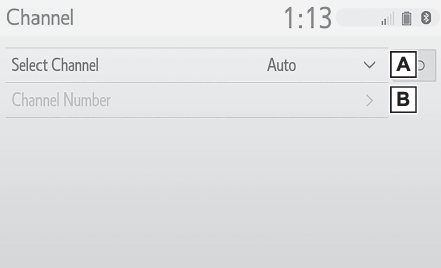
OK”.Selecting a Wi-Fi® connection channelSelect “
Channel”.Check that the following screen is displayed.Select to change the channel selection to automatic/manual.When “
Manual” is selected, select to change the channel.Changing the channelSet “
Select Channel” to “
Manual”.Select “
Channel Number”.Enter the desired channel number and select “
OK”.Channels 1 through 11 can be selected.Wi-Fi®
Operating hintsWi-Fi® function operating hintsNote:If a connected device is taken out of the Wi-Fi® connection area, the connection will be severed.If the vehicle is driven out of the cellular communication coverage area, connecting
to the internet via the Wi-Fi® Hotspot will not be possible.If a Bluetooth® device is used while a device is connected using the Wi-Fi® Hotspot function, the communication speed may decrease.If the vehicle is near a radio antenna, radio station or other source of strong radio
waves and electrical noise, communication may be slow or impossible.Warning:Use Wi-Fi® devices only when safe and legal to do so.Your audio unit is fitted with Wi-Fi® antennas. People with implantable cardiac pacemakers, cardiac resynchronization therapy-pacemakers
or implantable cardioverter defibrillators should maintain a reasonable distance between
themselves and the Wi-Fi® antennas.The radio waves may affect the operation of such devices.Before using Wi-Fi® devices, users of any electrical medical device other than implantable cardiac pacemakers,
cardiac resynchronization therapy-pacemakers or implantable cardioverter defibrillators
should consult the manufacturer of the device for information about its operation
under the influence of radio waves. Radio waves could have unexpected effects on the
operation of such medical devices.Conditions displayed with Wi-Fi® iconThe condition of Wi-Fi® connection appears on the right upper side of the screen. (Status icon)SpecificationsCommunication standardsIEEE 802.11bIEEE 802.11gIEEE 802.11n (2.4GHz)SecurityWPA™WPA2™WPA™ and WPA2™ are trademarks of Wi-Fi Alliance®.