Bluetooth® details settingsSetting Bluetooth® detailsBluetooth® details settings
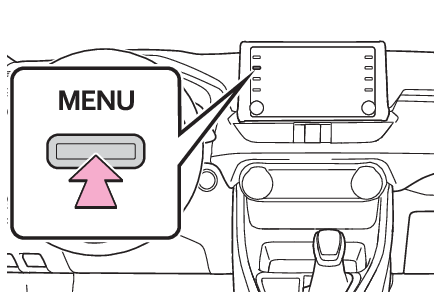
Displaying the Bluetooth® setup screenDisplaying the Bluetooth® setup screenPress the “
MENU” button.Select “
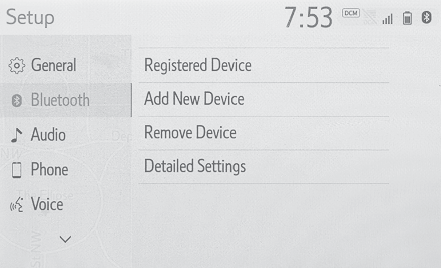
Setup”.Select “
Bluetooth”.Select the desired item to be set.Bluetooth® details settings
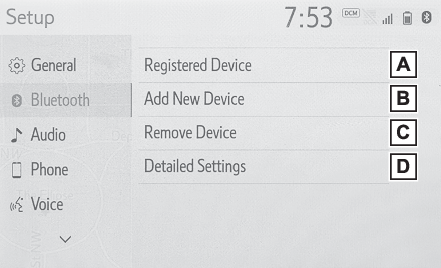
Bluetooth® setup screenBluetooth® setup screenConnecting a Bluetooth® device and editing the Bluetooth® device information (Connecting a Bluetooth® device, Editing the Bluetooth® device information)Registering a Bluetooth® device (Registering a Bluetooth® device)Deleting a Bluetooth® device (Deleting a Bluetooth® device)Setting the Bluetooth® system (“Detailed Settings” screen)Bluetooth® details settings
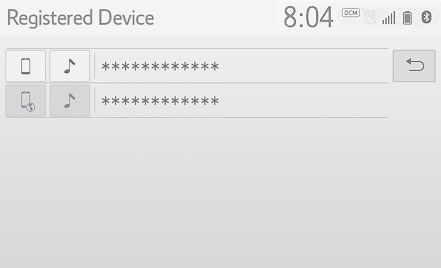
Connecting a Bluetooth® deviceConnecting a Bluetooth® deviceUp to 5 Bluetooth® devices (Phones (HFP) and audio players (AVP)) can be registered.If more than 1 Bluetooth® device has been registered, select which device to connect to.Display the Bluetooth® settings screen. (Displaying the Bluetooth® setup screen)Select “
Registered Device”.Select the device to be connected.: Phone: Audio player: Phone/“
Toyota Entune” serviceThe profile icon for a currently connected device will be displayed in color.Selecting a profile icon which is not currently connected will switch the connection
to the function.If the desired Bluetooth® device is not on the list, select “
Add New Device” to register the device. (Registering a Bluetooth® device)Select the desired connection.“
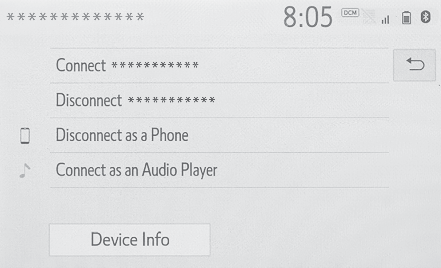
Device Info”: Select to confirm and change the Bluetooth® device information. (Editing the Bluetooth® device information)When another Bluetooth® device is connectedTo disconnect the Bluetooth® device, select “
Yes”.Check that a confirmation screen is displayed when the connection is complete.If an error message is displayed, follow the guidance on the screen to try again.Note:It may take time if the device connection is carried out during Bluetooth® audio playback.Depending on the type of Bluetooth® device being connected, it may be necessary to perform additional steps on the device.When disconnecting a Bluetooth® device, it is recommended to disconnect using the system.Connecting a Bluetooth® device in a different way (from phone top screen)Registering/Connecting a Bluetooth® phoneConnecting a Bluetooth® device in a different way (from phone setup screen)Phone settings screenConnecting a Bluetooth® device in a different way (from Bluetooth® audio screen)Registering/Connecting a Bluetooth® deviceAuto connection modeTo turn auto connection mode on, set “
Bluetooth Power” to on. (“Detailed Settings” screen) Leave the Bluetooth® device in a location where the connection can be established.When the engine switch is in ACC or ON, the system searches for a nearby registered
device.The system will connect with the registered device that was last connected, if it
is nearby. When automatic connection priority is set to on and there is more than
one registered Bluetooth® phone available, the system will automatically connect to the Bluetooth® phone with the highest priority. (“Detailed Settings” screen)Connecting manuallyWhen the auto connection has failed or “
Bluetooth Power” is turned off, it is necessary to connect the Bluetooth® device manually.Display the Bluetooth® settings screen. (Displaying the Bluetooth® setup screen)Follow the steps in “Connecting a Bluetooth® device” from step 2. (Connecting a Bluetooth® device)Reconnecting the Bluetooth® phoneIf a Bluetooth® phone is disconnected due to poor reception from the Bluetooth® network when the engine switch is in ACC or ON, the system automatically reconnects
the Bluetooth® phone.Bluetooth® details settings
Registering a Bluetooth® deviceRegistering a Bluetooth® deviceUp to 5 Bluetooth® devices can be registered.Bluetooth® compatible phones (HFP) and audio players (AVP) can be registered simultaneously.This operation cannot be performed while driving.Display the Bluetooth® settings screen. (Displaying the Bluetooth® setup screen)Select “
Add New Device”.When another Bluetooth® device is connectedTo disconnect the Bluetooth® device, select “
Yes”.When 5 Bluetooth® devices have already been registeredA registered device needs to be replaced. Select “
Yes”, and select the device to be replaced.Follow the steps in “Registering a Bluetooth® phone for the first time” from step 5. (Registering a Bluetooth® phone for the first time)Bluetooth® details settings
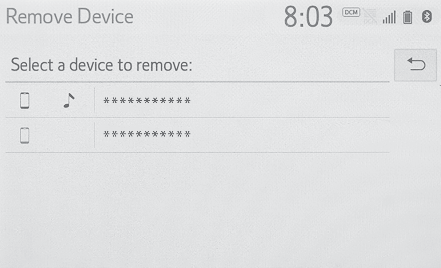
Deleting a Bluetooth® deviceDeleting a Bluetooth® deviceThis operation cannot be performed while driving.Display the Bluetooth® settings screen. (Displaying the Bluetooth® setup screen)Select “
Remove Device”.Select the desired device.Select “
Yes” when the confirmation screen appears.Check that a confirmation screen is displayed when the operation is complete.Note:When deleting a Bluetooth® phone, the contact data will be deleted at the same time.Bluetooth® device informationBluetooth® details settings
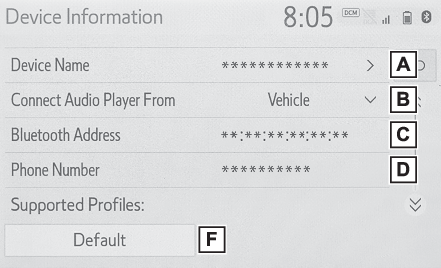
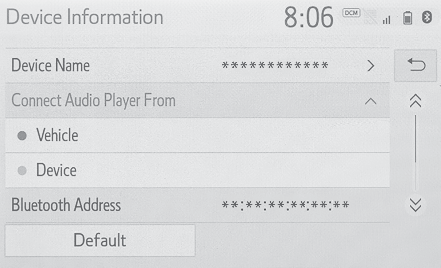
Editing the Bluetooth® device informationEditing the Bluetooth® device informationThe Bluetooth® device’s information can be displayed on the screen. The displayed information can
be edited.This operation cannot be performed while driving.Display the Bluetooth® settings screen. (Displaying the Bluetooth® setup screen)Select “
Registered Device”.Select the desired device to be edited.Select “
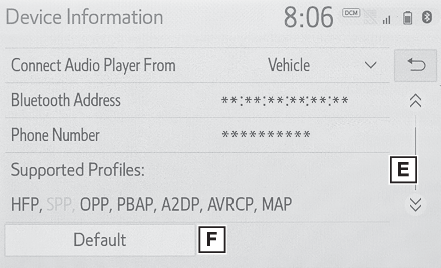
Device Info”.Confirm and change the Bluetooth® device information.The name of the Bluetooth® device is displayed. It can be changed to a desired name. (Changing a device name)Select to set the Bluetooth® audio player connection method. (Setting audio player connection method)Device address is unique to the device and cannot be changed.Phone number is unique to the Bluetooth® phone and cannot be changed.Compatibility profile is unique to the Bluetooth® device and cannot be changed.Select to reset all setup items.Note:If 2 Bluetooth® devices have been registered with the same device name, the devices can be distinguished
referring to the device’s address.Depending on the type of Bluetooth® phone, some information may not be displayed.Changing a device nameSelect “
Device Name”.Enter the name and select “
OK”.Note:Even if the device name is changed, the name registered in your Bluetooth® device does not change.Setting audio player connection methodSelect “
Connect Audio Player From”.Select the desired connection method.“
Vehicle”: Select to connect the audio player from the vehicle’s audio/visual system.“
Device”: Select to connect the vehicle’s audio/visual system from the audio player.Depending on the audio player, the “
Vehicle” or “
Device” connection method may be best. As such, refer to the manual that comes with the
audio player.Bluetooth® details settings
Detailed settings screen“
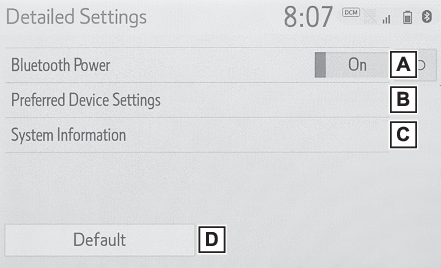
Detailed Settings” screenThe Bluetooth® settings can be confirmed and changed.Display the Bluetooth® settings screen. (Displaying the Bluetooth® setup screen)Select “
Detailed Settings”.Select the desired item to be set.Select to set Bluetooth® connection on/off. (Changing “Bluetooth Power”)Select to change the automatic connection priority of the registered Bluetooth® devices. (Setting automatic connection priority)Select to edit the system information. (Editing the system information)Select to reset all setup items.Changing “
Bluetooth Power”Select “
Bluetooth Power”.When “
Bluetooth Power” is on: The Bluetooth® device is automatically connected when the engine switch is in ACC or ON.When “
Bluetooth Power” is off: The Bluetooth® device is disconnected, and the system will not connect to it next time.Note:While driving, the auto connection state can be changed from off to on, but cannot
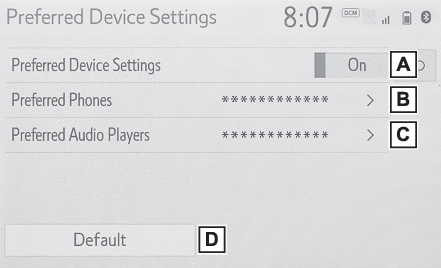
be changed from on to off.Setting automatic connection priorityThe automatic connection priority of the registered Bluetooth® devices can be changed.Select “
Preferred Device Settings”.Select the desired item to be set.Select to set automatic connection priority on/off.Select to change the automatic connection priority of the registered Bluetooth® phones. (Changing Bluetooth® device automatic connection priority)Select to change the automatic connection priority of the registered Bluetooth® audio players. (Changing Bluetooth® device automatic connection priority)Select to reset all setup items.Changing Bluetooth® device automatic connection prioritySelect “
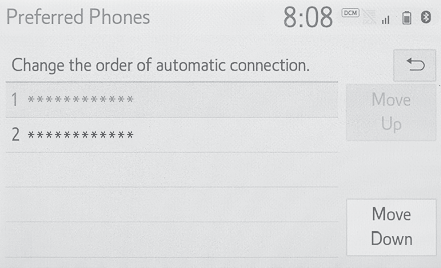
Preferred Phones” or “
Preferred Audio Players”.Select the desired Bluetooth® device and select “
Move Up” or “
Move Down” to change the preferred order.Note:A newly registered Bluetooth® device will automatically be given the highest automatic connection priority.Editing the system informationSelect “
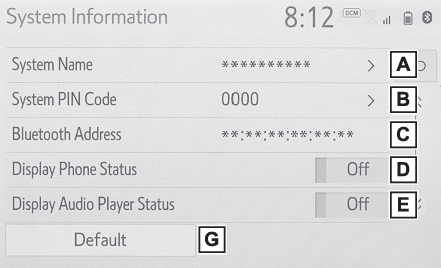
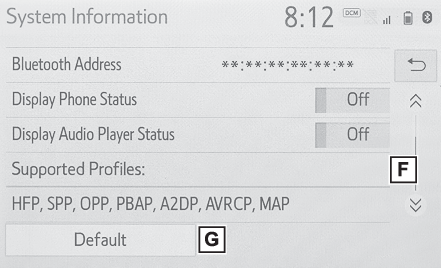
System Information”.Select the desired item to be set.Displays system name. Can be changed to a desired name. (Editing the system name)PIN code used when the Bluetooth® device was registered. Can be changed to a desired code. (Editing the PIN code)Device address is unique to the device and cannot be changed.Select to set the connection status display of the phone on/off.Select to set the connection status display of the audio player on/off.Compatibility profile of the systemSelect to reset all setup items.Editing the system nameSelect “
System Name”.Enter a name and select “
OK”.Editing the PIN codeSelect “
System PIN Code”.Enter a PIN code and select “
OK”.