Registering/Connecting a Bluetooth® deviceRegistering/Connecting a Bluetooth® deviceTo use the hands-free system, it is necessary to register a Bluetooth® phone with the system.Once the phone has been registered, it is possible to use the hands-free system.This operation cannot be performed while driving.When an Apple CarPlay connection is established, Bluetooth® functions of the system will become unavailable and any connected Bluetooth® devices will be disconnected.Registering/Connecting a Bluetooth® device
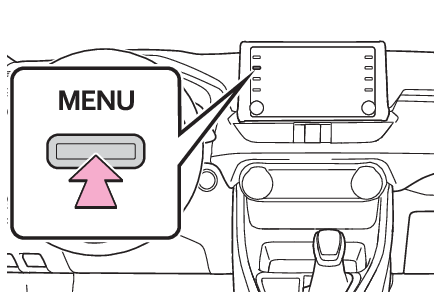
Registering a Bluetooth® phone for the first timeRegistering a Bluetooth® phone for the first timeRegistering from the systemTurn the Bluetooth® connection setting of your cellular phone on.This function is not available when Bluetooth® connection setting of your cellular phone is set to off.Press the “
MENU” button.Select “
Phone”.Operations up to this point can also be performed by pressing the “
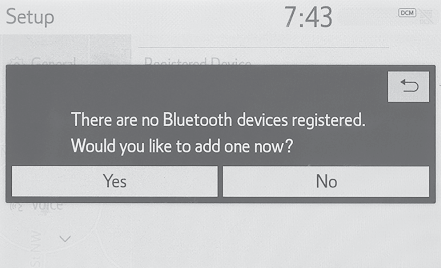
PHONE” button on the instrument panel.Select “
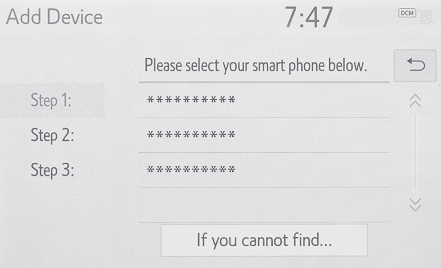
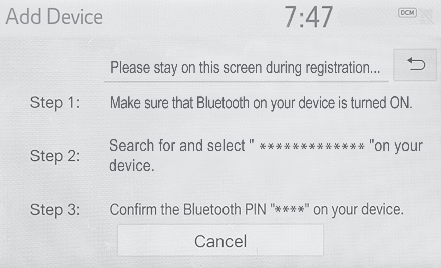
Yes” to register a phone.Select the desired Bluetooth® device.If the desired Bluetooth® phone is not on the list, select “
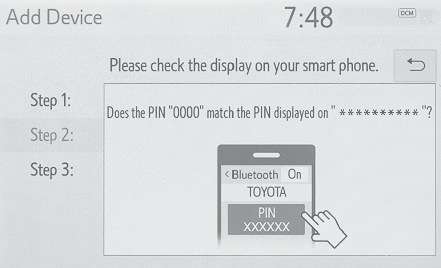
If you cannot find...” and follow the guidance on the screen. (Registering from phone)Register the Bluetooth® device using your Bluetooth® device.For details about operating the Bluetooth® device, see the manual that comes with it.A PIN code is not required for SSP (Secure Simple Pairing) compatible Bluetooth® devices. Depending on the type of Bluetooth® device being connected, a message confirming registration may be displayed on the
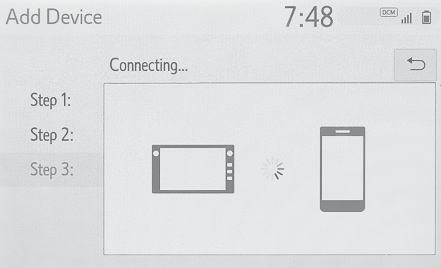
Bluetooth® device’s screen. Respond and operate the Bluetooth® device according to the confirmation message.Check that the following screen is displayed, indicating pairing was successful (a
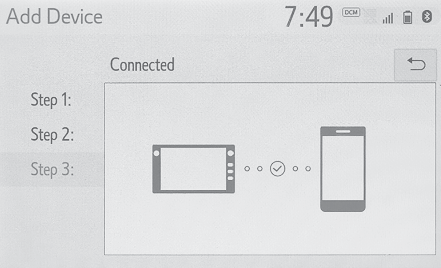
Bluetooth® link has been established but registration is not yet complete).The system is connecting to the registered device.At this stage, the Bluetooth® functions are not yet available.Check that “
Connected” is displayed and registration is complete.If an error message is displayed, follow the guidance on the screen to try again.Note:If a cellular phone does not operate properly after being connected, turn the cellular
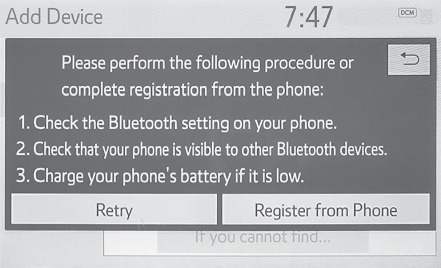
phone off and on and then connect it again.Registering from phoneSelect “
If you cannot find…”.Select “
Register from Phone”.Check that the following screen is displayed, and register the Bluetooth® device using your Bluetooth® device.For details about operating the Bluetooth® device, see the manual that comes with it.A PIN code is not required for SSP (Secure Simple Pairing) compatible Bluetooth® devices. Depending on the type of Bluetooth® device being connected, a message confirming registration may be displayed on the
Bluetooth® device’s screen. Respond and operate the Bluetooth® device according to the confirmation message.Follow the steps in “Registering a Bluetooth® phone for the first time” from step 7. (Registering a Bluetooth® phone for the first time)Registering/Connecting a Bluetooth® device
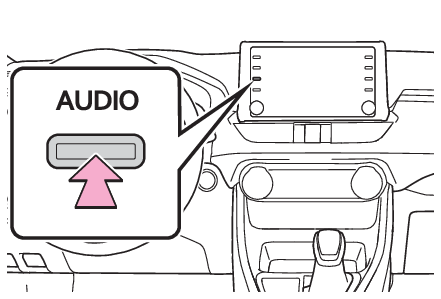
Registering a Bluetooth® audio player for the first timeRegistering a Bluetooth® audio player for the first timeTo use the Bluetooth® audio, it is necessary to register an audio player with the system.Once the player has been registered, it is possible to use the Bluetooth® audio.This operation cannot be performed while driving.For details about registering a Bluetooth® device: Registering a Bluetooth® deviceWhen an Apple CarPlay connection is established, Bluetooth® functions of the system will become unavailable and any connected Bluetooth® devices will be disconnected.Turn the Bluetooth® connection setting of your audio player on.This function is not available when the Bluetooth® connection setting of your audio player is set to off.Press the “
AUDIO” button.Select “
Source” on the audio screen or press “
AUDIO” button again.Select “
Bluetooth”.Select “
Yes” to register an audio player.Follow the steps in “Registering a Bluetooth® phone for the first time” from step 5. (Registering a Bluetooth® phone for the first time)Registering/Connecting a Bluetooth® device
ProfilesProfilesThis system supports the following services.Bluetooth® Core SpecificationVer. 2.0 (Recommended: Ver. 4.1 +EDR)ProfilesHFP (Hands Free Profile) Ver. 1.0 (Recommended: Ver. 1.7)This is a profile to allow hands-free phone calls using a cellular phone. It has outgoing
and incoming call functions.OPP (Object Push Profile) Ver. 1.1 (Recommended: Ver. 1.2)This is a profile to transfer contacts data.PBAP (Phone Book Access Profile) Ver. 1.0 (Recommended: Ver. 1.2)This is a profile to transfer phonebook data.MAP (Message Access Profile) Ver. 1.0 (Recommended: Ver. 1.2)This is a profile to use phone message functions.SPP (Serial Port Profile) Recommended: Ver. 1.2This is a profile to use the “
Toyota Entune” function.A2DP (Advanced Audio Distribution Profile) Ver. 1.0 (Recommended: Ver. 1.3)This is a profile to transmit stereo audio or high quality sound to the audio/visual
system.AVRCP (Audio/Video Remote Control Profile) Ver. 1.0 (Recommended: Ver. 1.6)This is a profile to allow remote control the A/V equipment.Note:This system is not guaranteed to operate with all Bluetooth® devices.If your cellular phone does not support HFP, registering the Bluetooth® phone or using OPP, PBAP, MAP or SPP profiles individually will not be possible.If the connected Bluetooth® device version is older than recommended or incompatible, the Bluetooth® device function may not work properly.Refer tohttp://www.toyota.com/Entune/ in the United States, http://www.toyota.ca/entune in Canada, and http://www.toyotapr.com/entune in Puerto Rico, to find approved Bluetooth® phones for this system.CertificationBluetooth is a registered trademark of Bluetooth SIG, Inc.