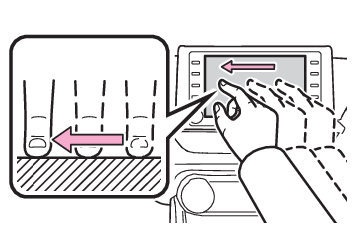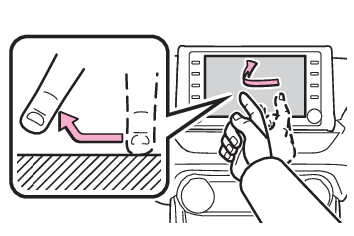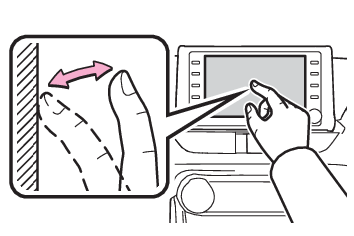
Touch screen Touch screen Touch screen gestures Touch screen gestures Operations are performed by touching the touch screen directly with your finger.
Operation method Outline Main use
Touch Quickly touch and release once. Selecting an item on the screen
Drag* Touch the screen with your finger, and move the screen to the desired position. Scrolling the lists
Flick* Quickly move the screen by flicking with your finger. Scrolling the main screen page
*0The above operations may not be performed on all screens.
Note: Flick operations may not be performed smoothly at high altitudes.
Touch screen Touch screen operation Touch screen operation This system is operated mainly by the buttons on the screen. (Referred to as screen buttons in this manual.) When a screen button is touched, a beep sounds. (To set the beep sound: General settings) Note: If the system does not respond to touching a screen button, move your finger away from the screen and then touch it again. Dimmed screen buttons cannot be operated. The displayed image may become darker and moving images may be slightly distorted when the screen is cold. In extremely cold conditions, the screen may not be displayed and the data input by a user may be deleted. Also, the screen buttons may be harder than usual to depress. When you look at the screen through polarized material such as polarized sunglasses, the screen may be dark and hard to see. If so, look at the screen from different angles, adjust the screen settings on the display settings screen or take off your sunglasses. When is displayed on the screen, select to return to the previous screen. Notice: To prevent damaging the screen, lightly touch the screen buttons with your finger. Do not use objects other than your finger to touch the screen. Wipe off fingerprints using a glass cleaning cloth. Do not use chemical cleaners to clean the screen, as they may damage the touch screen. Capacitive touch screen buttons The operable areas of the capacitive touch screen buttons use capacitive touch sensors and may not operate properly in the following situations: If the screen is dirty or wet If a source of strong electromagnetic waves is brought near the screen If a glove is worn during operation If the screen is touched by a fingernail If a stylus is used to operate the buttons If your palm touches the operable area of another button during operation If a button is touched quickly If the operable part of a capacitive touch screen button is touched by or covered with a metal object, such as the following, it may not operate properly: Magnetic isolation cards Metallic foil, such as the inner packaging of a cigarette box Metallic wallets or bags Coins Discs, such as a CD or DVD If the operable part of a capacitive touch screen button is wiped, it may operate unintentionally. If the capacitive touch screen button is being touched when the engine switch is changed to ACC or ON, the button may not operate properly. In this case, remove anything touching the button, turn the engine switch off and then turn it to ACC or ON, or restart the system by press and hold the “ POWER VOLUME” knob for 3 seconds or more. Note: Capacitive touch screen button sensor sensitivity can be adjusted. (General settings)