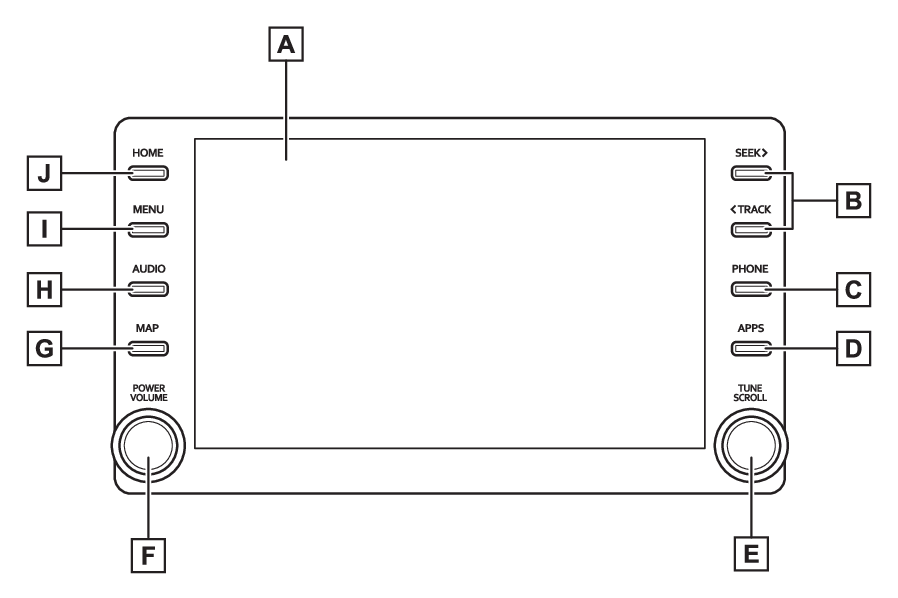
Entune Audio buttons overviewAUDIO buttonButtons overview**Vehicles with Entune Audio onlyFor details about Entune Audio Plus or Entune Premium
Audio, refer to “
Navigation and Multimedia System Owner’s Manual”.Operations of each partBy touching the screen with your finger, you can control the selected functions. (Touch screen gestures, Touch screen operation)Press to seek up or down for a radio station or to access a desired track/file. (AM/FM radio, USB memory, iPod/iPhone, Bluetooth® audio)Press to access the Bluetooth® hands-free system. (Quick reference)When an Apple CarPlay connection is established, press to display the Phone app screen.*1, 2Press to display the Toyota Entune App Suite Connect screen.*2 (Toyota Entune App Suite Connect)Turn to change the radio station or skip to the next or previous track/file. (AM/FM radio, USB memory, iPod/iPhone, Bluetooth® audio)Press to turn the audio/visual system on and off, and turn it to adjust the volume.
Press and hold to restart the system. (Restarting the system, Turning the system on and off)When an Apple CarPlay connection is established, press to display the Maps app screen.*1, 2Press to display the audio/visual system screen. (Quick reference, Selecting an audio source)Press to display the “
Menu” screen. (Menu screen)Press to display the home screen. (Home screen)*1For details about Apple CarPlay: Apple CarPlay**2This function is not made available in some countries or areas. The Toyota Entune
App Suite Connect screen may not be displayed when an Apple CarPlay connection is
established.Warning:For safety, the driver should not operate the system while he/she is driving. Insufficient
attention to the road and traffic may cause an accident.Note:The screen shots in this document and the actual screens of the system differ depending
on whether the functions and/or a contract existed.