Head-up displayDisplay
Head-up displayHead-up display**If equippedThe head-up display is linked to the meters and navigation system (if equipped) and
projects a variety of information in front of the driver, such as the current vehicle
speed and route guidance to a set destination.Head-up display
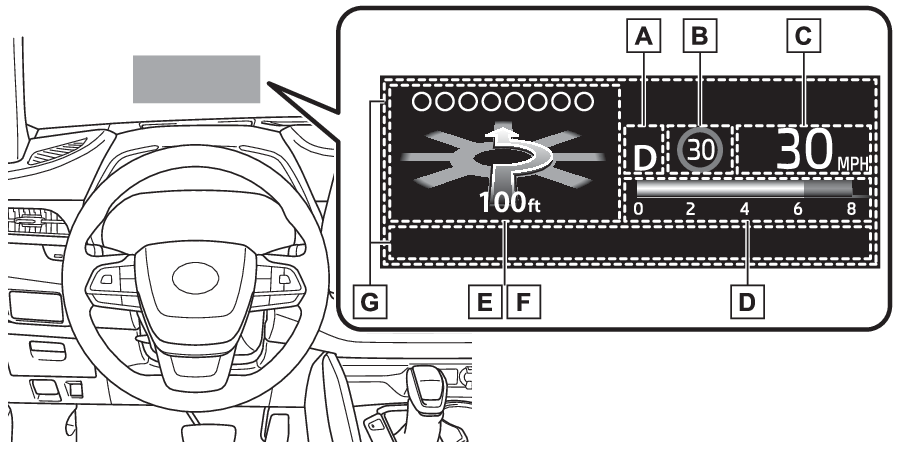
Driving information display areaSystem componentsIllustrations used in this text are intended as examples, and may differ from the
image that is actually displayed by the head-up display.Shift position display (Automatic transmission)Speed limit/RSA (Road Sign Assist) display areaDisplays the following items:Speed limit of the current road (linked to the navigation system) (U.S.A. only)RSA (Road Sign Assist) display (if equipped) (RSA (Road Sign Assist)*)Vehicle speed display areaEco Driving Indicator/Tachometer/Outside temperature (Eco Driving Indicator/Tachometer/Outside temperature)Navigation system-linked display area (if equipped) (Navigation system-linked display area (if equipped))Displays the following items, which are linked to the navigation system:Route guidance to destinationStreet nameCompass (heading-up display)Driving assist system status display area (Driving assist system status display area)Message display area (Message display area)The following pop-up displays will be displayed in certain situations:Warning/messageHands-free system statusAudio system operation statusNote:Head-up display will operate whenThe engine switch is in ON.When using the head-up displayThe head-up display may seem dark or hard to see when viewed through sunglasses, especially
polarized sunglasses. Adjust the brightness of the head-up display or remove your
sunglasses.Outside temperature displayIf the outside temperature becomes approximately 37°F (3°C) or lower, the low outside
temperature indicator will flash for 10 seconds then the low outside temperature indicator
and outside temperature display will turn off. The low outside temperature indicator
will operate again if the outside temperature becomes approximately 41°F (5°C) or
more and then decreases to 37°F (3°C) or lower.Warning:Before using the head-up displayCheck that the position and brightness of the head-up display image does not interfere
with safe driving. Incorrect adjustment of the image’s position or brightness may
obstruct the driver’s view and lead to an accident, resulting in death or serious
injury.Do not continuously look at the head-up display while driving as you may fail to see
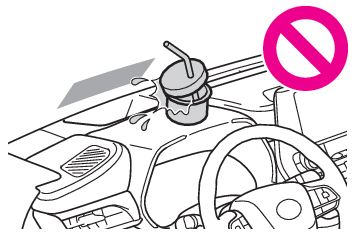
pedestrians, objects on the road, etc. ahead of the vehicle.Notice:To prevent damage to componentsDo not place any drinks near the head-up display projector. If the projector gets
wet, electrical malfunctions may result.Do not place anything on or put stickers onto the head-up display projector. Doing
so could interrupt head-up display indications.Do not touch the inside of the head-up display projector or thrust sharp edges or
the like into the projector. Doing so could cause mechanical malfunctions.Using the head-up displayHead-up display
SettingsChanging settings of the head-up displaySelect
on the multi-information display (Customizable features) and then “HUD”.Enabling/disabling the head-up displayPress
to enable/disable the head-up display.Changing the head-up display settingsPress and hold
to display the following settings.HUD Brightness/PositionSelect to adjust the brightness and vertical position of the head-up display.HUD Driving SupportTachometer SettingsBlank/Eco Indicator/TachometerSelect to change the display to blank (no display)/Eco Driving Indicator/tachometer.Select to enable/disable the following items:Navigation (if equipped)Driving AssistCompass (if equipped)AudioHUD RotationSelect to adjust the angle of the head-up display.Press the
or
switch to adjust the angle of the head-up display.Note:Enabling/disabling of the head-up displayIf the head-up display is disabled, it will remain disabled when the engine switch
is turned off then back to ON.Display brightnessThe brightness of the head-up display can be adjusted on
of the multi-information display. Also, it is automatically adjusted according to
the ambient brightness.Automatic adjustment of the head-up display position (vehicles with driving position
memory)A desired head-up display position can be entered to memory and recalled automatically
by the driving position memory system. (Driving position memory*)When the battery is disconnectedThe customize settings of the head-up display will be reset.CustomizationSome functions can be customized. (Customization)Warning:Caution for changing settings of the head-up displayAs the engine needs to be running while changing the settings of the head-up display,
ensure that the vehicle is parked in a place with adequate ventilation. In a closed
area such as a garage, exhaust gases including harmful carbon monoxide (CO) may collect
and enter the vehicle. This may lead to death or a serious health hazard.Notice:When changing the settings of the head-up displayTo prevent battery discharge, ensure that the engine is running while the changing
the settings of the head-up display.Eco Driving Indicator/Tachometer/Outside temperatureHead-up display
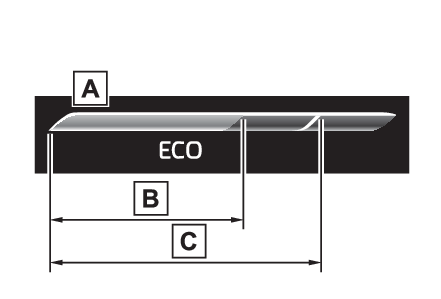
Eco Driving IndicatorEco Driving IndicatorEco Driving IndicatorEco Driving Indicator Zone DisplayEco driving ratio based on accelerationZone of Eco drivingDisplayed content is the same as that displayed on the multi-information display (Eco
Driving Indicator). For details, refer to Multi-information display (12.3-inch display).TachometerDisplays the engine speed in revolutions per minute.Outside temperatureDisplayed in the following situations:When the engine switch is turned to ON (Displayed for approximately 10 seconds)When the low outside temperature indicator is flashingDisplayed content is the same as that displayed on the multi-information display.
For details, refer to the explanation of the outside temperature display on the multi-information
display. (Outside temperature display)Head-up display
Navigation system-linked displayNavigation system-linked displayNavigation system-linked display area (if equipped)Displays the following navigation system linked items:(Refer to “MULTIMEDIA OWNER’S MANUAL”.)Route guidance to destinationDisplayed when the navigation system is performing route guidance. When approaching
an intersection, an arrow indicating the suggested direction of travel will be displayed.Street nameDepending on the situation, the names of the streets of an approaching intersection
will be displayed.Compass (heading-up display)Displays the direction of travel.Note:Street name display (vehicles with a navigation system)Depending on the situation, such as when no information is available in map data,
etc., the street names of an intersection may not be displayed.Driving assist system status display areaDisplays the operational status of the following systems:LTA (Lane Tracing Assist) (LTA (Lane Tracing Assist))Dynamic radar cruise control with full-speed range (Dynamic radar cruise control with full-speed range)PCS (Pre-Collision System) (PCS (Pre-Collision System))Parking Support Brake function (for static objects) (if equipped) (Parking Support Brake function (static objects)*)Intuitive parking assist (if equipped) (Intuitive parking assist*)Drive-Start Control (Sudden start restraint control (Drive-Start Control [DSC]))Brake Override System (Restraining the engine output (Brake Override System))Displayed content is the same as that displayed on the multi-information display.
For details, refer to the explanations of each system./
iconsDisplays the following multi-information display linked icons and a message:: Master warning iconDisplayed when a warning message is displayed on the multi-information display. (If a warning message is displayed): Information iconDisplayed when a suggestion/advice pop-up display is displayed on the multi-information
display. (Suggestion function)Message display areaDepending on the situation, the following will be displayed:Warning/MessageDepending on the situation, a warning message or other message will be displayed.Warning messagesCertain warning messages can be displayed.Pop-up displaysWhen the driving assist system operates, some of the information displayed on the
multi-information display will be displayed on the head-up display as a pop-up display.Hands-free system statusDisplayed when the hands-free system is operated.(Refer to “MULTIMEDIA OWNER’S MANUAL”.)Audio system operation statusDisplayed when the audio system is operated.(Refer to “MULTIMEDIA OWNER’S MANUAL”.)Note:Pop-up displaysDepending on the pop-up display, the currently displayed item in the message display
area may be temporarily not displayed. The item will be displayed after the pop-up
display is no longer displayed.