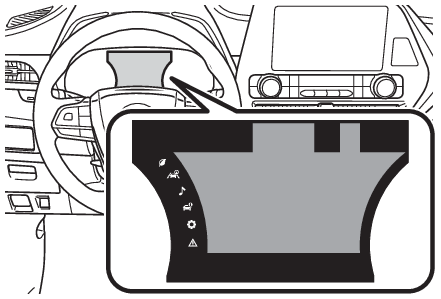
Multi-information display (7-inch display) Display and menu icons Multi-information display Pop-up display Display The multi-information display presents the driver with a variety of driving-related information. Warning or suggestion/advice pop-up displays are also displayed in certain situations. Multi-information display Menu icons Menu iconsMenu icons Select a menu icon to display its content.
Driving information display (Driving information display)
Driving support system information display (Driving support system information display)
Audio system-linked display (Audio system-linked display)
Vehicle information display (Vehicle information display)
Settings display (Settings display)
Warning message display (Warning message display)
Note: Liquid crystal display Small spots or light spots may appear on the display. This phenomenon is characteristic of liquid crystal displays, and there is no problem continuing to use the display. Warning: Caution for use while driving When operating the multi-information display while driving, pay extra attention to the safety of the area around the vehicle. Do not look continuously at the multi-information display while driving as you may fail to see pedestrians, objects on the road, etc. ahead of the vehicle. The information display at low temperatures The information display at low temperatures
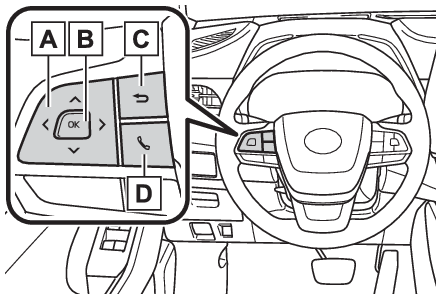
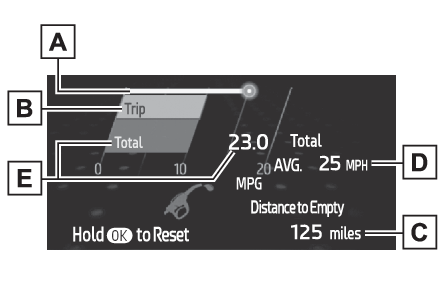
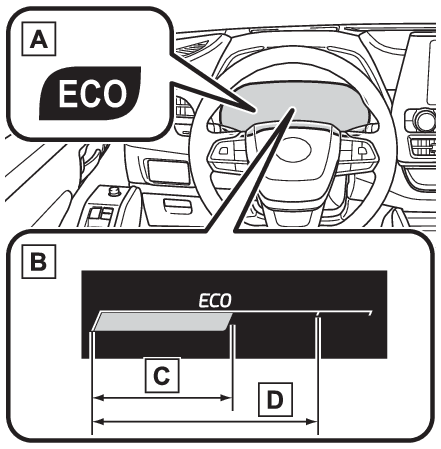
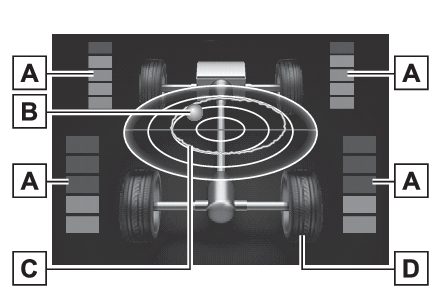
Switches Meter control switches Multi-information display Meter control switches Meter Meter control switches Steering wheel Meter control switches Changing the meter display The multi-information display is operated using the meter control switches. Scroll screens*, change the displayed content* and move the cursor Press: Enter/SetPress and hold: Reset/Display customizable items Return to the previous screen Call sending/receiving and history display Linked with the hands-free system, sending or receiving call is displayed. For details regarding the hands-free system, refer to the “MULTIMEDIA OWNER’S MANUAL”. *On screens where the screen can be scrolled and the display can be switched, a scroll bar or a round icon that shows the number of registered screens is displayed. Multi-information display Driving information display Driving information displayDriving information display ( ) Multi-information display Fuel economy Fuel economy Current fuel consumption Average fuel economy Driving range Fuel consumption Current fuel consumption Fuel consumption Average fuel economy Fuel economy Use the displayed values as a reference only. Current fuel consumption Displays the instantaneous current fuel consumption. Average fuel economy (after start) Displays the average fuel consumption since engine start.*1 Driving range Displays the driving range with remaining fuel. This distance is computed based on your average fuel consumption. As a result, the actual distance that can be driven may differ from that displayed. When only a small amount of fuel is added to the tank, the display may not be updated.When refueling, turn the engine switch off. If the vehicle is refueled without turning the engine switch off, the display may not be updated. When “Refuel” is displayed, the remaining fuel amount is low and the distance that can be driven with the remaining fuel cannot be calculated.Refuel immediately. Gadget*2 The following items can be displayed by changing the settings for gadget content and fuel economy type on . (Settings display) Other Blank: No item Average vehicle speed After start: Displays average vehicle speed since engine start After reset: Displays average vehicle speed since the display was reset*3 Distance After start: Displays the distance driven since vehicle start. After reset: Displays the distance driven since the display was reset*3 Elapsed time After start: Displays elapsed time since engine start After reset: Displays elapsed time since the display was reset*3 Average fuel economy Displayed item (listed below) can be changed on the fuel economy type screen of . (Settings display) Total (after reset) Displays the average fuel consumption since the display was reset.*1, 3 Tank (after refuel) Displays the average fuel consumption since the vehicle was refueled.*1 When only a small amount of fuel is added to the tank, the display may not be updated.When refueling, turn the engine switch off. If the vehicle is refueled without turning the engine switch off, the display may not be updated. *1Use the displayed fuel consumption as a reference only. *2The default setting is no display. *3This display can be reset by pressing and holding while it is displayed. Multi-information display Eco Driving Indicator Eco Driving Indicator Eco Driving Indicator Light Driving rangeEco Driving Indicator/Driving range Eco Driving Indicator Eco Driving Indicator Light During Eco-friendly acceleration (Eco driving), the Eco Driving Indicator Light will turn on. When the acceleration exceeds the Zone of Eco driving, or when the vehicle is stopped, the light turns off. Eco Driving Indicator Zone Display Suggests the Zone of Eco driving with current Eco driving ratio based on acceleration. Eco driving ratio based on acceleration If the acceleration exceeds the Zone of Eco driving, the right side of the Eco Driving Indicator Zone Display will illuminate. Zone of Eco driving Driving range Displays driving range with remaining fuel. Use the displayed values as a reference only. This distance is computed based on your average fuel consumption. As a result, the actual distance that can be driven may differ from that displayed. When only a small amount of fuel is added to the tank, the display may not be updated.When refueling, turn the engine switch off. If the vehicle is refueled without turning the engine switch off, the display may not be updated. When “Refuel” is displayed, the remaining fuel amount is low and the distance that can be driven with the remaining fuel cannot be calculated.Refuel immediately. Speedometer display (digital speed)/Driving range Speedometer display (digital speed) Meter settings Driving range Displays driving range with remaining fuel. Use the displayed values as a reference only. This distance is computed based on your average fuel consumption. As a result, the actual distance that can be driven may differ from that displayed. When only a small amount of fuel is added to the tank, the display may not be updated.When refueling, turn the engine switch off. If the vehicle is refueled without turning the engine switch off, the display may not be updated. When “Refuel” is displayed, the remaining fuel amount is low and the distance that can be driven with the remaining fuel cannot be calculated.Refuel immediately. Note: Eco Driving Indicator Eco Driving Indicator will not operate under the following conditions: The shift lever is in any position other than D. The driving mode is set to sport mode. The vehicle speed is approximately 80 mph (130 km/h) or higher. Multi-information display Driving support system information display Driving support system information display Multi-information display Navigation system-linked display Navigation system-linked displayDriving support system information display ( ) Driving support system information Select to display the operational status of the following systems: LTA (Lane Tracing Assist) (LTA (Lane Tracing Assist)) RSA (Road Sign Assist) (if equipped) (RSA (Road Sign Assist)*) Dynamic radar cruise control with full-speed range (Dynamic radar cruise control with full-speed range) Navigation system-linked display (if equipped) Select to display the following navigation system-linked information: Route guidance to destination Compass display (heading-up display) Note: Route guidance to destination display When the route guidance to destination display is enabled on the head-up display, it will not be displayed on the multi-information display. (Changing the head-up display settings) Multi-information display Audio system-linked display Audio system-linked displayAudio system-linked display ( ) Select to enable selection of an audio source or track on the meter using the meter control switches. This menu icon can be set to be displayed/not displayed in . Multi-information display Vehicle information display Drive information Vehicle information display Average vehicle speed Elapsed time Drive distanceVehicle information display ( ) Multi-information display Tire pressure Tire pressure Tire pressure warning system Multi-information display AWD Control AWD ControlAWD Control (if equipped) The illustration used is intended as an example, and may differ from the image that is actually displayed on the multi-information display. Torque distribution display Displays the drive status of each wheel in 6 steps from 0 to 5. G-force display* Displays the size and direction of the G-force applied to the vehicle via changes to the position of the ball on the display. Maximum G-force course* This item is linked with the G-force display and the course of the past movement of the ball is displayed. Press and hold to reset the record. Wheel spin display When a tire is spinning, its icon on the display changes its color and blinks. *This item is displayed only when driving mode is set to sport mode. Multi-information display Driving support system Safety system status Enable/Disable the following systems: PCS (Pre-Collision system) (PCS (Pre-Collision System)) Intuitive parking assist (if equipped) (Intuitive parking assist*) BSM (Blind Spot Monitor) (BSM (Blind Spot Monitor)*) RCTA (Rear Cross Traffic Alert) (RCTA (Rear Cross Traffic Alert) function*) Note: Tire pressure It may take a few minutes to display the tire inflation pressure after the engine switch is turned to ON. It may also take a few minutes to display the tire inflation pressure after inflation pressure has been adjusted. “---” may be displayed if the tire position information cannot be determined due to unfavorable radio wave conditions. Tire inflation pressure changes with temperature. The displayed values may also be different from the values measured using a tire pressure gauge. Multi-information display Settings Meter Settings Language (multi-information display)Settings display ( ) Changing settings Use the meter control switches on the steering wheel to change settings. Press or of the meter control switch to select . Press or of the meter control switch to select the desired item to be customized. Press or press and hold . The available settings will differ depending on if is pressed or pressed and held. Follow the instructions on the display. Setting items LTA (Lane Tracing Assist) (LTA (Lane Tracing Assist)) Press and hold to change the settings of the following items: “Lane Center” Select to enable/disable the lane centering function. “Sensitivity” Select to set the warning sensitivity. “Sway Warning” Select to enable/disable the vehicle sway warning. “Sway Sensitivity” Select to set the vehicle sway warning sensitivity. PCS (Pre-Collision System) (PCS (Pre-Collision System)) Press to enable/disable the pre-collision system. PCS (Pre-Collision System) on/off Select to enable/disable the pre-collision system. Press and hold to change the settings of the following item: “Sensitivity” Select to change the pre-collision warning timing. DRCC (Dynamic Radar Cruise Control with full-speed range) (Dynamic radar cruise control with full-speed range) Press and hold to change the settings of the following items: “Curve Speed Reduction” (Curve speed reduction function) Select to set the curve speed reduction function strength. BSM (Blind Spot Monitor) (BSM (Blind Spot Monitor)*) Press to enable/disable the Blind Spot Monitor function. BSM (Blind Spot Monitor) on/off Select to enable/disable the Blind Spot Monitor function. Press and hold to change the settings of the following items: “Brightness” Select to switch the brightness of the outside rear view mirror indicators. (System components) “Sensitivity” Select to change the alert timing for an approaching vehicle. Intuitive parking assist (if equipped) (Intuitive parking assist*) Press to enable/disable the Intuitive parking assist. Intuitive parking assist on/off Select to enable/disable the Intuitive parking assist. Press and hold to change the settings of the following item: “Volume” Select to set the volume of the buzzer which sounds when the Intuitive parking assist is operated. RCTA (Rear Cross Traffic Alert) (RCTA (Rear Cross Traffic Alert) function*) Press to enable/disable the RCTA function. RCTA on/off Select to enable/disable the RCTA function. Press and hold to change the settings of the following item: “Volume” Select to change the volume of the RCTA buzzer. PKSB (Parking Support Brake) (if equipped) (PKSB (Parking Support Brake)*) Press to enable/disable the Parking Support Brake function. HUD (Head-up display) (if equipped) (Head-up display*) Press to enable/disable the head-up display. HUD (Head-up display) on/off Select to enable/disable the head-up display. Press and hold to change the settings of the following items: “HUD Brightness/Position” Select to adjust the brightness/position of the head-up display. “HUD Driving Support” Select to change the displayed head-up display driving support item. “HUD Rotation” Select to adjust the angle of the head-up display. RSA (Road Sign Assist) (if equipped) (RSA (Road Sign Assist)*) Press to enable/disable the Road Sign Assist. RSA (Road Sign Assist) on/off Select to enable/disable the Road Sign Assist. Press and hold to change the settings of the following items: “Notification Method” Select to change each notification method used to notify the driver when the system recognizes excess speed and no-entry sign. “Notification Level” Select to change each notification level used to notify the driver when the system recognizes a speed limit sign. Vehicle settings Press and hold to change the settings of the following items: PBD (Power Back Door) (Back door) “System Settings” Select to enable/disable the power back door system. “Kick Sensor”* Select to enable/disable the kick sensor. “Opening Adjustment” Select the open position when power back door is fully open. “Volume” Select to set the volume of the buzzer which sounds when the power back door system operates. *Vehicles with a hands free power back door (Stop & Start) (if equipped) (Stop & Start system*) Select to set the length of time the Stop & Start system will operate when the “A/C” switch of the air conditioning system is on. “TPWS” (Tire Pressure Warning System) (Tire pressure warning system) “Set Pressure” (tire pressure warning system initialization) Select to initialize the tire pressure warning system. “Change Wheel” (register tire pressure warning system sensor ID codes) Select to register the ID codes of the tire pressure sensors to the tire pressure warning system. “Rear Seat Reminder” (Rear seat reminder function) Select to enable/disable the rear seat reminder. “Scheduled Maintenance” (Maintenance requirements) Select to reset the scheduled maintenance information (maintenance required message and distance until maintenance necessary) after all maintenance is performed. “Oil Maintenance” (Checking and adding the engine oil) Select to reset the oil maintenance information (maintenance required message and distance until maintenance necessary) after an oil change is performed. Meter settings Press and hold to change the settings of the following items: Language Select to change the language displayed. Units Select to change the units of measure displayed. Eco Driving Indicator Light (Eco Driving Indicator/Driving range) Select to enable/disable the Eco Driving Indicator Light. Speedometer display (digital speed) Select to enable/disable the speedometer display. Gadget content Select to turn the display of a gadget. Fuel economy type Select to change the average fuel consumption display and an item to be displayed as gadget. Pop-up display Select to enable/disable pop-up displays for each relevant system. Multi-information display off Displays a blank screen. Default setting Select to reset the meter display settings to the default setting. Vehicle functions and settings that can be changed Customizable features Note: Background color of the indicator/shift position display area The background color of the indicator/shift position display area is changed according to the driving mode as follows (Driving mode select switch): Eco drive mode: Blue Sport mode: Red Suspension of the settings display Some settings cannot be changed while driving. When changing settings, park the vehicle in a safe place. If a warning message is displayed, operation of the settings display will be suspended. Pop-up displays Depending on the pop-up display, the currently displayed item in the message display area may be temporarily not displayed. The item will be displayed after the pop-up display is no longer displayed. Warning: Cautions during setting up the display As the engine needs to be running during setting up the display, ensure that the vehicle is parked in a place with adequate ventilation. In a closed area such as a garage, exhaust gases including harmful carbon monoxide (CO) may collect and enter the vehicle. This may lead to death or a serious health hazard. Notice: During setting up the display To prevent battery discharge, ensure that the engine is running while setting up the display features. Multi-information display Warning message Warning messageWarning message display ( ) Select to display warning messages and measures to be taken if a malfunction is detected. (If a warning message is displayed) Multi-information display Suggestion function Suggestion functionSuggestion function Displays suggestions to the driver in the following situations. To select a response to a displayed suggestion, use the meter control switches. Suggestion to turn off the headlights If the headlights are left on for a certain amount of time after the engine switch has been turned off, if the headlight switch is in the “AUTO” position, a suggestion message will be displayed asking if you wish to turn the headlights off. To turn the headlights off, select “Yes”. If the driver's door is opened after the engine switch is turned off, this suggestion message will not be displayed. Note: Customization Some functions can be customized. (Customizable features)