Meter
MetersGaugesGauges and meters (7-inch display)Meter displayEngine coolant temperature gaugeOutside temperatureEngine
TachometerTachometerSpeedometerMeter
ClockClockFuel
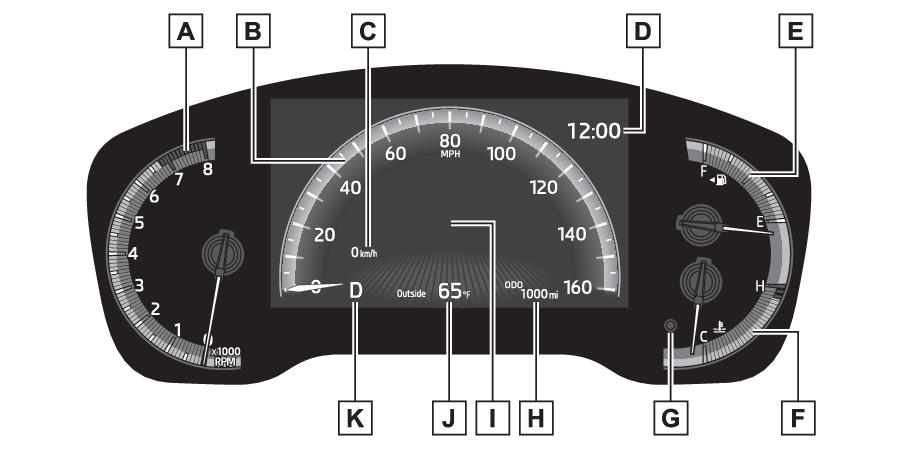
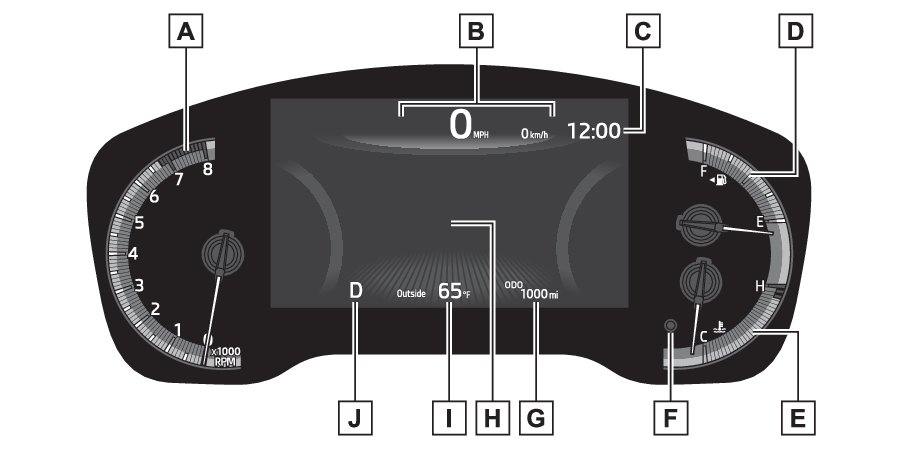
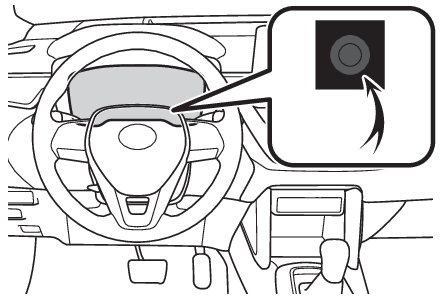
Fuel gaugeFuel gaugeLocations of gauges and metersAnalog speedometerThe units of measure may differ depending on the intended destination of the vehicle.TachometerDisplays the engine speed in revolutions per minuteSpeedometerSub speedometerClock (Adjusting the clock)Fuel gaugeDisplays the quantity of fuel remaining in the tankEngine coolant temperature gaugeDisplays the engine coolant temperatureDisplay change button (Odometer and trip meter display)Odometer and trip meter display (Odometer and trip meter display)Multi-information displayPresents the driver with a variety of vehicle data (Multi-information display)Displays warning messages if a malfunction occurs (If a warning message is displayed)Outside temperatureDisplays the outside temperature within the range of -40°F (-40°C) to 140°F (60°C)Shift position indicator (Continuously variable transmission)Digital speedometerThe units of measure may differ depending on the intended destination of the vehicle.TachometerDisplays the engine speed in revolutions per minuteSpeedometerClock (Adjusting the clock)Fuel gaugeDisplays the quantity of fuel remaining in the tankEngine coolant temperature gaugeDisplays the engine coolant temperatureDisplay change button (Odometer and trip meter display)Odometer and trip meter display (Odometer and trip meter display)Multi-information displayPresents the driver with a variety of vehicle data (Multi-information display)Displays warning messages if a malfunction occurs (If a warning message is displayed)Outside temperatureDisplays the outside temperature within the range of -40°F (-40°C) to 140°F (60°C)Shift position indicator (Continuously variable transmission)Note:Outside temperature displayIn the following situations, the correct outside temperature may not be displayed,
or the display may take longer than normal to change:When stopped, or driving at low speeds (less than 16 mph [25 km/h])When the outside temperature has changed suddenly (at the entrance/exit of a garage,
tunnel, etc.)When “--” or “E” is displayed, the system may be malfunctioning. Take your vehicle
to your Toyota dealer.Liquid crystal displayLiquid crystal displayCustomizationThe gauges and meters can be customized in
of the multi-information display. (Meter display settings that can be changed)Warning:The information display at low temperaturesAllow the interior of the vehicle to warm up before using the liquid crystal information
display. At extremely low temperatures, the information display monitor may respond
slowly, and display changes may be delayed.For example, there is a lag between the driver’s shifting and the new gear number
appearing on the display. This lag could cause the driver to downshift again, causing
rapid and excessive engine braking and possibly an accident resulting in death or
injury.Notice:To prevent damage to the engine and its componentsDo not let the indicator needle of the tachometer enter the red zone, which indicates
the maximum engine speed.The engine may be overheating if the engine coolant temperature gauge is in the red
zone (H). In this case, immediately stop the vehicle in a safe place, and check the
engine after it has cooled completely. (If your vehicle overheats)OdometerTrip metersOdometer and trip meter displaySwitches
Display change buttonDisplay change buttonOdometer and trip meter display
Display change buttonChanging the displayPress the display change button until the desired item is displayed.Odometer and trip meter display
Display itemsDisplay itemsOdometerDisplays the total distance the vehicle has been driven.Trip meter A/Trip meter BDisplays the distance the vehicle has been driven since the meter was last reset.
Trip meters A and B can be used to record and display different distances independently.To reset, display the desired trip meter and press and hold the display change button.Switches
Instrument panel light control switchesMeter
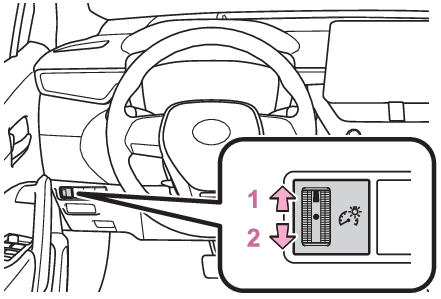
Instrument panel light controlInstrument panel light controlBrightness control
Instrument panel light controlChanging the instrument panel light brightnessThe brightness of the instrument panel lights can be adjusted.BrighterDarkerNote:Instrument panel light brightness adjustmentThe brightness of the instrument panel lights can be adjusted separately for when
the tail lights are on and off.Multi-information display
ClockClockAdjusting the clockClock adjustmentThe clocks on the following can be adjusted on the audio system screen.Multi-information displayAudio system screenSetting the clock to be adjusted automatically by GPS (Audio [for U.S.A.]/Audio Plus)Press the “MENU” button.Select “Setup” on the “Menu” screen.Select “General” on the “Setup” screen.Select “Clock”.Select “Auto Adjust by GPS” to set to on.Adjusting the clock manuallyAudio (except for U.S.A.)Press the “MENU” button.Select “Setup” on the “Menu” screen.Select “General” on the “Setup” screen.Select “Clock”.Adjust the displayed time.Hour: Select “-” or “+” of “Hours” to adjust the hour.Minute: Select “-” or “+” of “Minutes” to adjust the minute.“:00”: Select to set the clock to the beginning of the nearest hour.e.g.1:00 to 1:29 1:001:30 to 1:59 2:00Audio (for U.S.A.)/Audio PlusPress the “MENU” button.Select “Setup” on the “Menu” screen.Select “General” on the “Setup” screen.Select “Clock”.Select “Auto Adjust by GPS” to set to off.Adjust the displayed time.Hour: Select “-” or “+” of “Hours” to adjust the hour.Minute: Select “-” or “+” of “Minutes” to adjust the minute.“:00”: Select to set the clock to the beginning of the nearest hour.e.g.1:00 to 1:29 1:001:30 to 1:59 2:00Setting the time zone (Audio [for U.S.A.]/Audio Plus)Press the “MENU” button.Select “Setup” on the “Menu” screen.Select “General” on the “Setup” screen.Select “Clock”.Select “Time Zone”.Select the desired time zone.Setting daylight saving time (Audio [for U.S.A.]/Audio Plus)Press the “MENU” button.Select “Setup” on the “Menu” screen.Select “General” on the “Setup” screen.Select “Clock”.Select “Daylight Saving Time” then on/off.Changing the clock between 12-hour/24-hour formatPress the “MENU” button.Select “Setup” on the “Menu” screen.Select “General” on the “Setup” screen.Select “Clock”.Select “24-Hour Time Format” and then on/off.When set to off, the clock is displayed in 12 hour time format.Note:Clock settings screen (Audio [for U.S.A.]/Audio Plus)If “Clock : 00” is displayed when
is selected on the multi-information display, the system may be malfunctioning. Have
the vehicle inspected by your Toyota dealer.